

Create a new document, create a new layer, make selections then fill the color like this:
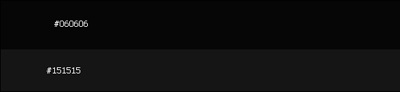
Create a new layer, use Rectangular Marquee Tool to make selection then fill it white white color.
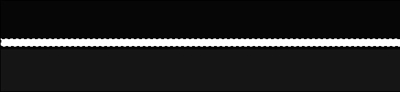
Blending Options for this layer:
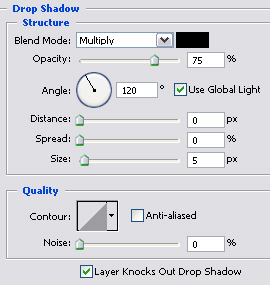
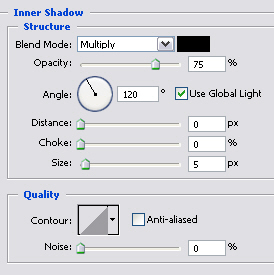
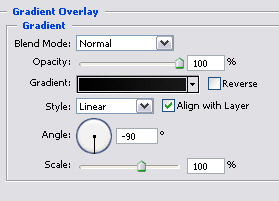
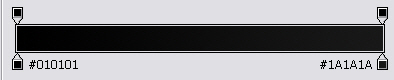
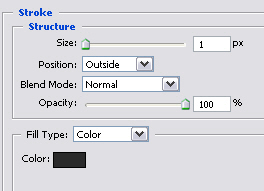
You will get:
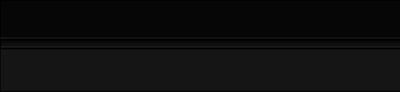
Create a new layer, use Rounded Rectangle Tool to make selection like this:
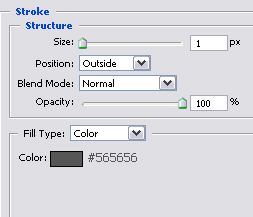
Blending Options for this layer:
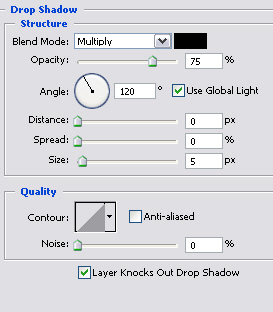
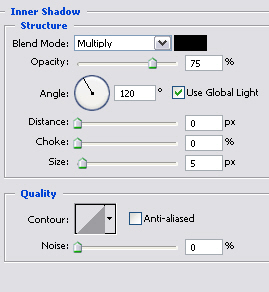
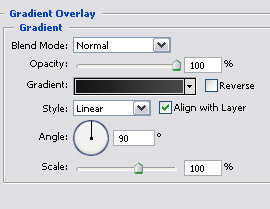

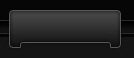
You will get the result like this:
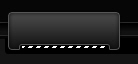
Create a new layer, use Rectangular Marquee Tool to make a selection then fill it with color #09E4F8 like the picture below:
Blending Options for this layer:
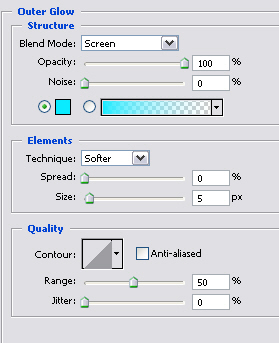
You will get:
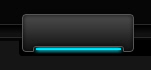
Create a new layer, Ctrl + Click on the button layer to get the selection, use Linear Gradient to drag like this:
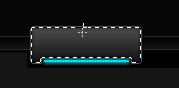
You will get:
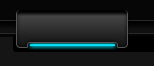
Create a new layer, make an Inset Line like the picture below:
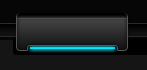
Add some details to button to make it looks better:
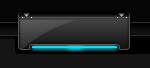
Duplicate the button then add text to each, you will get the final result:

