1. Create a new document, use Rectangular Marquee Tool to make a rectangle with round edge and fill it with black color
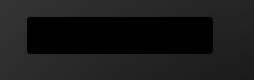
2. Go to Blending Options
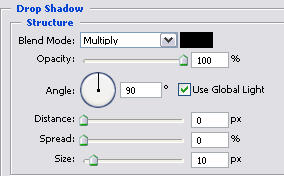
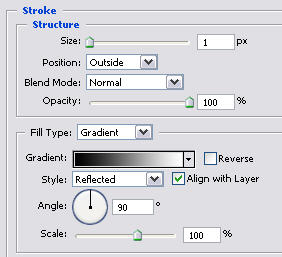
3. Create a new layer, use Rectangular Marquee Tool to make a smaller rectangular shape inside, with 2px gap between the inside and outside rectangles, fill the color and go to Blending Options
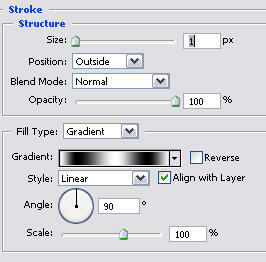
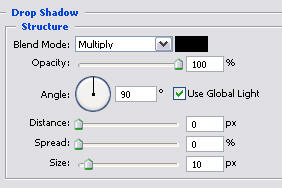
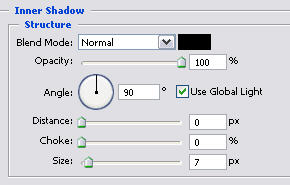
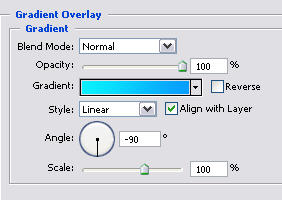
After that, you will get the result:
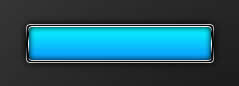
4. This step you will make up the button, use Linear Gradient with black color, selection 1px, you will get the result like this:
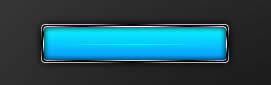
Customize your colors for gradient to look good
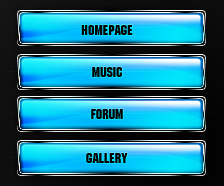
This is my final result: