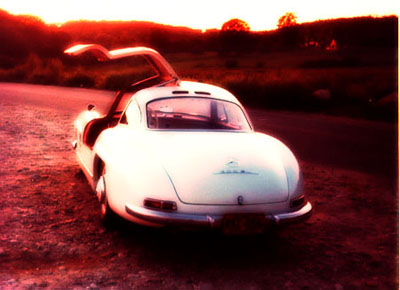
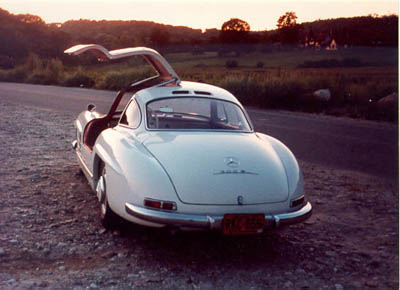
Start by opening any picture you want or use the picture I used:
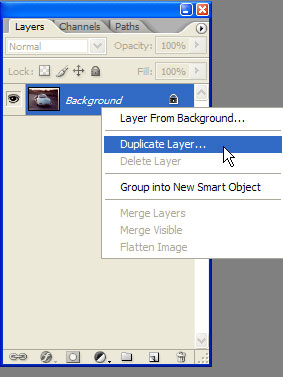
Now start by duplicating the layer for further editing.
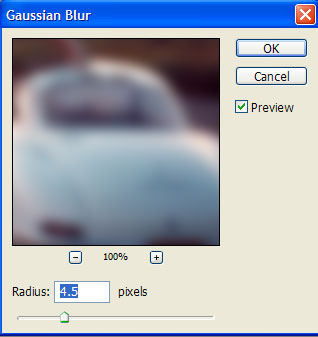
Now go to Filter>Blur>Gaussian Blur.
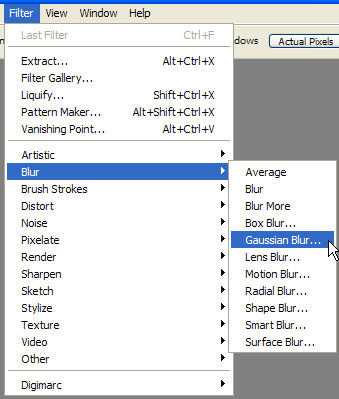
There set these values.
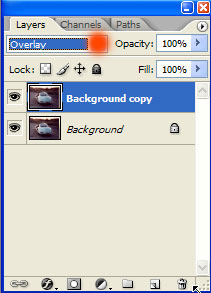
Now set the colour mode to overlay like in the picture below.
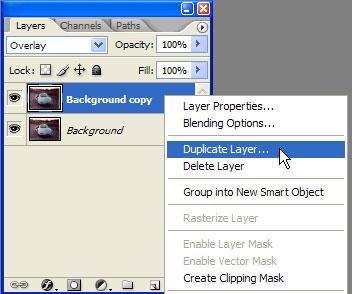
Duplicate the layer like in the picture.
Now the final step. Select the brush tool and make these settings.

Paint all the surface of the photo.And here is the final result!