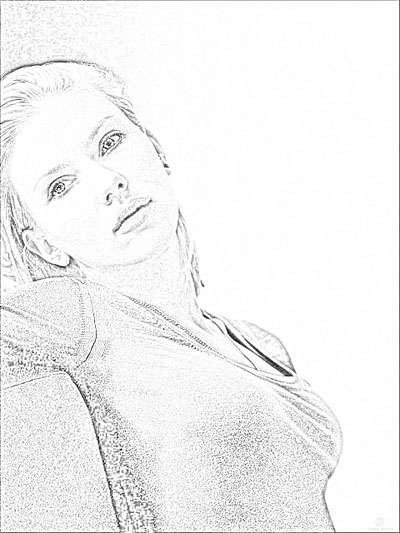
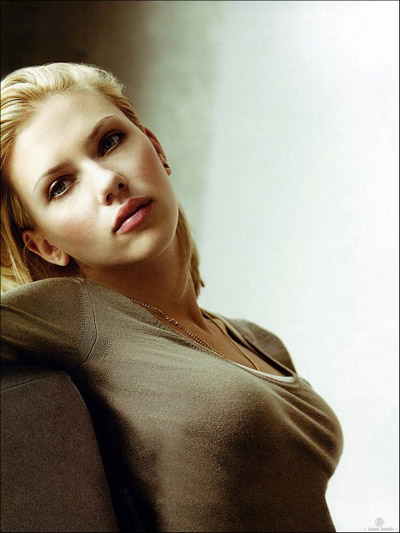
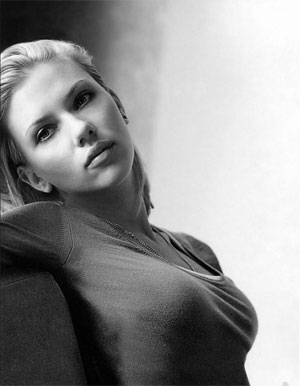
You can use the same photo I use.
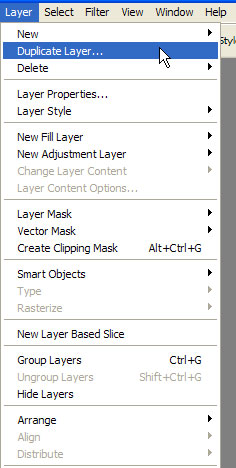
Start by duplicating the layer.
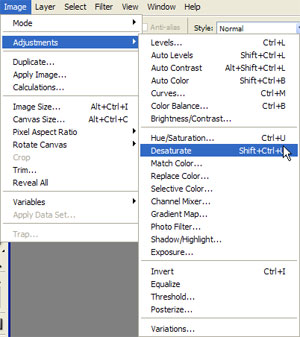
The desaturate it by going to Image>Adjustments>Desaturate or simply click Shift+Ctrl+U .
You should have this by now.
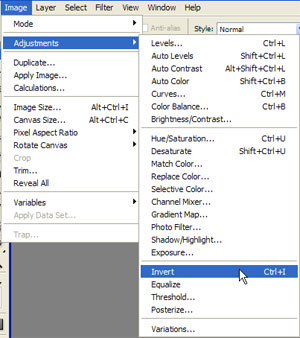
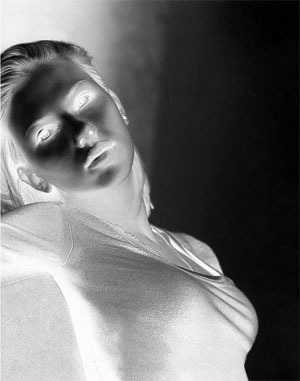
Now duplicate this layer and then go to Image>Adjustments>Invert or Ctrl+I .
You will obtain this.
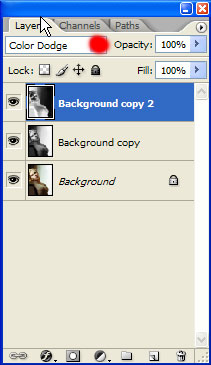
Select for this layer Color dodge like in the picture.
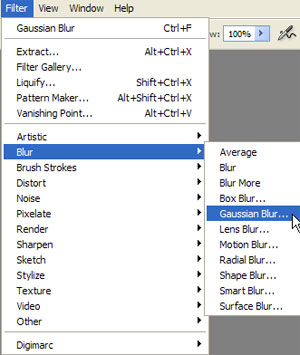
Now go to Filter>Blur>Gaussian Blur.
There set these values.
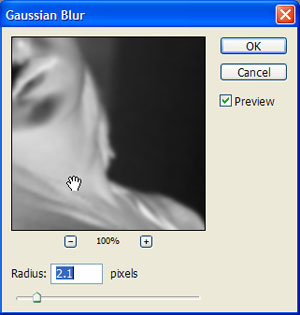
And you should obtain something like this.