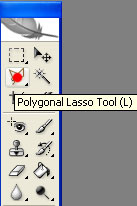
Open the picture using Adobe Photoshop.Then select the Polygonal Lasso tool(L) like in the picture.
Use the tool to copy the body of the Porsche. Then create a new layer(Ctrl + N) and paste the copied body.
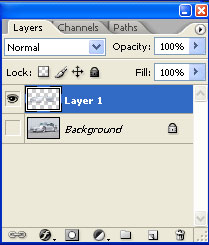
Select the "eye" next to the image to see only the body of the porsche now.Like in the picture below.
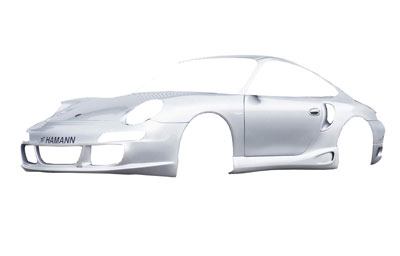
Now paint it like in the picture.
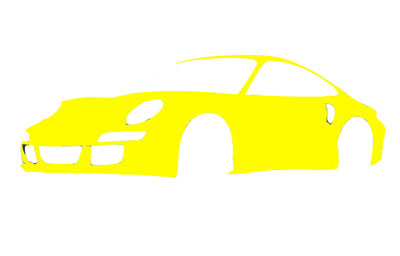
Now select again the "eye" next to the picture so that you can see both the painted body and the car.
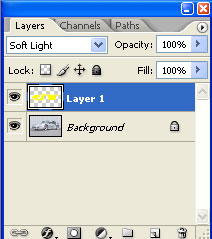
Now go to Layer>Layer style>Blending Options.
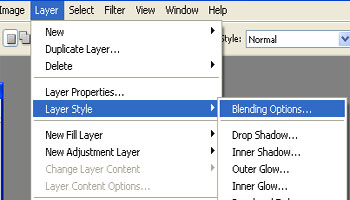
Then select Inner shadow and set these values.
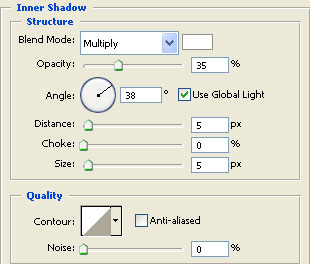
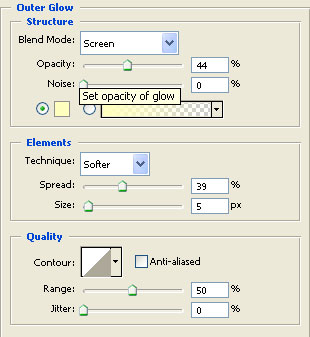
Now set these values to the Outer Glow.
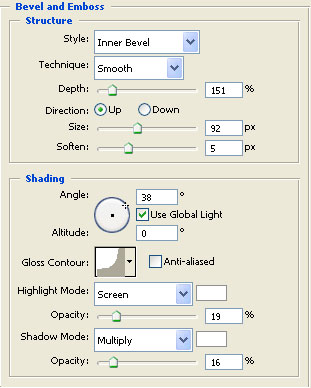
To the Bevel and emboss make this settings.
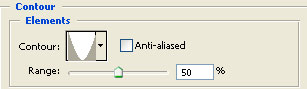
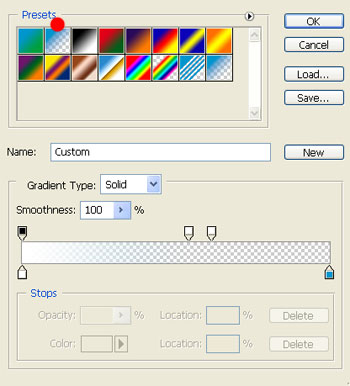
Select the gradient overlay and set these values.
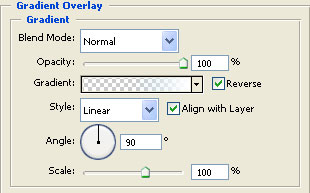
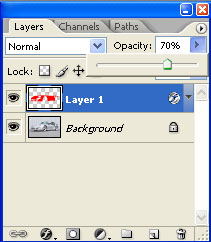
Select the opacity to the 70%.
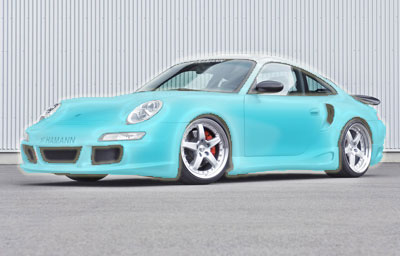
You should have it like this until now.
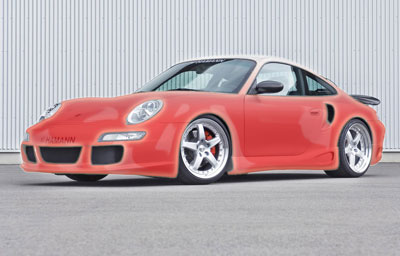
You can try using another colour like this one.