Create a new file (File>New), having 1280x1024 px and 72 dpi.
Choose the Rectangle Tool (U) to draw the background of the picture we want to get on the final stage:
Select the next parameters for the new made layer by making a mouse click on the processed layer on the layers' panel: Blending Options>Gradient Overlay
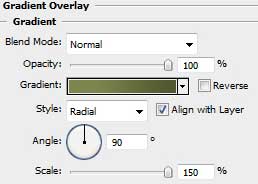
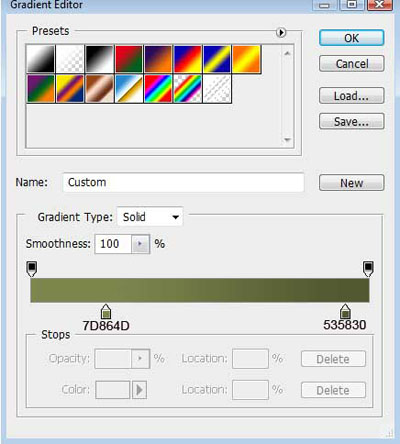
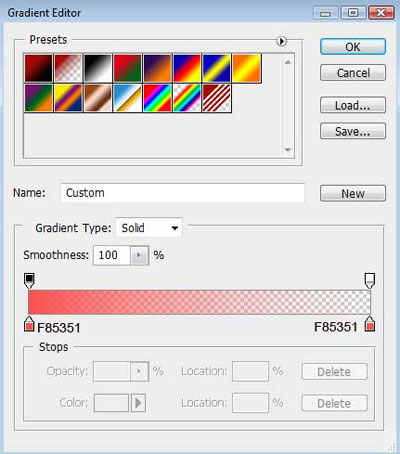
Gradient's parameters:

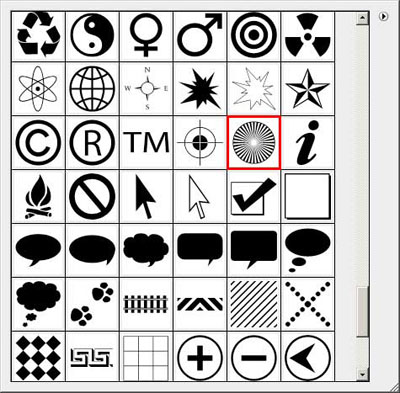
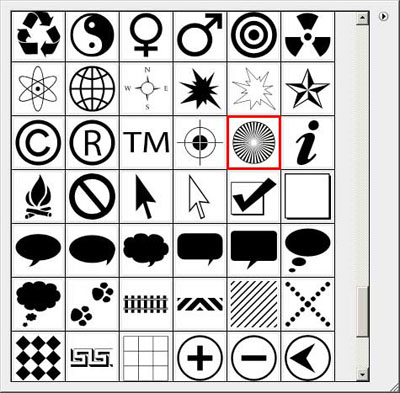
Select now the Custom Shape Tool (U) for drawing several rays colored with #595D35. Choose the appropriate pattern from the table demonstrated next picture.
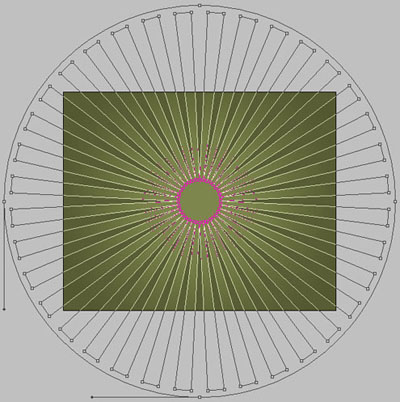
Use the last applied tool to draw a small star. Select the Convert Point Tool to represent the inside tops of the element. After that we shall use the Free Transform option to narrow them uniformly.


The layer's parameters: Blending Options>Drop Shadow
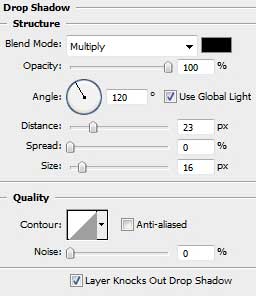

Make a mouse click on the same layer on the layers panel, choosing Drop Shadow option and then select Create layer option. The shadow will be represented on a separate layer.
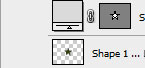
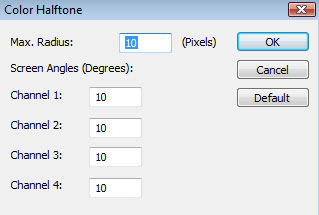
Create a new layer that will be situated above the shadow's layer (on the layers' panel). After that, select the Paint Bucket Tool (G) to paint it in white color. Press Ctrl button to mark out the shadow's layers and the white one, merging them together (Ctrl+E). Apply for the merged layers a new option: Filter>Pixelate>Color Halftone
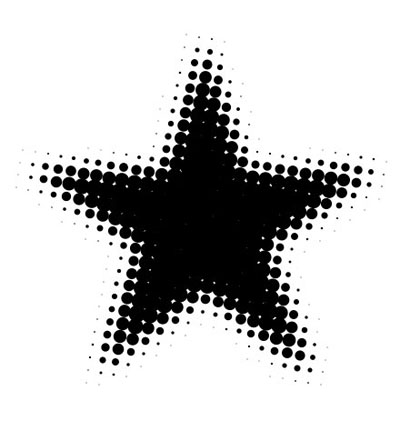
Mark out the white background, using Magic Wand Tool (W) and press Delete button.

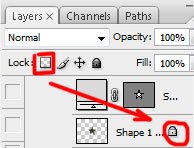
Now we shall choose Lock transparent pixels option by making a mouse click on the same layer we work with on the layers' panel.
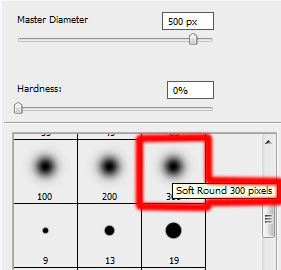
Select a standard brush to paint the shadow with the color #334110

Get back to the star's layer:

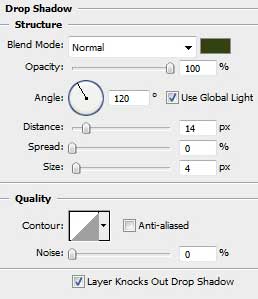
The layer's parameters: Blending Options>Drop Shadow
Blending Options>Inner Glow
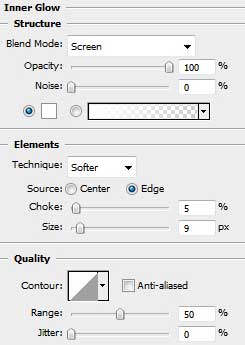
Blending Options>Bevel and Emboss
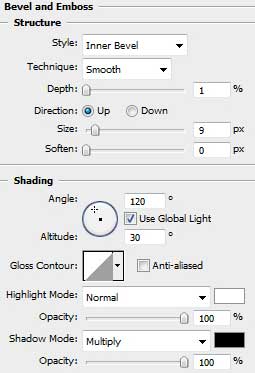
Blending Options>Bevel and Emboss (Contour)
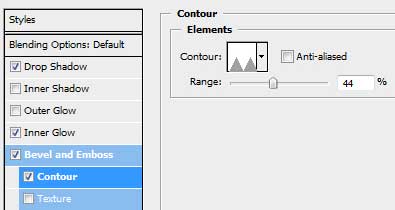
Blending Options>Satin
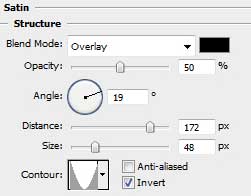
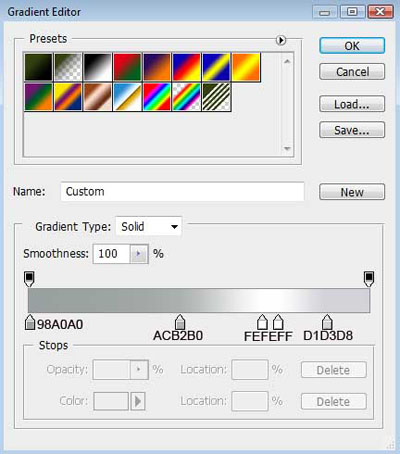
Blending Options>Gradient Overlay
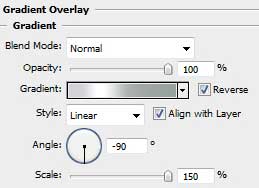
Gradient's parameters:

Make a copy of the star's layer and select Free Transform option to make the copy smaller, changing also the layer's parameters. The layer's color in this case is #DD2A2B

The layer's parameters: Blending Options>Inner Glow
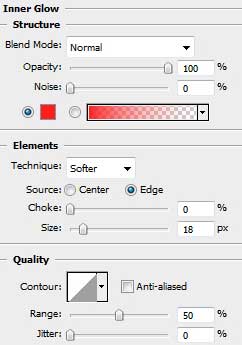
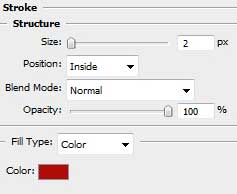
Blending Options>Stroke

Apply again the earlier chosen instrument – Custom Shape Tool (U) to represent the rays on the star. The rays' color is #A60A07
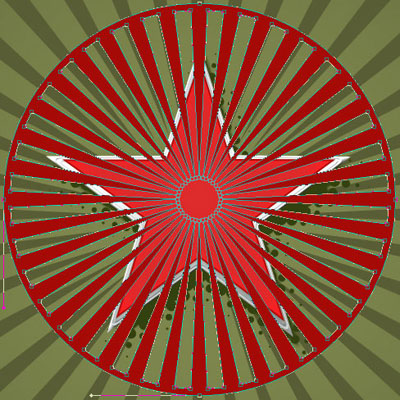
Press Alt button and make a mouse click between the rays' layers and the star's upper layer for the rays to be applied in the star's limits.
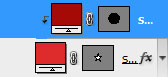

Make a copy of the earlier made layer with the red star and place it above the other layers on the layers' panel. Select also for the copy Delete Anchior Point Tool to erase on the bottom part several tops. The Convert Point Tool will be helpful in making right corrections on the element's shape:

The layer's parameters: Fill 0%
Blending Options>Gradient Overlay
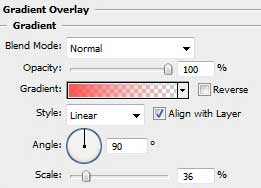
Gradient's parameters:

Select now the Rounded Rectangle Tool (U) (radius 30 px) to insert the text's selection table. This layer should be situated under the layers belonging to the star and its shadow (on the layers' panel). The color of the selection is white.