


Create a new file (File>New) that must have 1280x1024 px and 72 dpi.

Next we should represent the background of the picture we want to get on the final stage, applying the Rectangle Tool (U).

Make a mouse click on the processed layer on the layers' panel for applying the next demonstrated parameters on the layer. Blending Options>Gradient Overlay
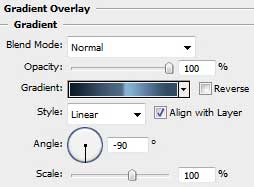
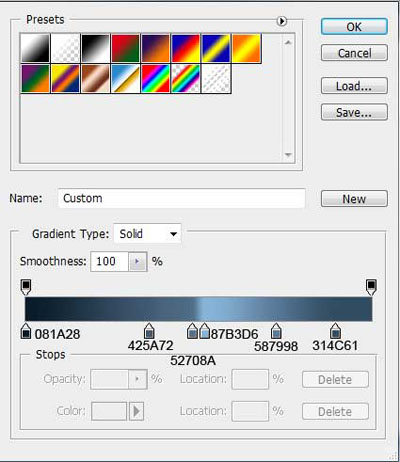
Gradient's parameters:

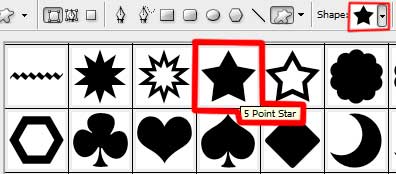
Select on this stage the Custom Shape Tool (U) to draw a white small star. Mark out the inside star's tops and choose the Convert Point Tool (selecting also the SHIFT button). Then press CTRL+T and Maintain aspect ratio solution. We have to press the tops uniformly, moving them to the central element's part. Situate the new element the same way as below:
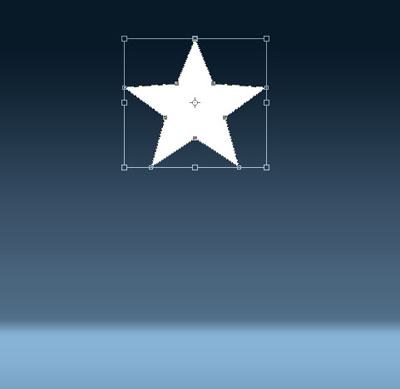
The star's inclination and its sizes should be changed with Free Transform option.
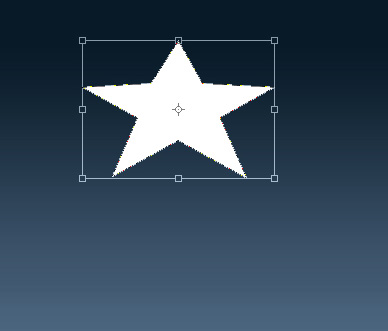
Make four copies of the star's layer and apply again the Free Transform option to change the sizes of the copied stars.

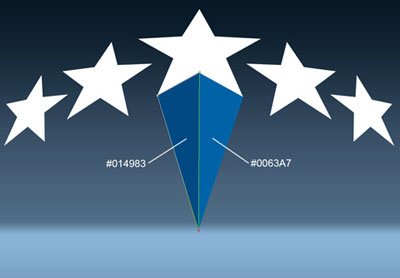
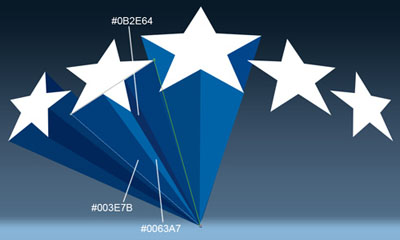
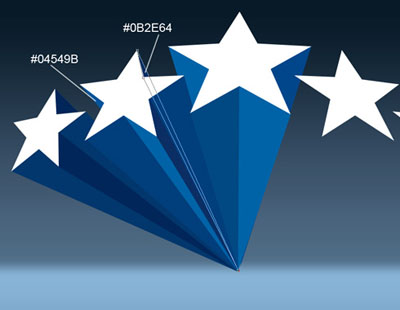
Select now the Pen Tool (P) that will be helpful in drawing the rays under the represented stars. Representing the rays should begin from the picture's central part. The rays' layers should be placed under the stars' layers on the layers' panel. We should situate correctly also the rays corresponding to each other.
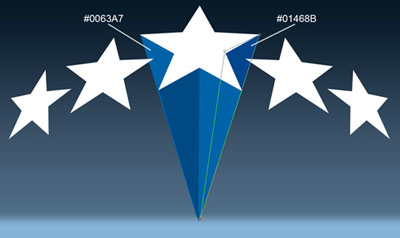
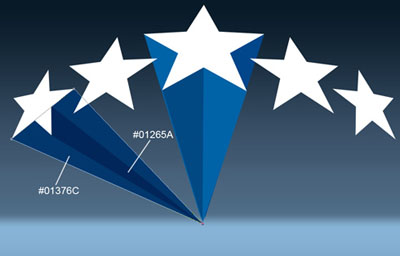

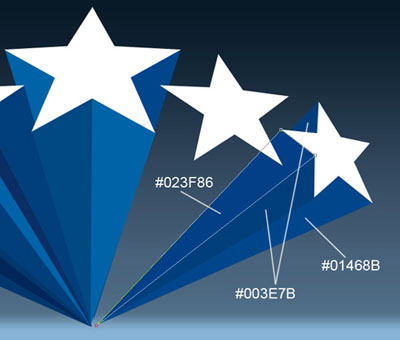

Try to draw now two other small stars, applying the same method described above:

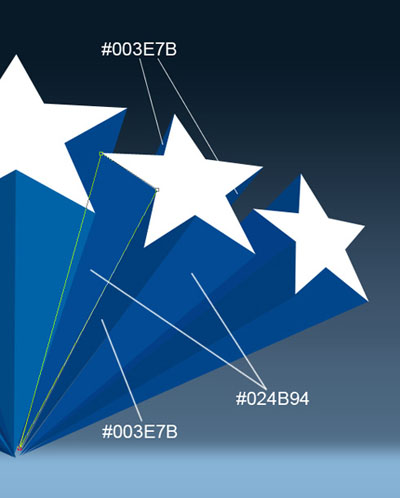
Choose again the Pen Tool (P) and try to draw the rays belonging to these two new stars. Place them correctly about each other and under the layers containing the stars on the layers' panel:
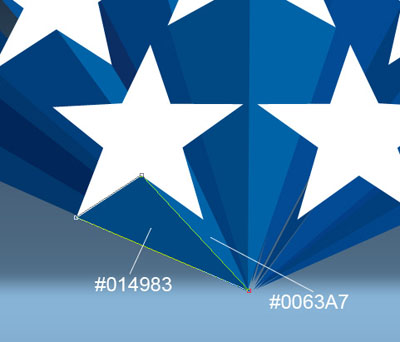
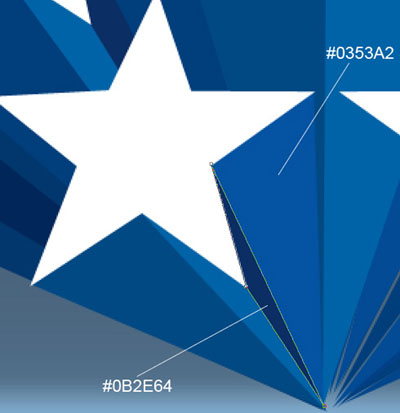
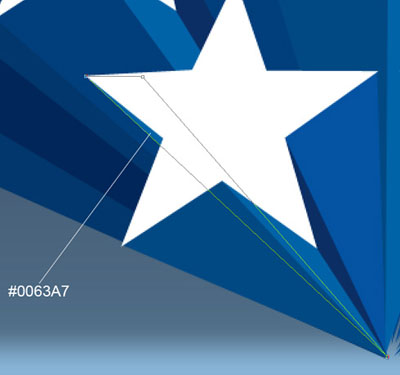
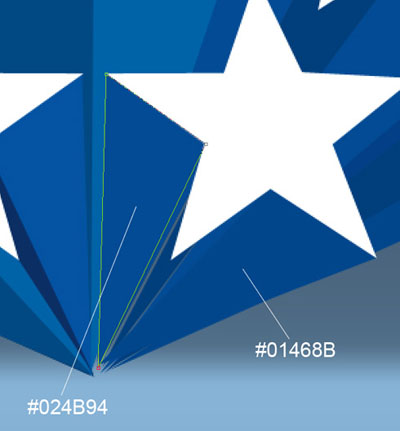
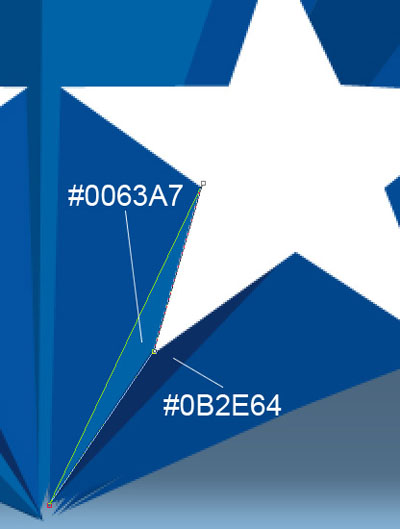
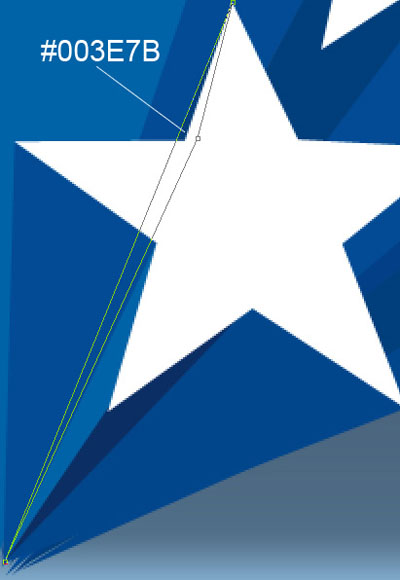

Next step includes drawing the shadow's layer under the layers containing the rays and the stars. In this case we shall use again the Pen Tool (P) and the color for the new layer #415971

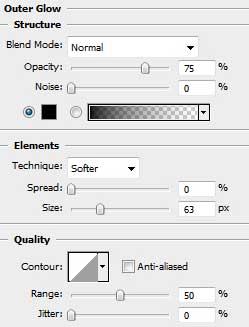
The layer's parameters: Blending Options>Outer Glow

Using the Rectangle Tool (U), try to make now the panel reserved for the text by adding a top on the upper side. Selecting also Add Anchior Point Tool solution, it's possible to change the panel's shape. Its sizes may be corrected with Convert Point Tool.

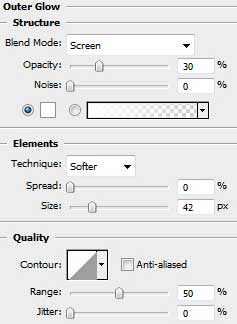
The layer's parameters: Blending Options>Outer Glow
Blending Options>Gradient Overlay
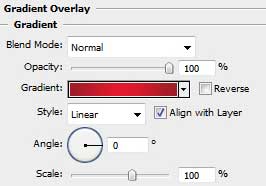
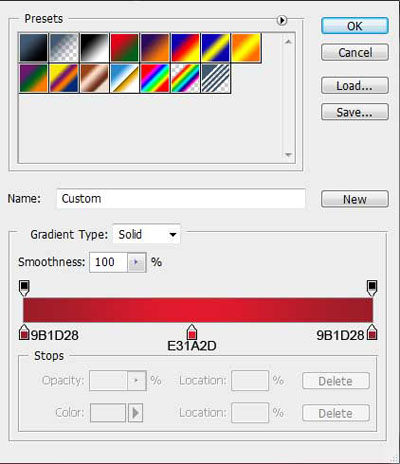
Gradient's parameters:
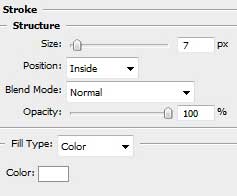
Blending Options>Stroke

Make a copy of the layer containing the text's panel and select the Free Transform option to turn around the copy and place it the same way shown below:

The layer's parameters: Opacity 15%

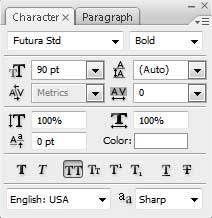
On this stage we'll just insert the text we want to have on the picture:

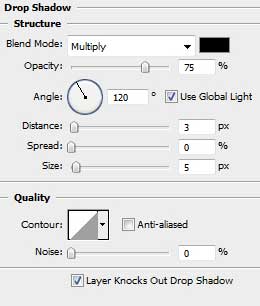
The layer's parameters: Blending Options>Drop Shadow

The final result!
