

Step 1
OK open up a new document, My size is 400 by 25. Color the background any color you want. Then create a new layer, and color it the color you want your buttons to be just like I did.

Step 2
Go to layer/layer style/ and put these attributes in.
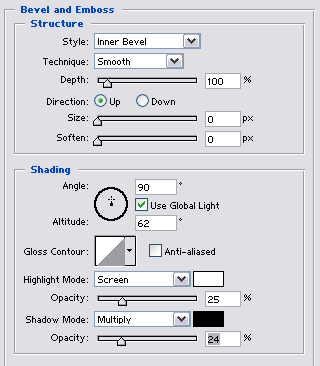
Step 3
Ok now create a new layer again. Select the paint tool and paint it white. Then select the rectangular Marquee tool and cut it in half like this.

Step 4
Now that you done that, set the opacity to about 14, and this is what you should have.

Step 5
Now its time to add the text. Grab the text tool and a good font and write across on your link names home, about us, etc..... To make this look good you should do a reflection of the text

Step 6
OK now that you done that you should make some lines to separate the links. Make a new layer, and use the rectangular marquee tool to make one pixel lines in between each link and color them black. Now you should be done.

