In this case firstly it's necessary to create a new file (File>New) with 1280x1024 px and 72 dpi. Select after that the Rectangle Tool (U) to stretch down the rectangle, applying for it the parameters demonstrated below. Blending Options>Gradient Overlay
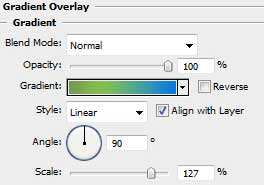
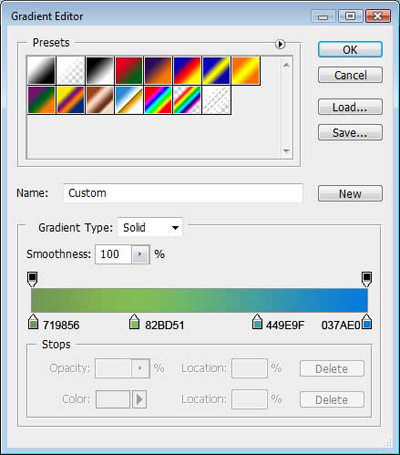
We need to get the same image from below.

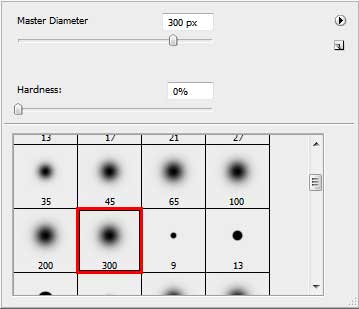
Create a new layer on which we shall apply the Brush Tool (B) with the Opacity of 40% to represent a patch of white color.

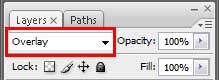
Give the parameters for the new layer, indicated in the Layers' Palette.
Blending Mode - Overlay
We'll get the next demonstrated picture:

Using the Pen Tool (P), try to draw a kind of wave from the next picture, having the color #BBD772
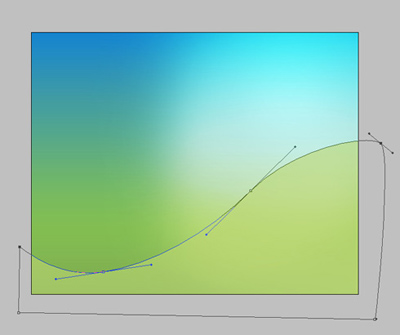
Select for this layer the next parameters:
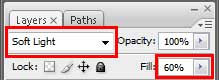
This way the wave blends nice into our background.