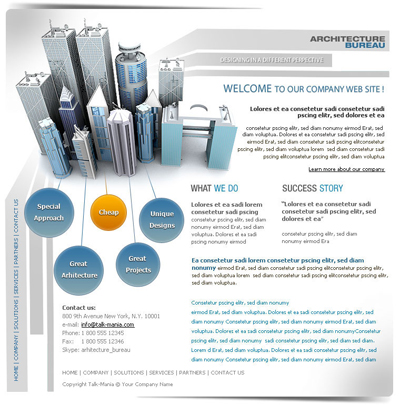
Let's start doing this layout. For this we need to create a new document. we will use the same document sizes as usual. 760x770 pixels and of course with a white background.
Please go to Photo-shop-brush.com and download the following set of brushes: Corner-Brushes
Load the brushes in Photoshop, then create a new layer. To make a new layer press Ctrl+Shift+Alt+N , with brush tool add the corners like me
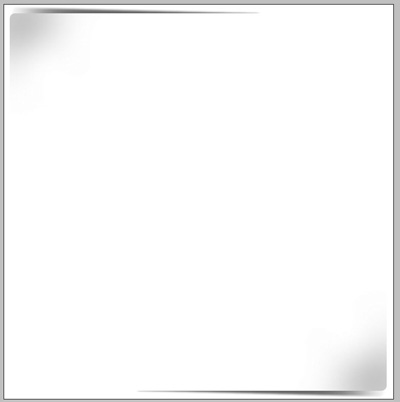
With Pen Tool, create some random shapes
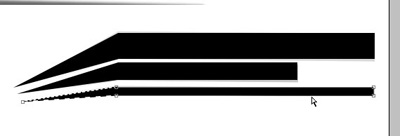
after you will create the shape like me , you need to select them on your layer palette
Press Ctrl+E ( to merge the layers )
Change the Opacity for this layer to 9-10 %
Then Select Eraser tool , and be sure you select " Soft Round 200 pixels " brush
Start deleting from the left side of the shape. this is my result

Duplicate this layer ( to duplicate a layer, be sure you have the layer you want to duplicate selected, then press on Ctrl+J )
with Transform tool ( press Ctrl+T ) rotate the layer
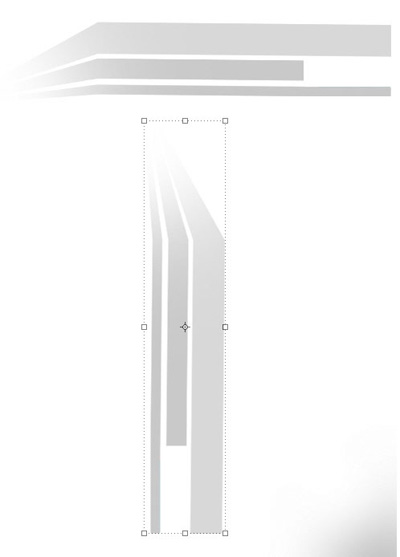
Then go to Edit > Transform > Flip Horizontal
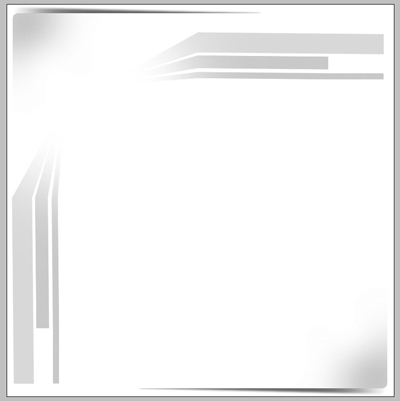
I am placing the shape like this because i have a clear idea on what i want to create
Next step is to add a stock photo.
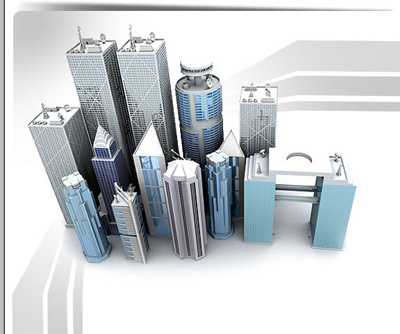
Now it is time to add some text on our layout.
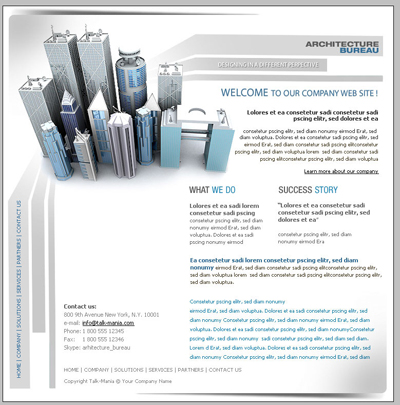
Nice isn't it ? Simple and very eye catching
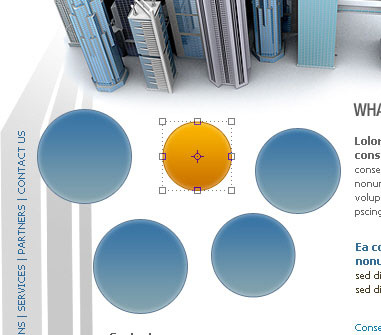
I will create some round shapes, with Ellipse tool
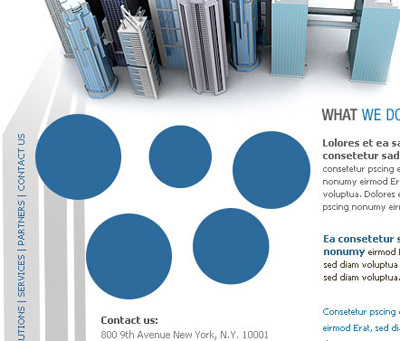
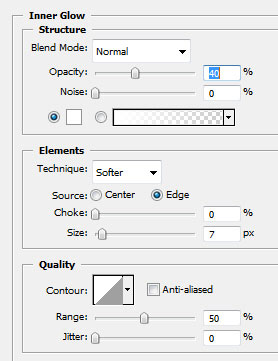
I will add the following layer styles for 4 shapes:
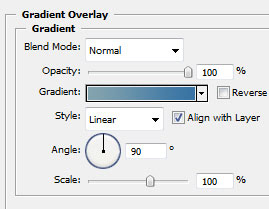
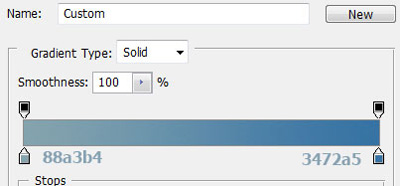
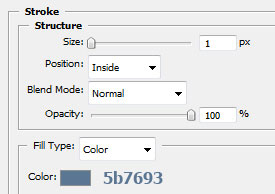
This is my result
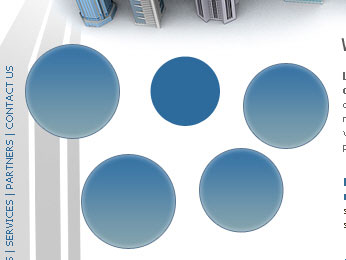
You can see another round shape without a layer style
I will add right now the following layer style
I am sure you will be more productive with our products
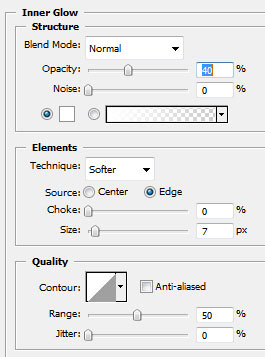
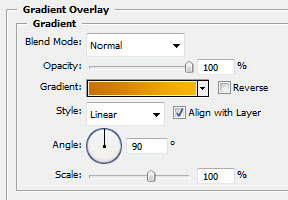
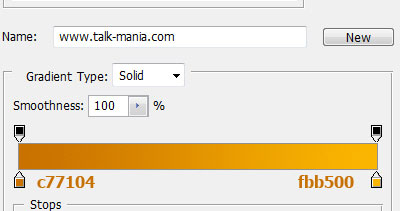
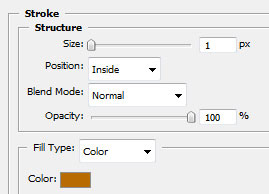
My result:
I will add some text over this shapes, and in the same time i will draw some lines with Line Tool.
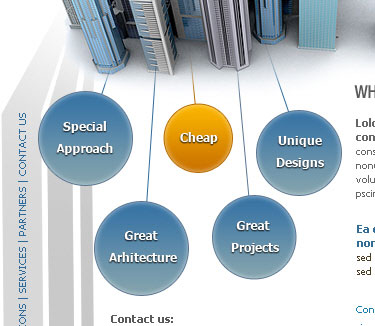
This is my final result