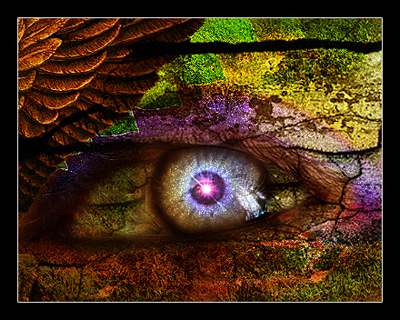
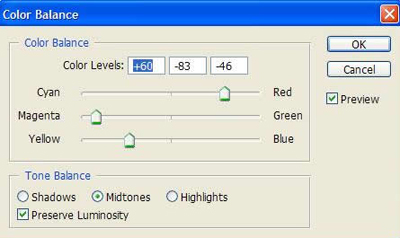
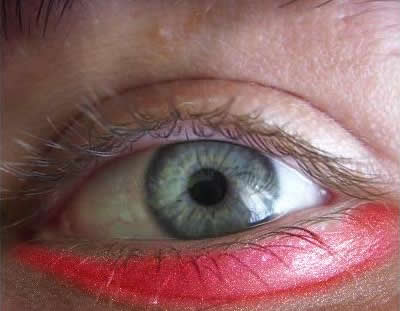
Open the picture below, then press Ctrl+J to duplicate this layer, go to Layer-> New Adjustment -> Color Balance then press Ctrl+Del to remove the color
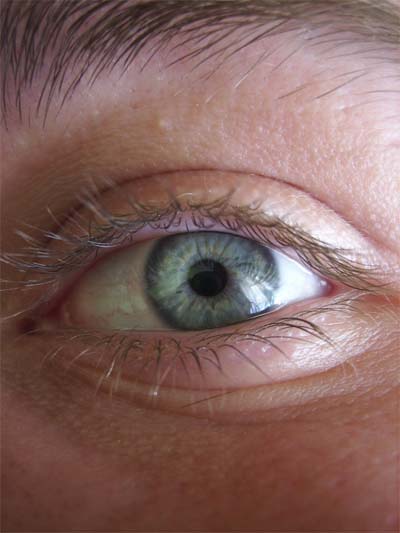
Note: to remove the color, you have to set Foreground is white and Background is black
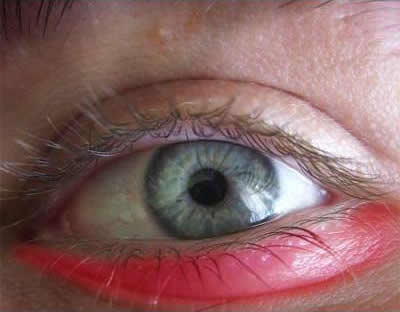
Use Lasso Tool ( Feather 10 px ) to make a selection around the bottom of the eye then use brush (color white) to draw over all selection.
You will get:
Create a new layer, Ctrl+Click on layer Color Balance to get selection and fill it with black
Go to Filter -> Noise -> Add noise
Set Amount : 80%
Choose: Gaussian & Monochromatic
Change blend mode to Color Dodge, you will get:
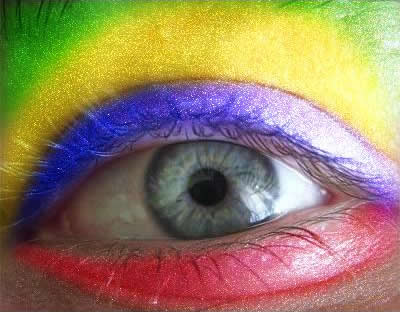
Repeat above steps for other parts on the eye. Use Color Balance to change the color of other selections
The result should look like this.
Continue to open Color Balance and set properties like this:
(apply to full eye)
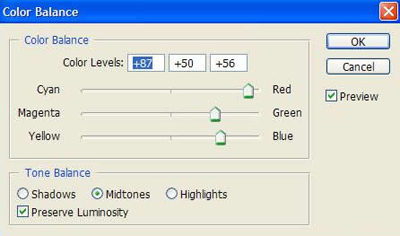
You will get:
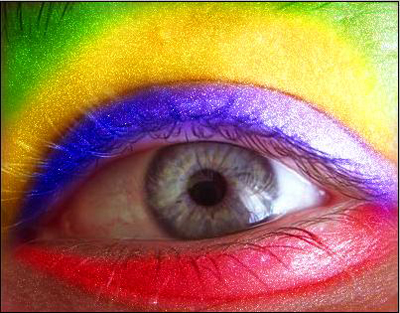
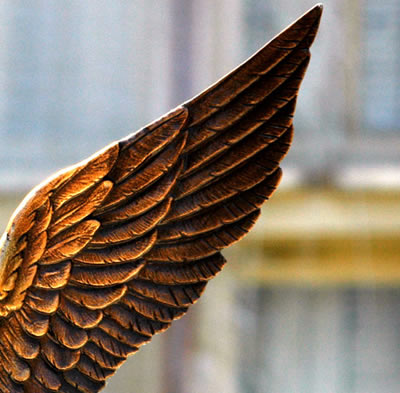
Open the picture below, cut out a half of wing then put it into your work like this:
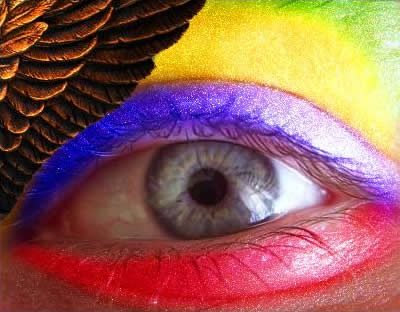
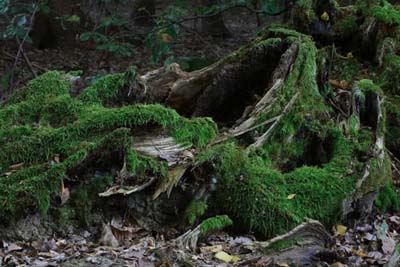
Open this texture, put it on the top of layer palette, change blend mode to Overlay, use Eraser (Hardness=0) to erase parts over the pupil of the eye
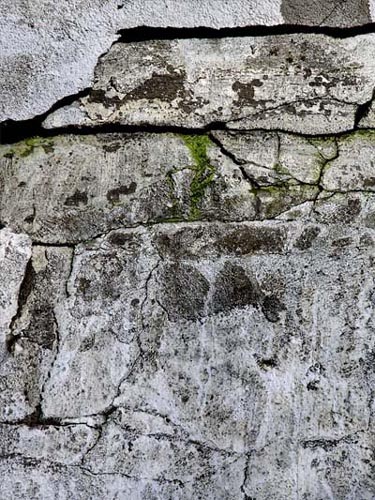
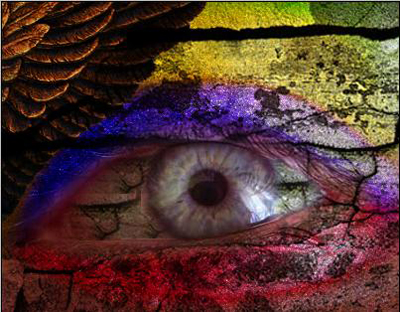
Continue to open photo below, put it on your work then change blend mode to Overlay, and remember to use Eraser (Hardness=0) to erase parts over the pupil of the eye
The result will look like this
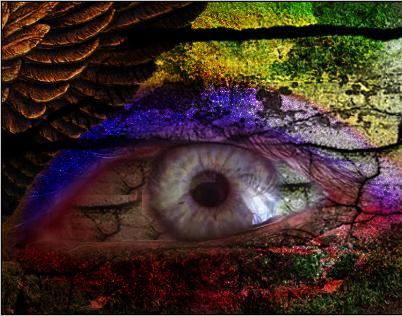
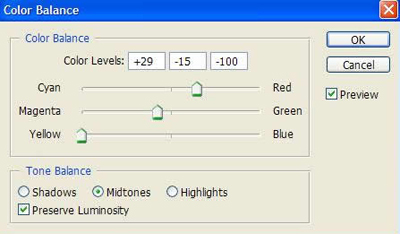
Open Color Balance and set properties like this:
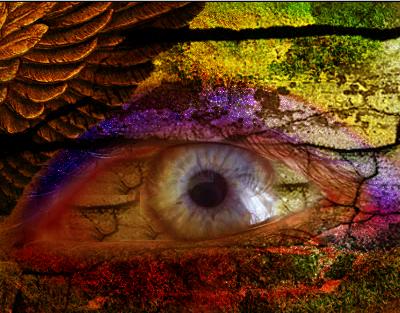
You can put some leaves on your work if you want

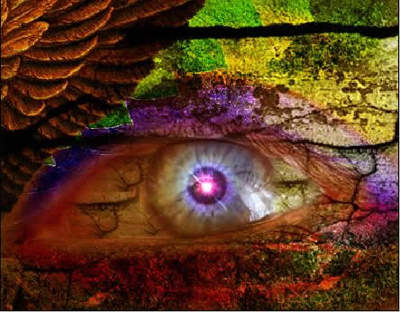
To make a spot light in the pupil of the eye as the picture above, you use Elliptical Marquee Tool to draw a pupil then press Ctrl+J
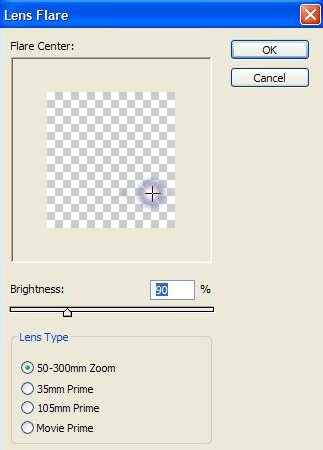
Go to Filter -> Render -> Lens Flare, change blend mode to Color Dodge
Create a new layer, press Shift + Ctrl +Alt +E then go to Filter -> Sharpen -> Sharpen
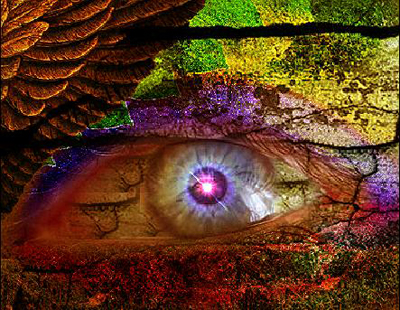
Use Burn Tool to draw over the top and the bottom of the eye:
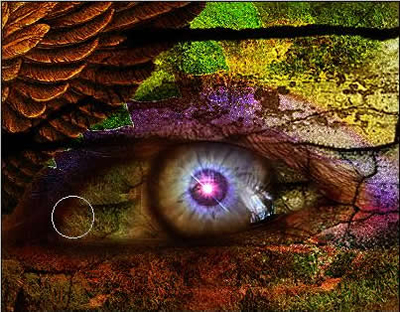
Create a new layer, make a selection around the eye, fill it with black
Go to Filter -> Noise -> Add Noise
Set Amount : 80%
Choose: Gaussian & Monochromatic
Change blend mode to Color Dodge
After that, you will get the final result like this: