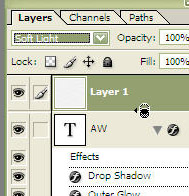
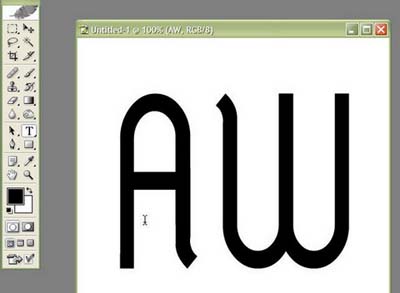
Make a new document sized 500 x 500 pixels. Then make a new text layer with whatever text you wish to turn metallic. Resize and reformat it to the way it suits best for this. I'm going to use AW for my example.
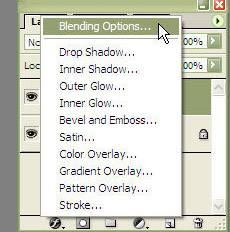
Go to the layers palette (window/layers) and choose the text layer you just created. Click on the small (f) icon and choose blending options.
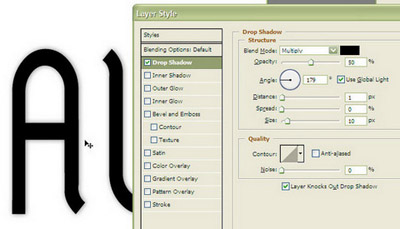
Choose drop shadow and put in:
opacity: 50%
distance: 1px
size: 10px
Choose outer glow and put in:
opacity: 100%
color: white
size: 10px
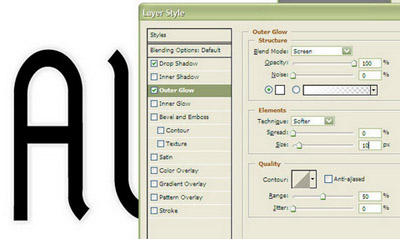
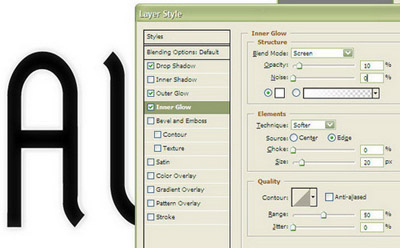
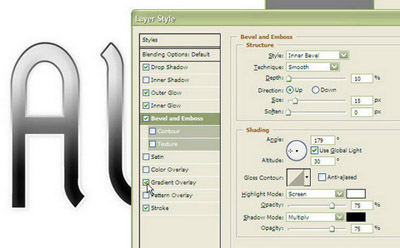
Inner glow should be only at about 10% because you only want a very slight beveling effect this has. The size should vary but in out case put in 20px of white color.
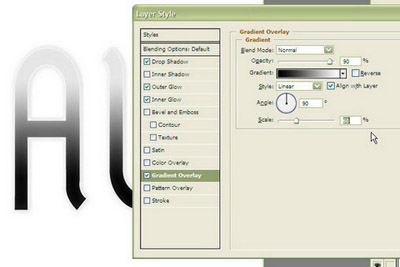
Next is the gradient overlay - should be at about 90% and something about the scale of 60% seemed pretty neat :)
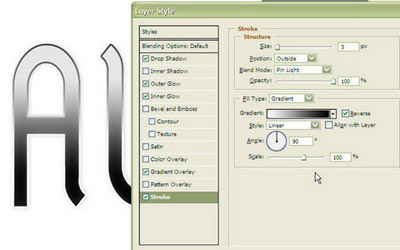
Stroke should have about 3px on the outside with pin light for the blend mode. Remember to change the fill type to gradient and check reverse if the effect isn't as you'd expect.
The bevel is very slight as well - 10% opacity with 15 pixels size. Leave the default shading settings intact.
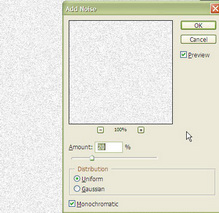
Add 20% uniform mono noise trough filters/noise/add noise.
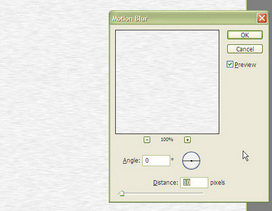
Filter/blur/motion blur -> 10 pixels distance.
Now what you have to do to apply the newly created texture on the text is hold down the alt (option on macs) key and move it in between the two layers (notice the change of the cursor) to group the texture on the type layer. Also set the blend mode to soft light (as in the image). What I did after this to achieve the effect below is I filled the background layer with 50% gray (edit/fill -> 50% gray) and took a screenshot :)