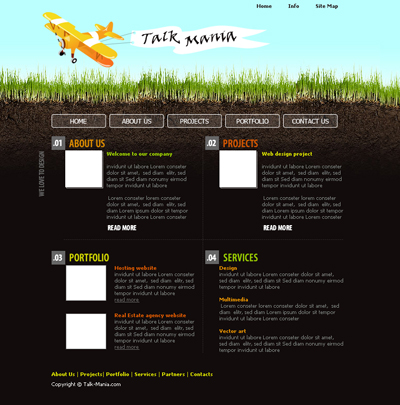
Let's start as usual with a new document. The size doesn't matter. I'm using 760 X 770 pixels. Copy the following image on your computer.
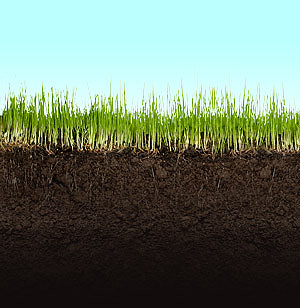
Open this image in photoshop, then go to Edit > Define pattern. Chose a name for this grass pattern, and click OK.
Create a new layer ( press Ctrl+Shift+Alt+N ) in the same time.
Grab Paint bucket tool, and Set source for fill area to "pattern".

Then on the layer we just created, add this gradient with Paint bucket tool.
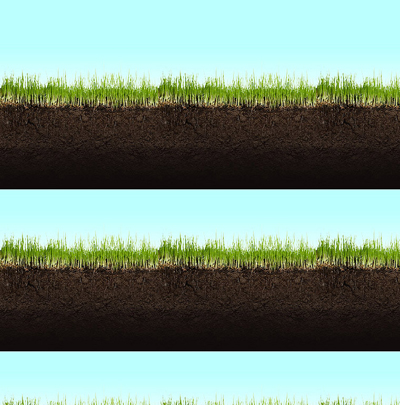
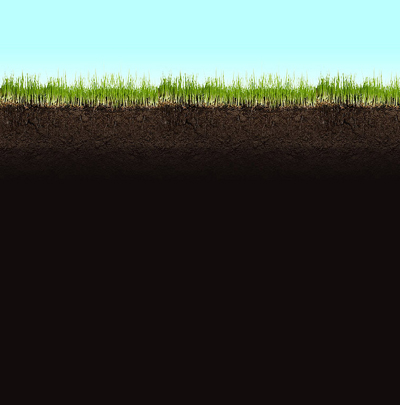
Set the foreground color to #120c0c , and with brush tool, you can draw at the bottom of your layout, until you have the following result:
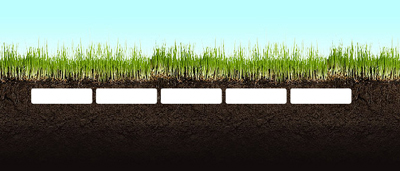
Now with rounded rectangle tool, add some buttons:
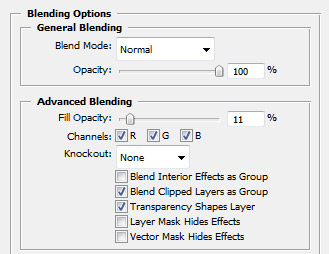
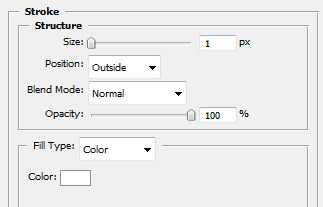
For all these shapes add the following layer style:
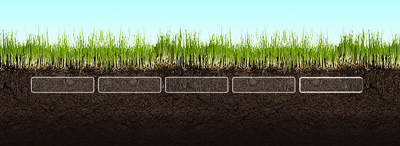
Here is my result:
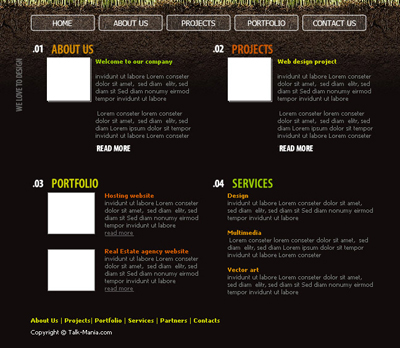
Now I will add some images on the bottom part of the layout, and in the same time I will add also some text:
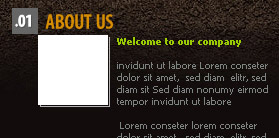
Under the numbers, I will add a Grey rectangle. I will create this shape with rectangle tool:
With type tool, I will write some minus signs:
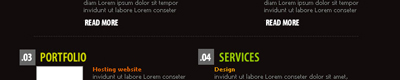
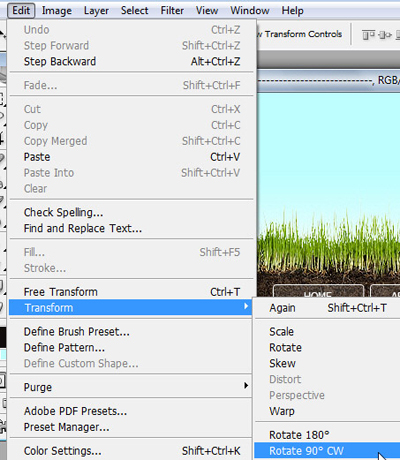
I will duplicate this layer with minus signs , and I will rotate it 90 degrees ( to rotate a layer first you need to select it, then go to Edit > transform > rotate 90.
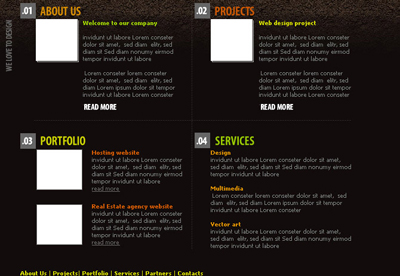
This is my layout so far:
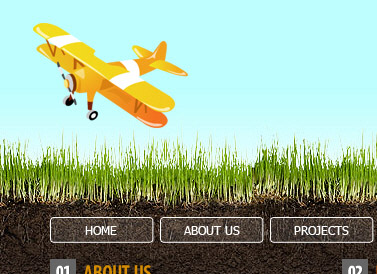
On the header i will add a plane icon:
If you have Photoshop Designer's pack you will find some nice brushes for the next step. I want to add like a scarf at the end of our plane.
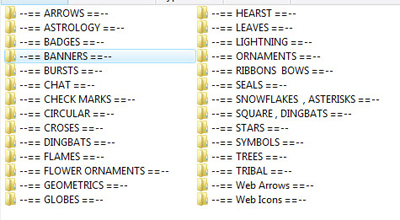
You will find this brush in the " banners " folder.
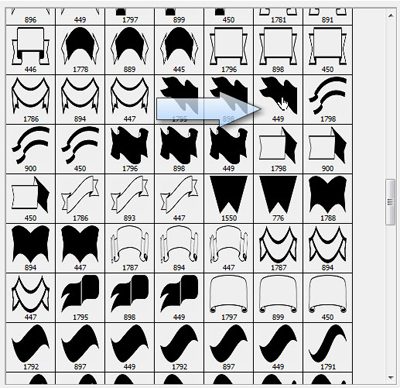
I am sure you will find another type of banner/scarf in this set.
If you don't have the photoshop designer's pack, you can create this scarf with pen tool. In the next image you can see how i placed the scarf, at the end of the plane:
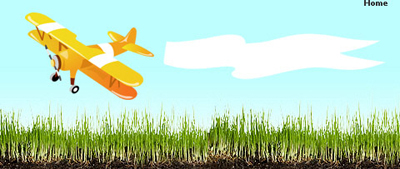
To create a more realistic effect I will add some lines.

I will select brush tool, and with a small rounded brush i will create a few points ( i will use the same color as the sky ). To select the same color you can use Eyedropper tool.
This is my result:

My final step is to add some text on this scarf:

This is my final result: