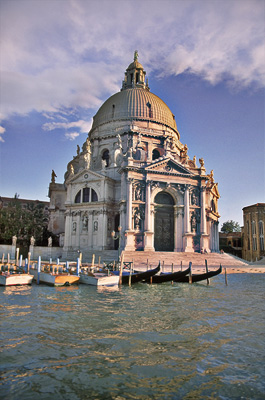
With only a few steps, you can greatly enhance the look of your images, simulating the use of a polarizing filter. Lets begin.
Stock:
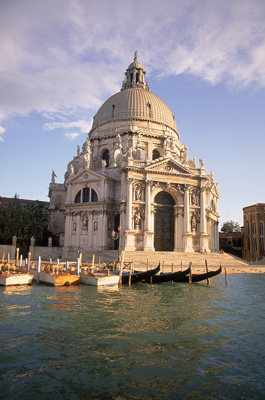
1. Duplicate the layer. Ctrl + Shift + U to desaturate, then apply a gaussian blur of 50-70 pixels. I am using 60px.
2. Invert the colors (Ctrl + I) and set the blend mode to overlay.
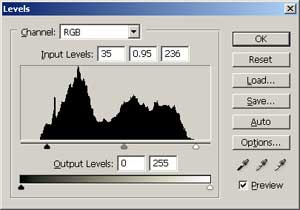
3. Image> > Adjustments > Levels. Here are the settings I've used.
4. Finally, Mask this top layer and, using an abstract/dappled brush with opacity and flow about 50%, set to black, go over the clouds to let them show from the layer below. Merge down, and thats it.
Result: