The first, you create a new document (width=215, height=415), background's color is white.
Open this texture:
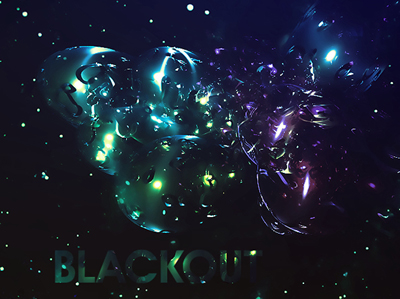
Move that texture to your document like this:
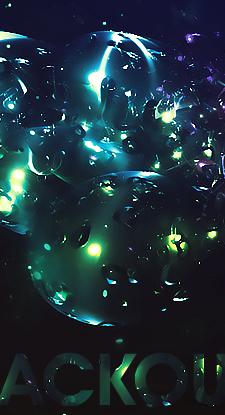
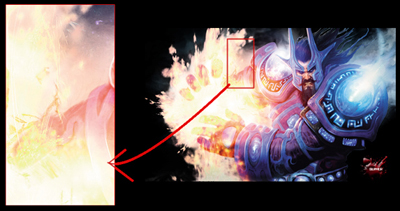
Continue to open this image.
Move it to your document like this:
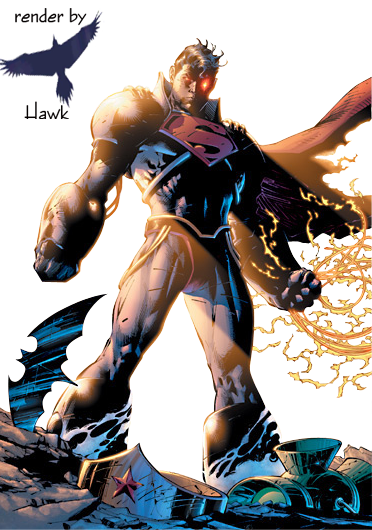
Continue to open this superman picture (transparent background).
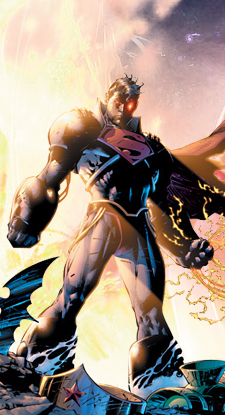
And then move to your work as shown below:
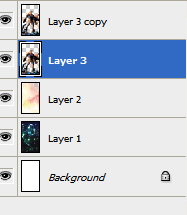
Duplicate layer superman then select Layer 3 as shown below:
Pick Smudge tool  set options like this:

Drag some smudges following arrows.
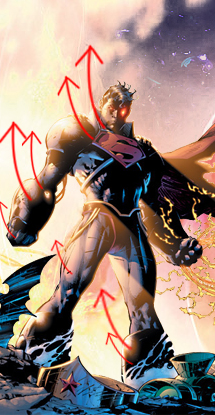
You will get:
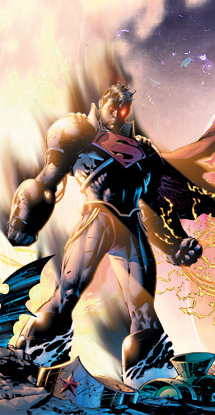
Change blend mode to Overlay.
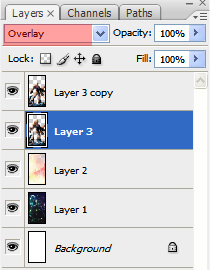
You will get:
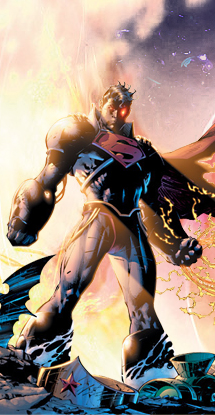
Select Layer 3 copy, press Ctrl+J to duplicate this layer, you will have Layer 3 copy 2 as shown below:
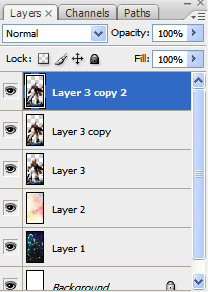
Go to Filter -> Brush strokes -> Spatter. A window will appear, you click on Ok.
You will get:
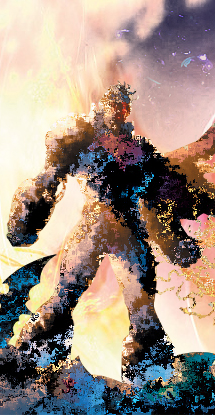
Erase the effects over the body of superman, (exclude parts contact with fire as shown below).
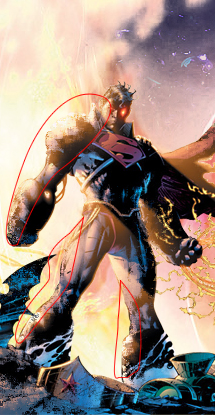
Create a new layer, use night sky brush (you can download it at Deviantart.com) to decorate your work.
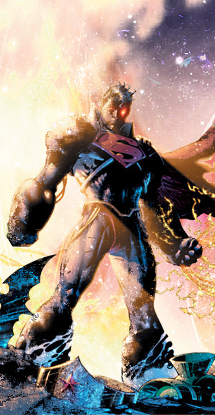
Create a new layer, fill it with color black. Go to Filter -> Render -> Lens flare to make a spot light like this:
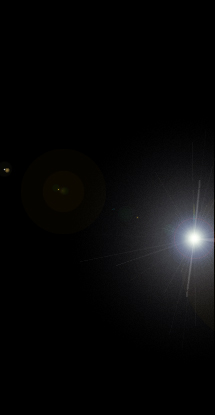
Change blend mode to Screen.
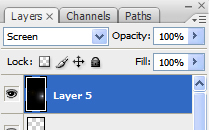
You will get:
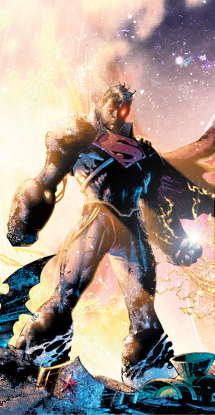
Move spot light to the hand.
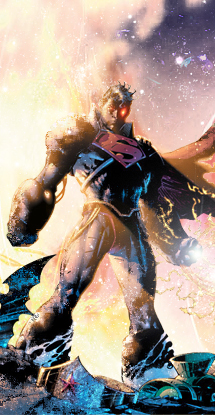
Click on this icon:
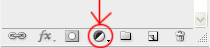
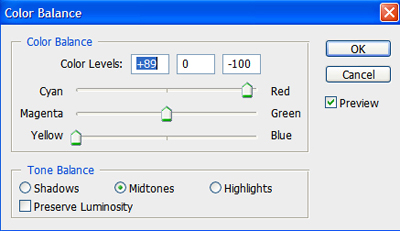
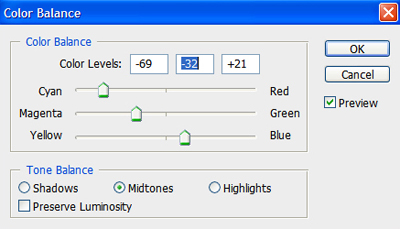
Choose Color Balance and set options like this:
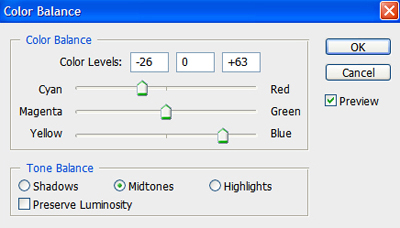
Continue to open Color Balance and set options:
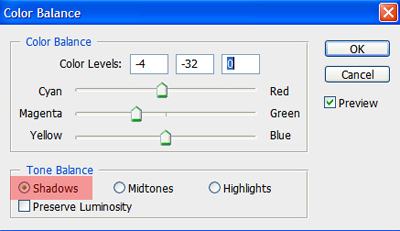
Press Ctrl+Shift +E to merge all layers.
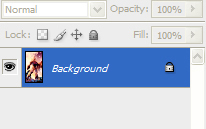
Duplicate this layer.
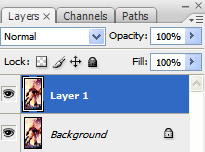
Go to Filter -> Pixelate -> Mosaic. Put cell size=20.
You will get:
Continue to go to Filter -> Sharpen -> Sharpen then click on Ok.
Press Ctrl+F twice.
Change blend mode to Overlay.
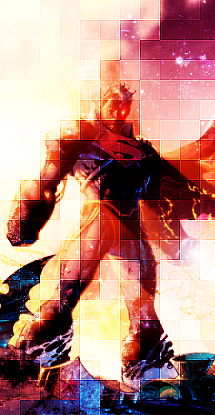
Use Eraser tool to remove parts over the body.
It should now look like this:
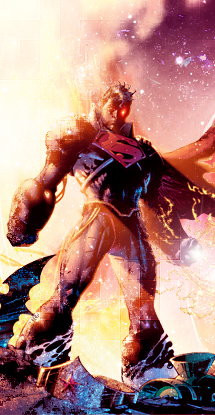
Add some texts.
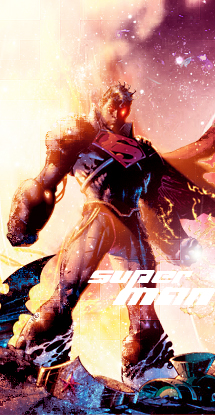
Go to blending option of text layer, set Gradient and Stroke properties to get a result like this:
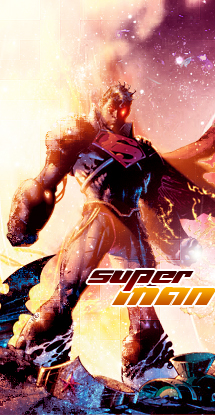
Finally, click on this icon.
And choose Color Balance, set options like this.
You can put your artwork on a background that you like.
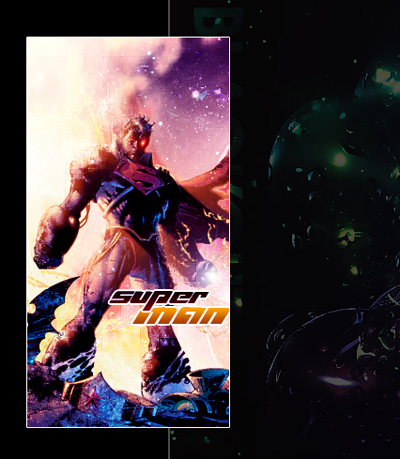
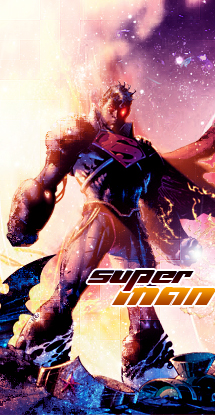
Here is my final result: