
Stocks Used (Eye - Kitty from DeviantArt, Textures - SXC:
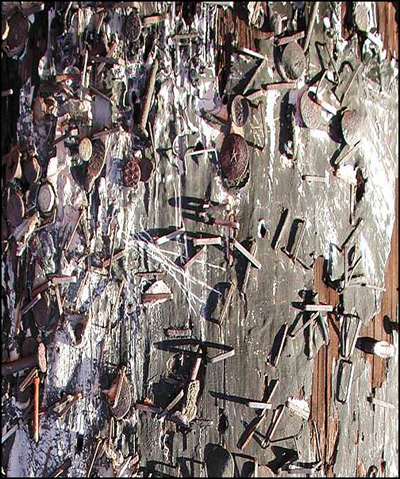
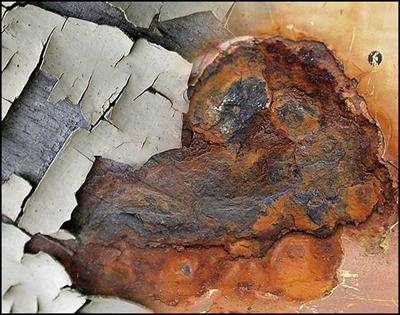
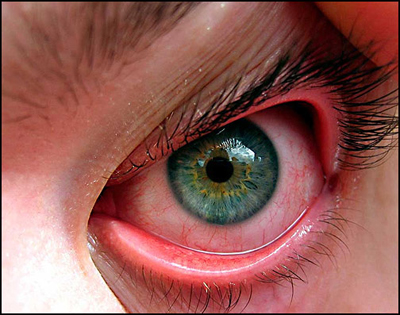
1. Layer the stocks 3 at the bottom, 1 at the top. Texture 1 should also be placed hard left. Hide all but the eye layer and make a new layer above it.
2. Brush over the eyeball in white, opacity and flow around 40-50%. Set this layer to Overlay and merge down.
3. Duplicate this modified eye layer, hide the copy. On the original, color with Hue/Saturation. I'm using:
Hue - 207
Saturation - 57
Lightness - +10
With Colorize checked
4. Unhide the eye copy, and Hue/Saturation. Take saturation down to about 60% and don't tick Colorize.
5. To make the eye more vivid, add a layer mask on Eye Copy. Take a black brush, flow and opacity about 50-60% and brush *In the mask* the iris, making sure the pupil is avoided.
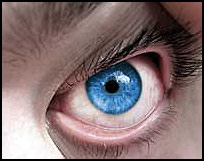
Here is mine so far:
6. Ok. Now to add texture 1 (I will call it Rust). Set this layer to overlay and add a mask. Make sure colors are default (Black bg, White fg) and take the gradient tool.
7. There is probably an easier way of describing these next few steps, but I couldn't put it into words so I made some pics. In the layer mask, use the gradient tool and click, drag, release with approximately the points shown below:
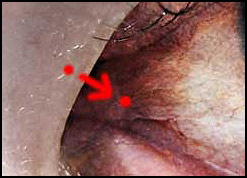
8. Duplicate this layer, set it do Linear Light and reduce fill to around 75%. On this copy layer, fill the mask with a gradient like this:
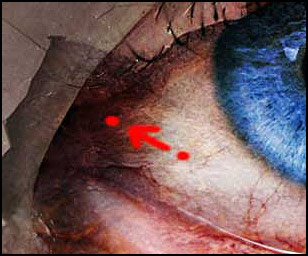
9. Unhide the nails in wood layer (I will call it Nails). Set to Linear Burn, 90% opacity and around 70% fill. Add a layer mask, and use approximately these points:
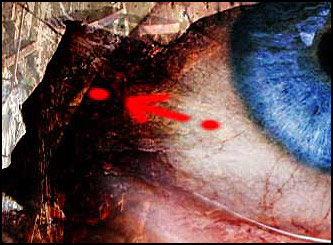
10. Stick in an adjustment layer for Brightness & Contrast. I used -14 Brightness, +10 Contrast for mine.
11. Finally, Merge down all layers and take the burn tool, set about 50% on Midtones and go over the light area in the lower left corner. I also burned upper right slightly.
Result:
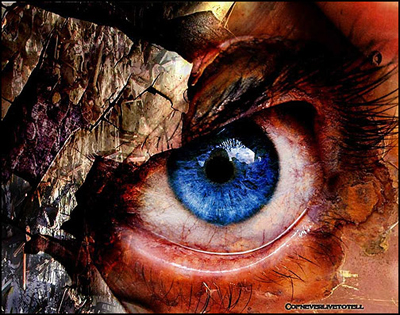
Well, there you go.
