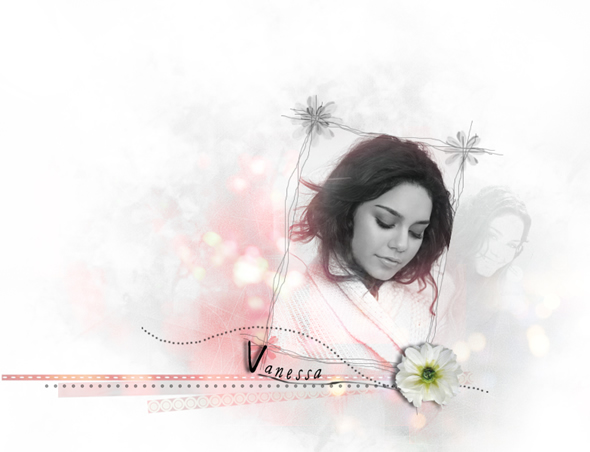
The first, you create a new document and then open the model photos.
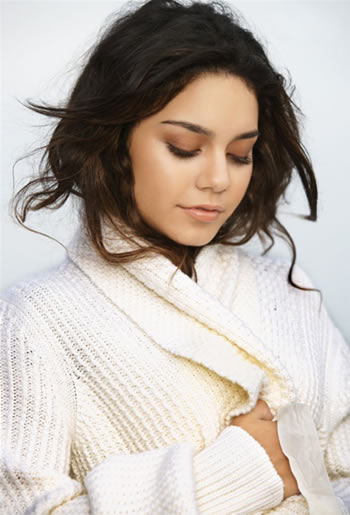
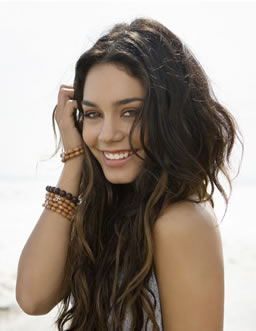
Press Ctrl+Shift+U to turn them to black and white pictures. Then rotate them like this.
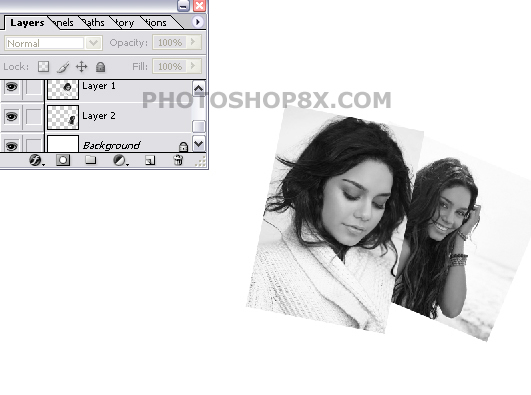
Use this texture to make a background. Add layer mask and use brush to erase some unnecessary areas to get a result as shown below. Change blend mode of it to Luminosity.
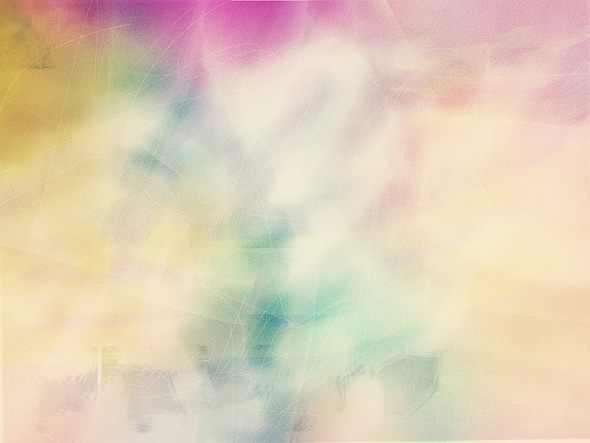
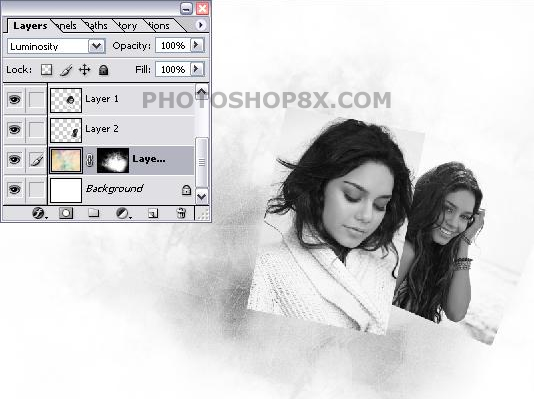
Continue to put this texture over layer 3 and change blend mode of it to Lighten. Add layer mask and erase some unnecessary areas.
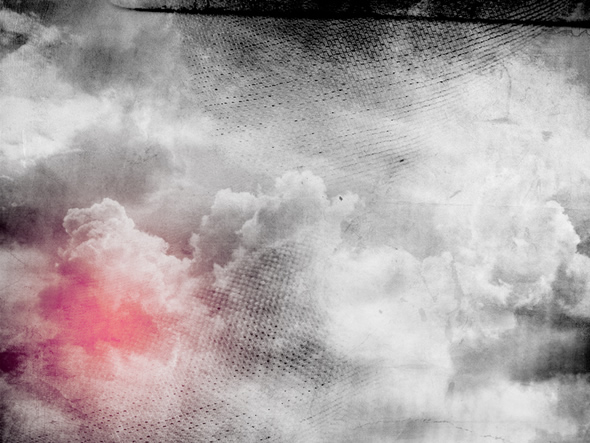
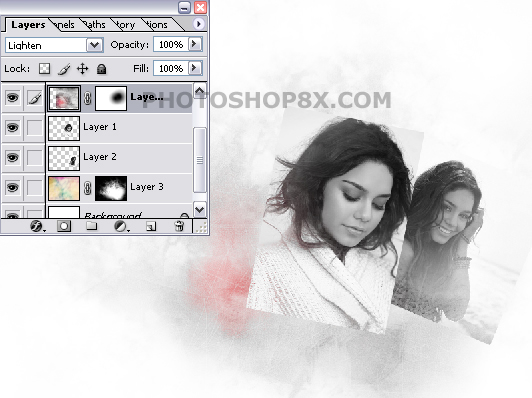
Continue to use this texture, change its blend mode to Lighten and add layer mask and erase some unnecessary areas.
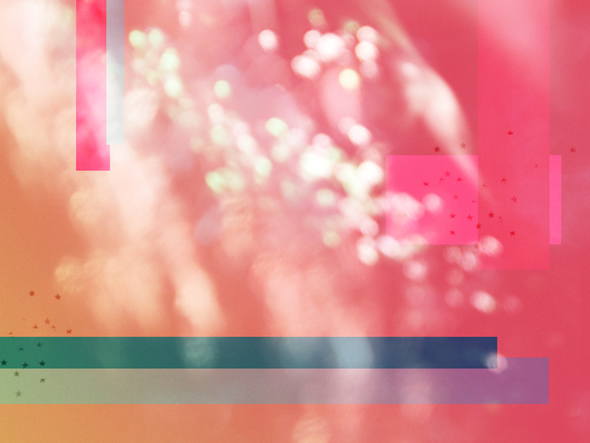
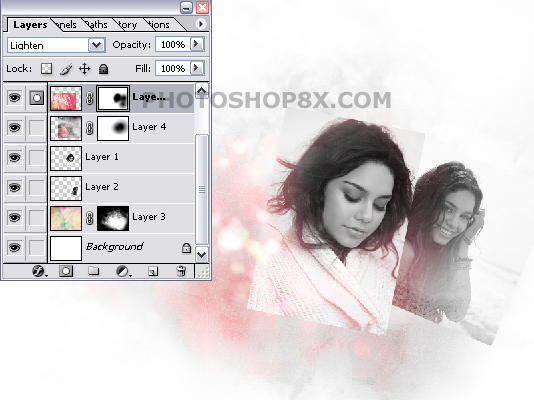
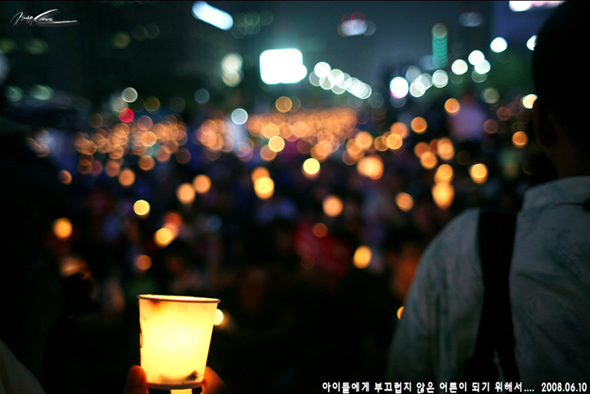
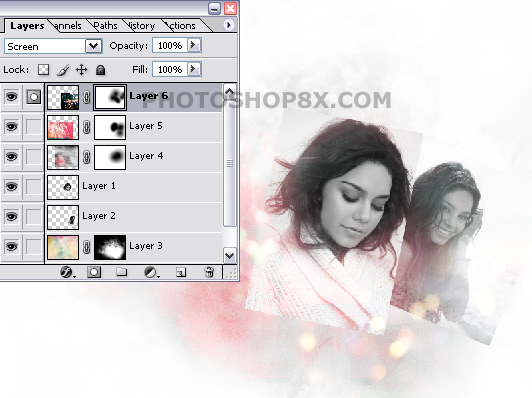
Use this texture, change blend mode of it to Screen and add layer mask and erase some unnecessary areas.
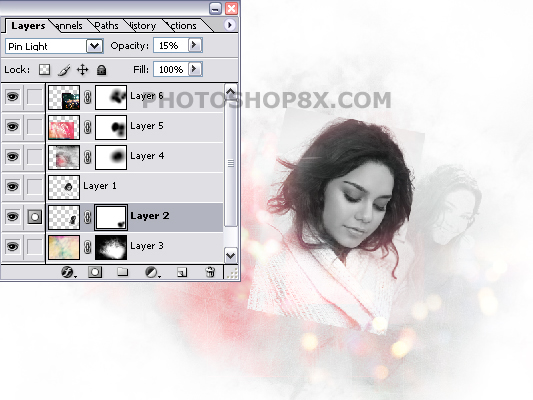
Now select layer 2, change blend mode of it to Pin light and set opacity 15%.
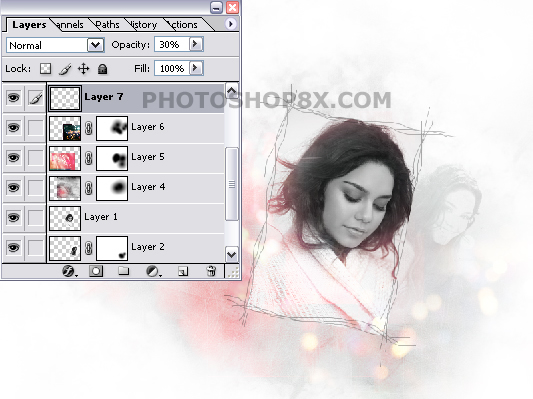
Use hard round brush to draw a frame for layer 1.Set opacity 30%.
Finally you use some flower brushes or anything you like to make your picture looks more beautiful.