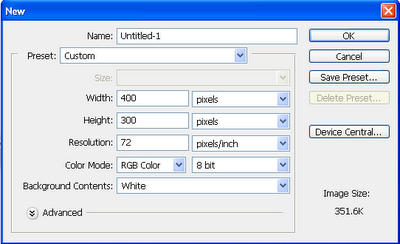
1. First want you to create a new document 400x300 and white background.
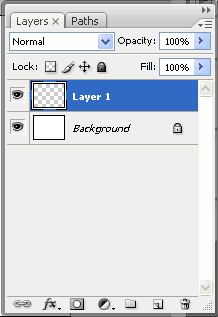
2. Then create a new layer to with.
3. Now type your text which you will give effect. I type ttutorials (font size 72pt, bold and font name Book Antiqua).

4. Now go to Filter => Distort => Polar Coordinates and select Polar to Rectangular.
5. Then go to Filter => Stylize => Wind and click OK.
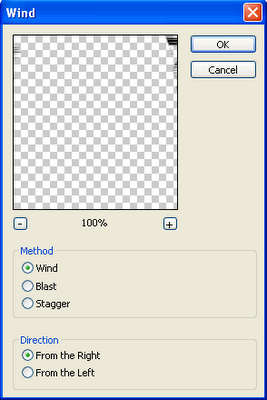
6. Again go to Filter => Stylize => Wind and click OK.
7. Now go to Filter => Distort => Polar Coordinates and select Rectangular to Polar.
8. In this step go to Layer => Layer Style => Stroke or just double click on your type layer on the layer palette. Once the Layer Style box has opened then use the following values for Drop Shadow.
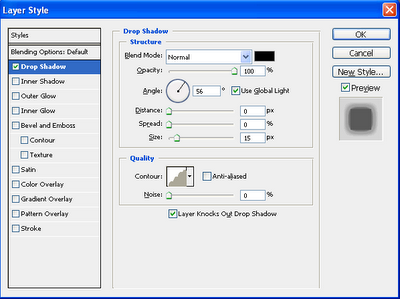
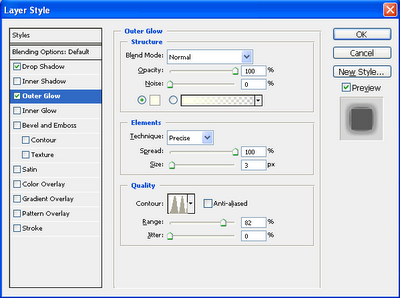
9. In final step set the following values for Outer Glow.
Final Result!