


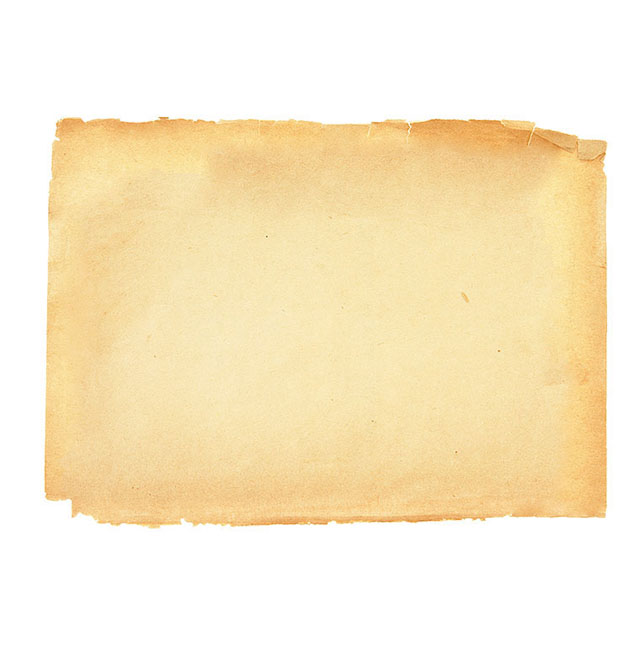
To create this layout you need a papyrus image, or an old paper image.
When you have such an image, place that image on the middle of your layout.
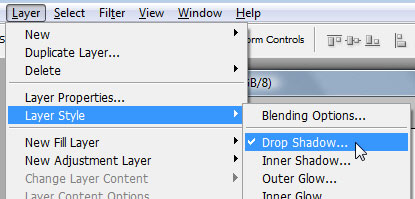
For this layer please add a simple shadow. To add a shadow please be sure you have the layout selected, then go to Layer > Layer styles > Drop Shadow.
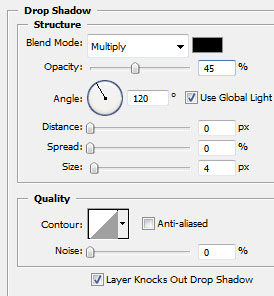
and add the following settings:
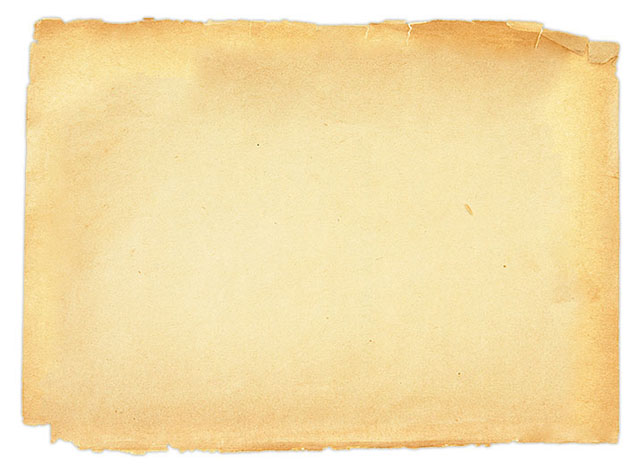
This is my result: nothing to fancy, but remember, each simple detail will result in a great looking layout.
With Polygonal Lasso Tool, create a selection like in the following image.
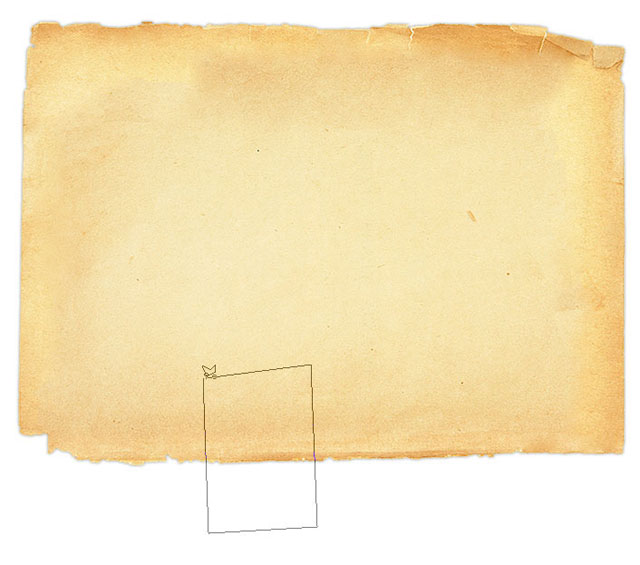
With this selection we will create some buttons. Be sure you have the first layer selected.
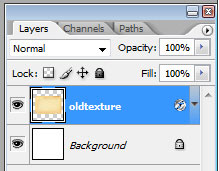
Then press on Ctrl+J.
You will see another layer above the first one. I will rename this layer button.
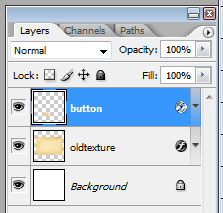
Select this layer button , and go to Edit > Transform > Rotate 180.
With move tool place the small button on the top of the layout.
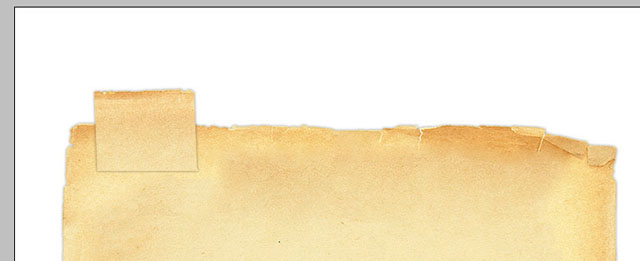
Then drag this layer right above the background layer.
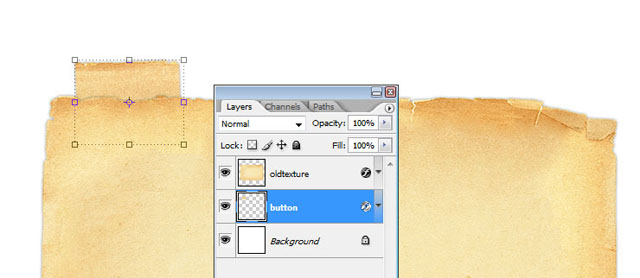
Repeat the steps from above until you place as many buttons as you need.
This is my result:
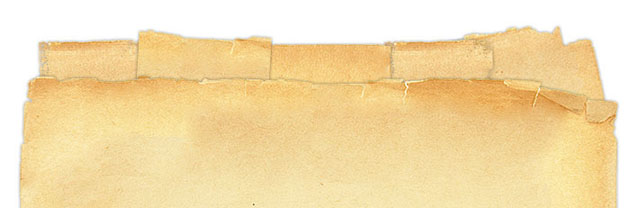
Add some text.

I want to change the colors for this buttons. The easy way is to use the Hue / Saturation option.
To bring up the Hue saturation window, be sure you have the first button selected, then press on Ctrl+U.
Use the following settings if you want to use the same colors.
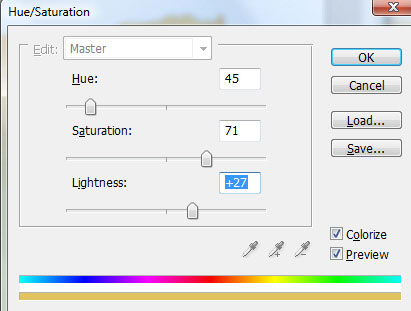
This is my new button:
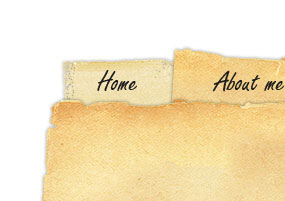
Now change alone the colors for each button. This are my buttons:
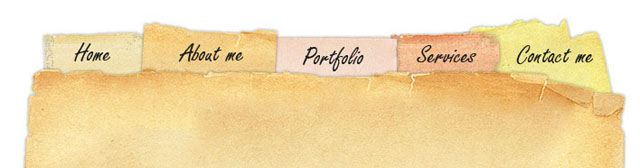
Now it is time to add some text and images on your layout. This is a very simple task and i don't think you will have problems.
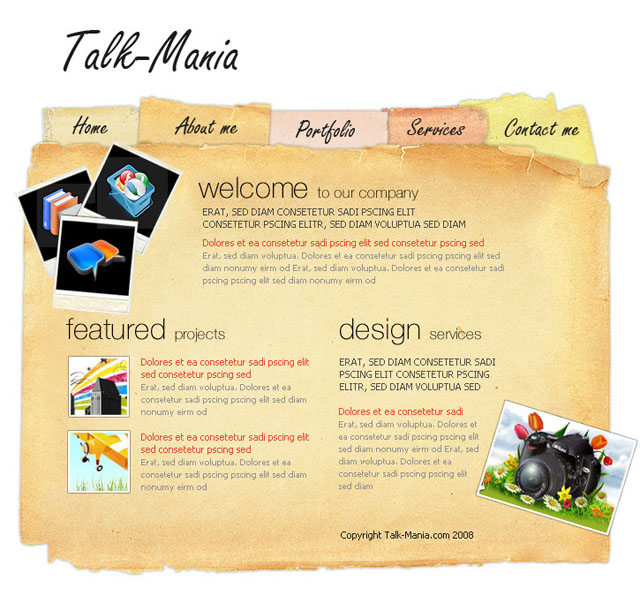
The layout is already looking quite good, but i think it will be nicer if we will add a good background. Please go to rovere wood texture.
Download this image and place it right above the background layer.
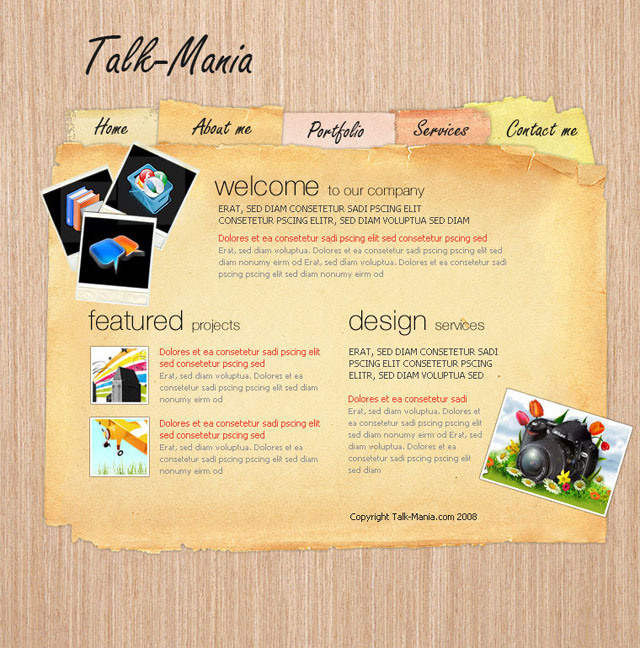
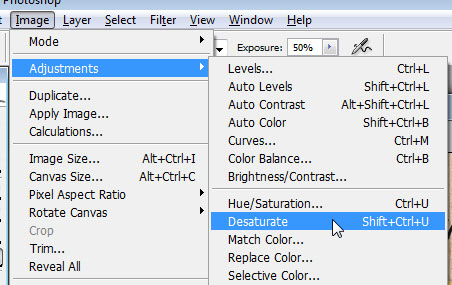
I don't like the actual image because it doesn't have the contrast i want. But i will desaturate this background image and i will have a nicer look. To desaturate a layer, please go to Image > Adjustments > Desaturate.
This is my final result:
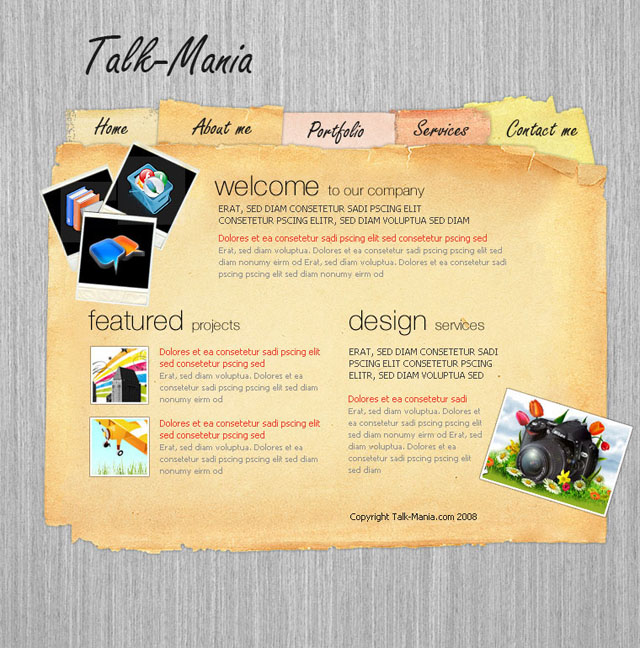
I recommend you to download this layout if you want to understand better how it's made.
