


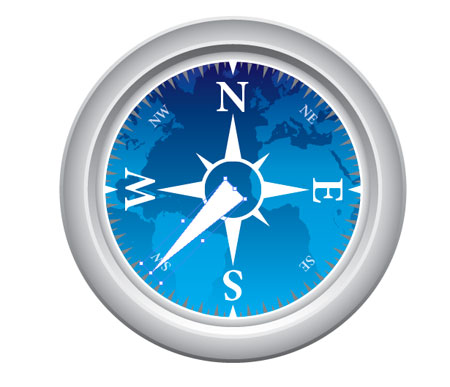
The Safari browser from Apple has a great little icon that works well in small formats while also displaying quite a lot of intricate details when viewed in large format. Navigate through this Adobe Illustrator tutorial to draw up your own vector Safari inspired compass in Adobe Illustrator.

As usual start with a new document in Adobe Illustrator, draw a circle on the artboard whilst holding Shift to produce a perfect shape. Fill the shape with a gray to white vertical gradient.
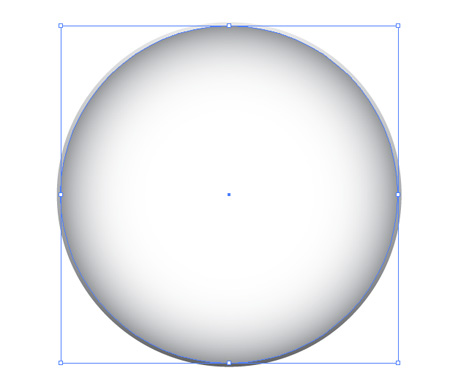
Copy and Paste in Front (Ctrl/CMD + F) a new version of the circle and add a lighter gray to white gradient, this time in radial format. Scale down the circle slightly.
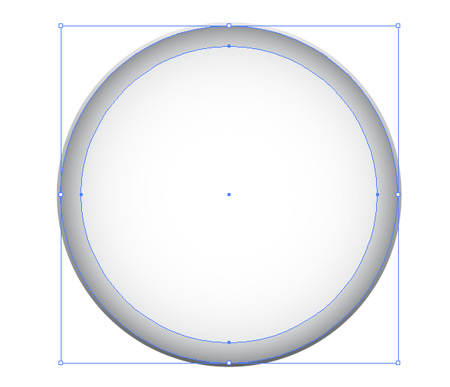
Paste in a third circle, fill with a very faint gray and scale down leaving a fair amount of the previous shape visible.
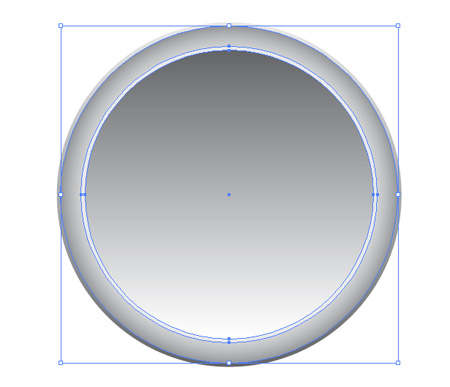
Paste in yet another circle, this time with a linear gray to white gradient and scaled very slightly smaller.
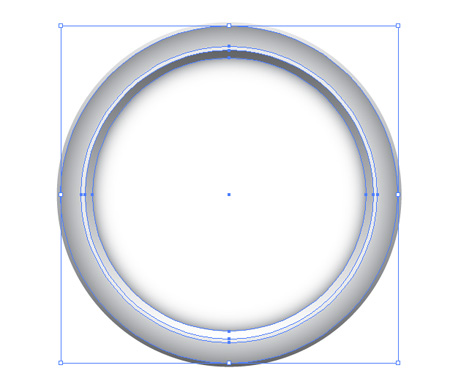
Once again paste in another circle using the radial gradient. This method of laying up varied gradients gives a great impression of a contoured and reflective metal frame.
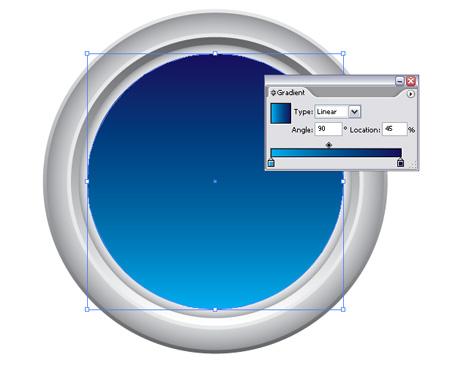
Paste in the final circle but this time fill with a gradient of blues to represent the background of the compass face.
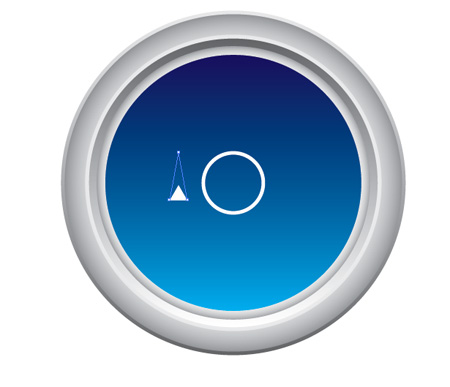
Begin drawing the decals with a stroked circle and star tool, while dragging the star shape press the arrow cursor keys to alter the number of points right down to one. Use the Direct Selection Tool (White Arrow) to drag the upper most point further upwards to give a longer triangle.
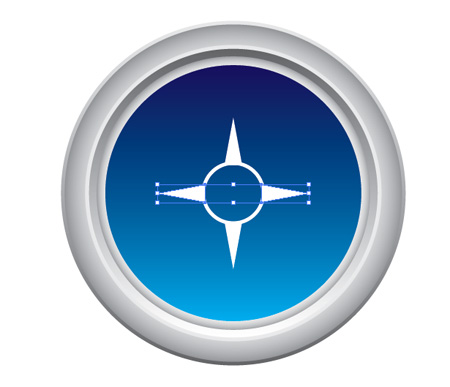
Duplicate the triangles and place in 90 degree positions around the circle. Using the Align to Artboard feature within the Align Palette makes work much easier.

Recreate the triangles and scale slightly to create the diagonal pointers.
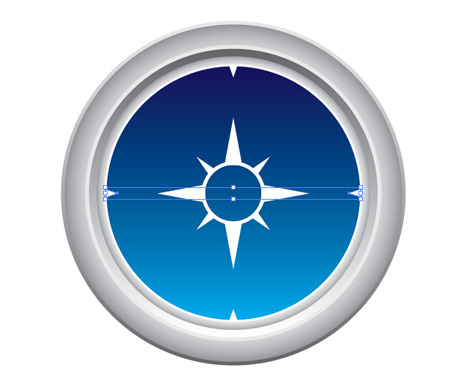
Use more small triangles to mark the points of North, East, South and West. Adding a stroke to the blue background can help blend the triangles in with the frame.
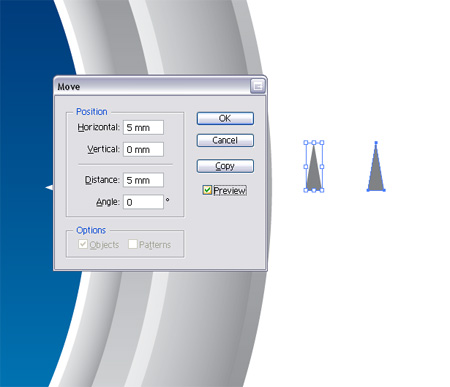
Around the original Safari icon are incremental triangles indicating the degrees around the circumference of the compass. To recreate this pattern begin with a triangle, duplicate and move a fixed distance to the side.
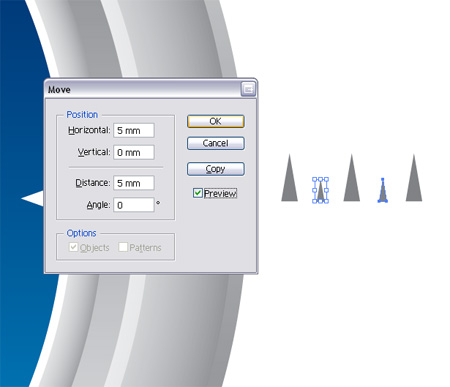
Repeat the process with a slightly smaller triangle, producing an alternating pattern between large and small shapes.
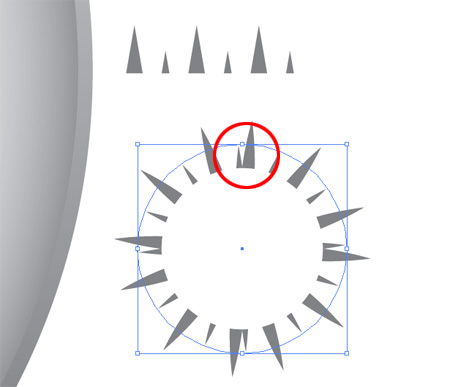
During my creation of the Safari icon for this tutorial I made a slight mistake but thought it would be great to include it nevertheless and show a simple workaround that can be used. Notice in the example the brush pattern that we will create doesn't match up correctly giving unequal distances between the triangles…
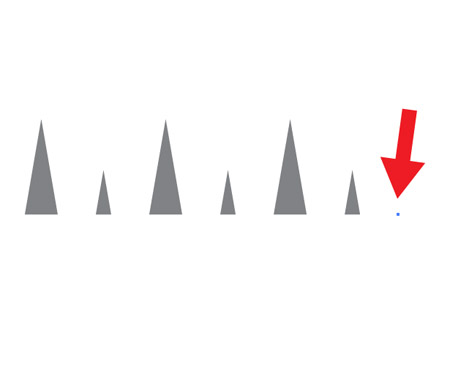
…A simple fix is to add a single point on the end of the pattern, offsetting it the same distance as used previously. This point will not be visible but will add an extra section to the pattern area.
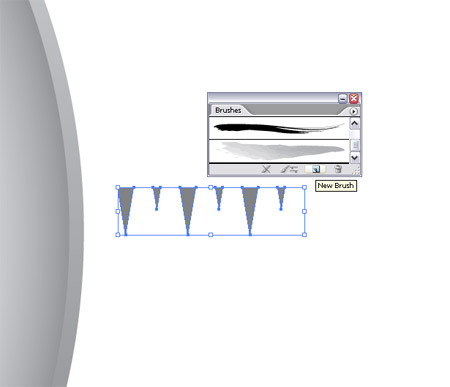
Now, onto creating the pattern, select the group of triangles and rotate the so that they point downwards. Then click the New Brush icon from the Brushes Palette.
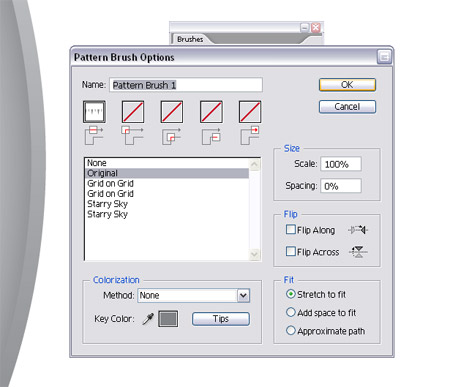
Select New Pattern Brush from the list and Ok and options in the dialog box.
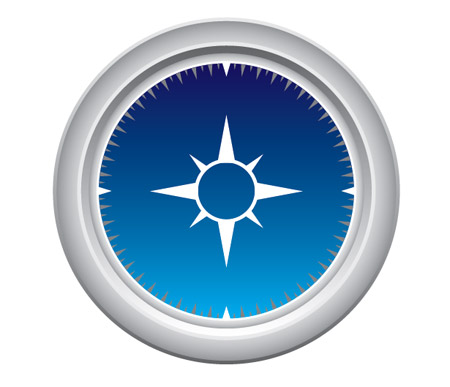
Copy and Paste in Front the blue background circle, clear out the fill and add the newly created brush, scale the circle as appropriate to fit within the compass area.
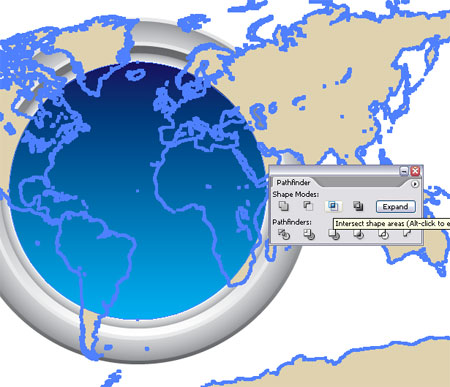
Grab a free vector map from a recent post, open up in Illustrator and paste into your document. Use a copy of the blue circle along with the Intersect From Shape Area option from the Pathfinder tool to chop out the excess.
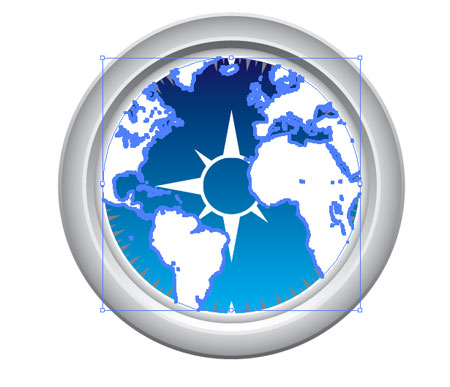
Fill the remaining map area with white and set the Transparency to Overlay or Soft Light, adjust the Opacity as you see fit.
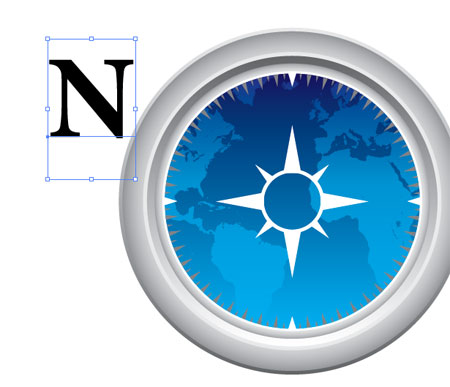
Use the Type Tool to draw in the N, E, S and W initials. The font used here is a sweet serif typeface called Minion Pro.
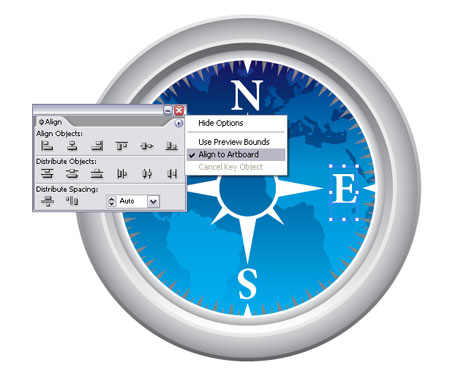
Rotate and position the initials into place on the compass, use the align palette to match them up exactly.
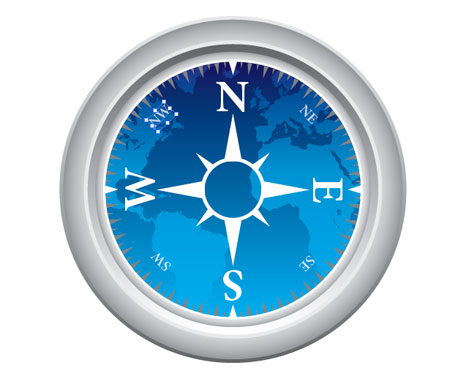
Repeat the process with the smaller North West etc initials, set these at a lower opacity of 80%.
Use another triangle to draw half of the compass needle, move the end point with the Direct Selection Tool as necessary to give a long point.

Copy and Paste a duplicate of the compass needle and move one of the bottom points inwards halfway. Fill the new version with a light gray.

Duplicate the compass needle and position in the opposite direction, this time fill the two halves with shades of red.
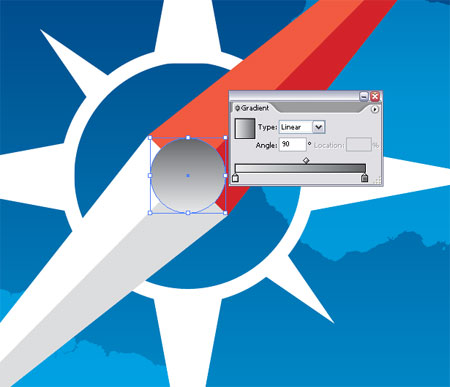
Zoom in and draw a circle as the needle mounting pin, use a gray linear gradient as the fill.
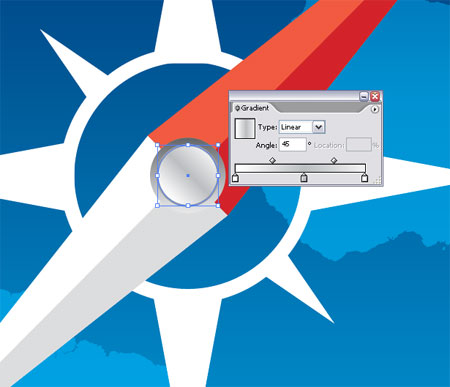
Paste in another circle, scale down slightly and fill with another gradient to give the impression of a reflective surface.
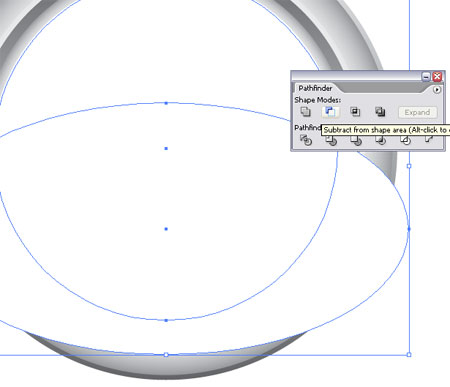
An Apple product wouldn't be complete without it's reflection. Paste in a white circle over the compass face, draw in an additional shape to use along with the Subtract From Shape Area option in the Pathfinder Tool.
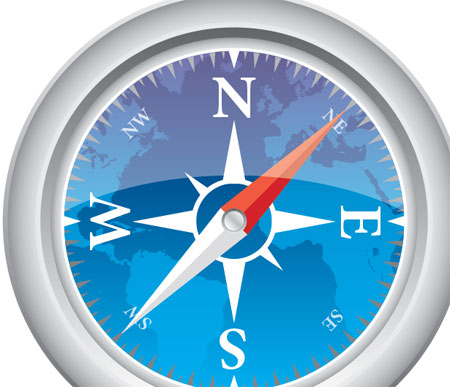
Drop the opacity of the reflection to give a soft light cast across the glass screen of the compass.
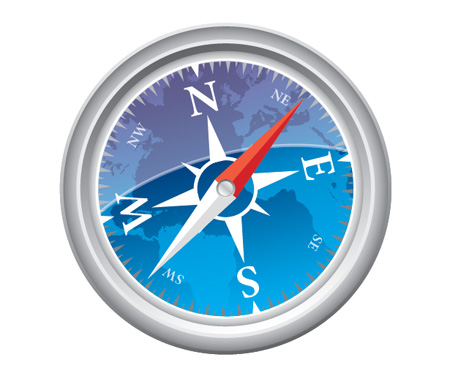
Finalize the vector compass with any little tweaks and additions. Here I adjusted the size of the frame in comparison with the compass face, made some minor colour changes and rotated the whole unit slightly.
But wait! There's more…
After completing a vector illustration it's always good to open up the file in Adobe Photoshop to add some final tweaks to really bring out the detail and colors.
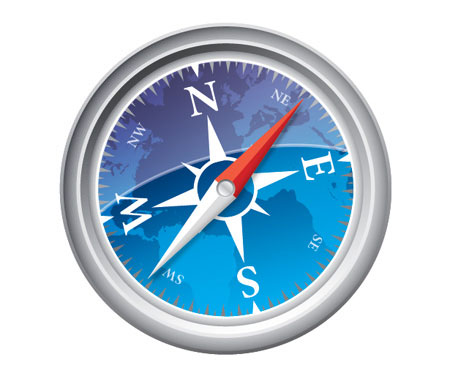
Use the brush tool to gently paint in a faint shadow under the compass needle to lift it from the face slightly. Also, drag a black to white gradient across the compass and set the blending mode to Overlay at 65%.

On a new layer, paint in some rough blobs with the paintbrush tool, aiming at random areas around the metal frame. Draw in circular masks to delete out the excess around the edge of the compass and any overlap on the face.
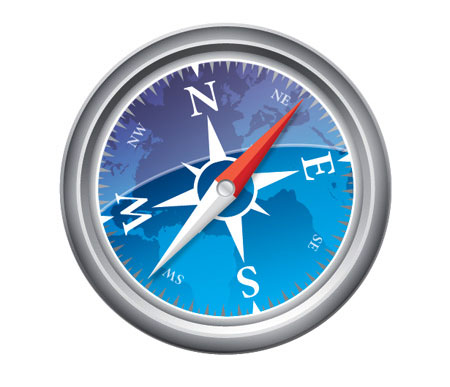
Set this layer to Soft Light at 50% to add some shading to the metal casing.
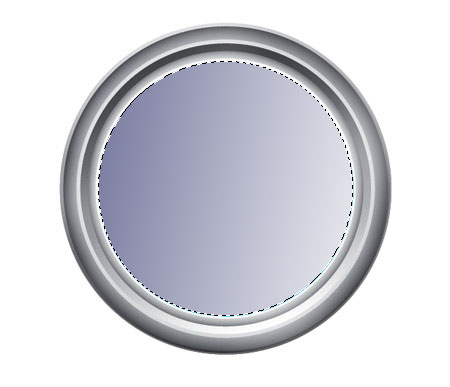
Draw a blue to white gradient across the face of the compass and set this layer to Linear Burn at 35%, this helps pop out the colors of the compass background.
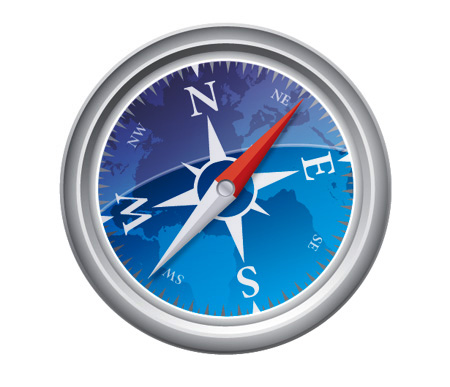
If it was crucial that your illustration remains entirely vector similar adjustments could be done right within Illustrator, however I feel Photoshop gives better control over these small tonal adjustments. Before the image looked fairly plain and flat, but now with these final tweaks the compass has a good range of tone resulting in a slightly more realistic illustration.
