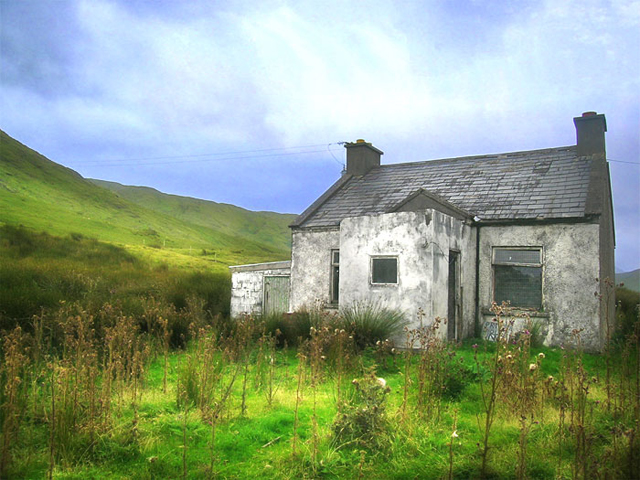
At first, open the photo you want to edit. I used this one.
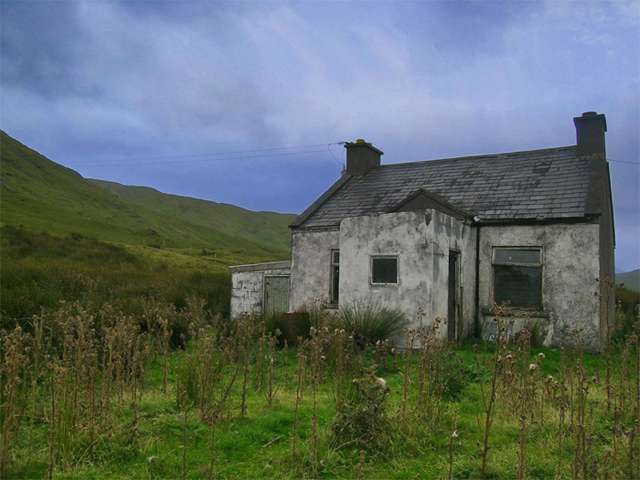
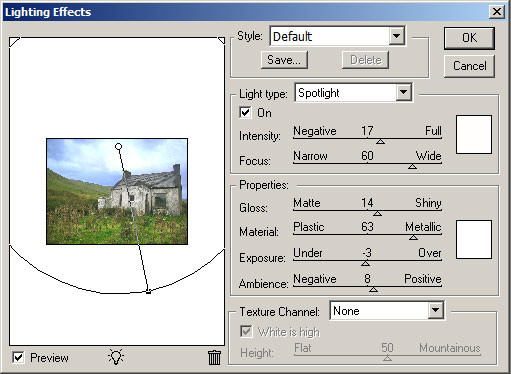
Then go to Filter-Sharpen-Unsharp mask: Amount 18%, Radius 1.0 px. Very good. Now, let's increase the sunshine. Filter-Render-Lighting Effects and set these parameters:
Use Dodge Tool (Range:Highlights Exposure:40%) on the grass (partially - don't make all the grass bright because there are some clouds, and don't forget to use Dodge Tool on the mountains), walls and housetop. Unsharp the windows of the house and its roof. The house looks better now.
And now the magic trick! Select the grass (I recommend you to use quick mask) and move it to another layer.
Filter-Blur-Gaussian Blur: Radius - 4.5 px. layer-Layer Style-Blending options: Blend mode - Overlay Opacity - 70%. Flatten image.
That's all, our work is done.