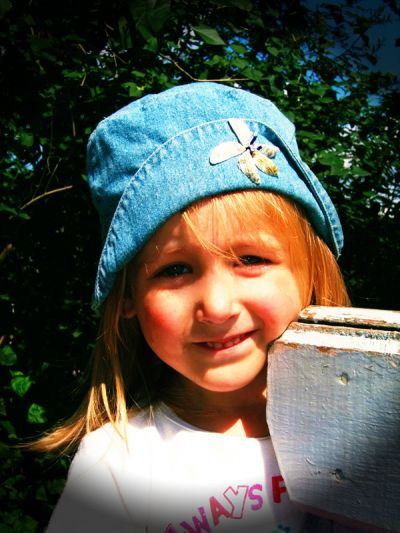
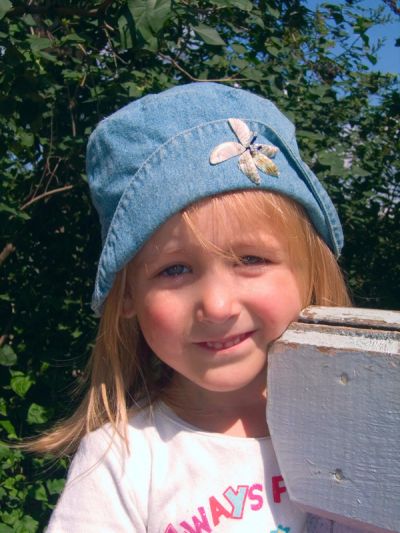
1. Open the image.
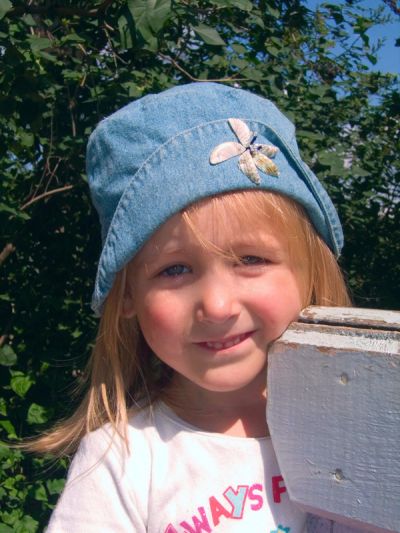
2. Create an adjustment layer Curves. We need to add some contrast.
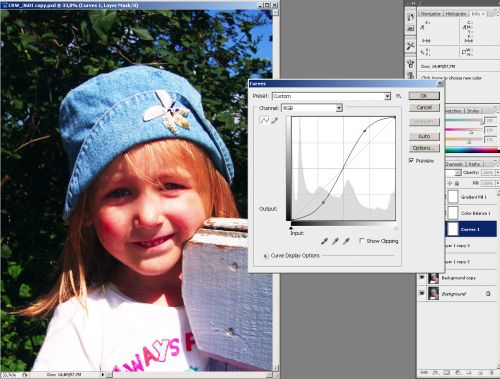
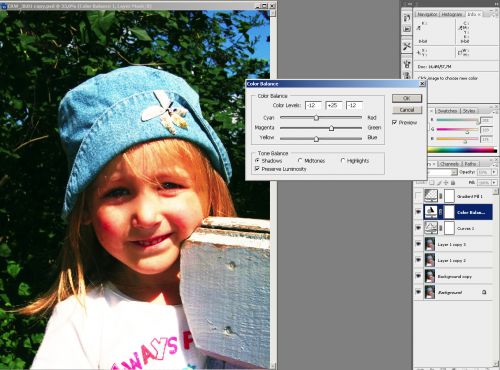
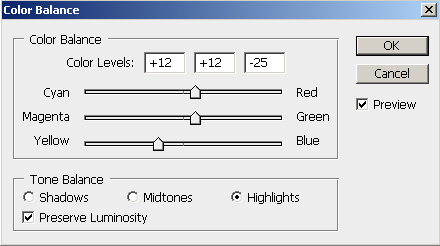
3. Create another adjustment layer - Color Balance. Change parameters in shadows and highlights. We are adding green in the shadows and yellow and red in the highlights become more pronounced.
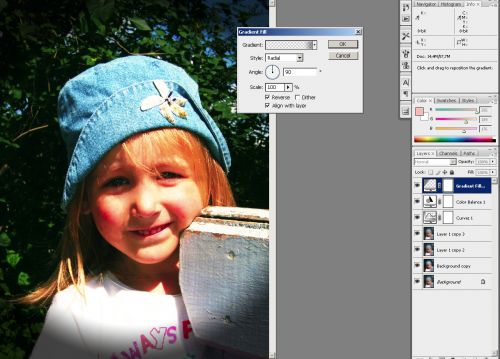
4. As a final touch we can add a vignette using Gradient Fill.
Here's the result and the original side by side: