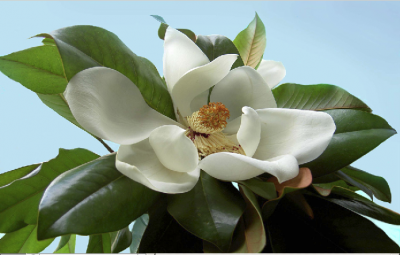
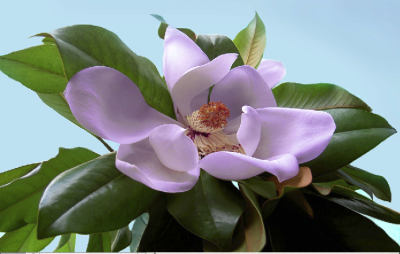
1. Open your image and duplicate the background layer. We do this not to destroy the original.
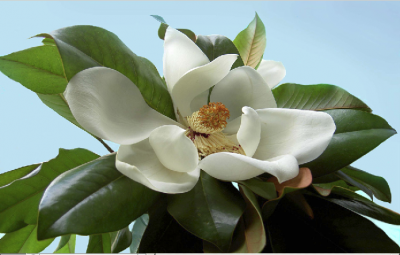
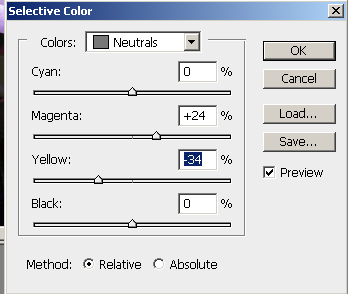
2. Go to Image > Adjustment > Selective Colors and chose the color that dominates the object you want to colorize. In my case it was white and neutral. In both I added some Magenta and reduced yellow in Neutrals.
White
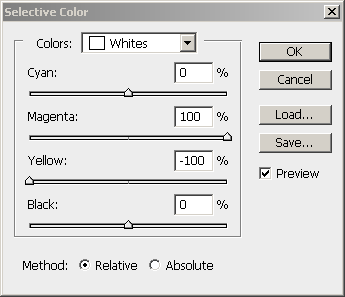
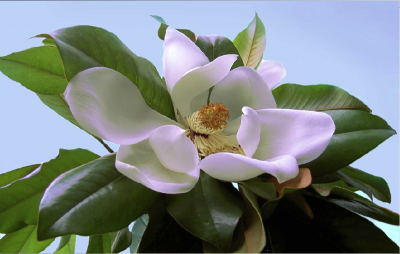
Neutral
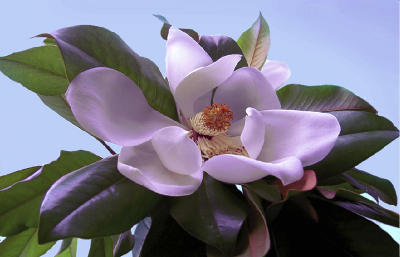
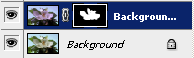
3. If you don't want additional tint in the background also, add a layer mask and with a soft round brush paint black everything you don't need to have a tint.
The effect is more subtle than with Hue/Saturation adjustment and gives a tint rather than a really different color but in some situations this can be more preferrable.