

1. Open your image and duplicate its background layer.
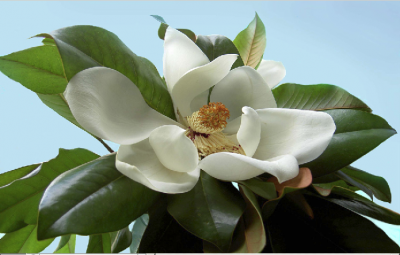
2. Staying in the layer copy go to Image > Adjustment > Hue/Saturation
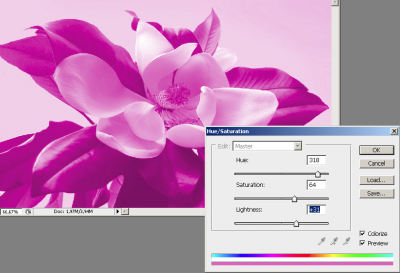
3. Check Colorize in the Hue/Saturation panel and adjust Hue and Saturation until you have the color you want in the desired place of the image (Hue will change color, Saturation - its intensity). Don't bother about the rest of the image, we will deal with it in the next step.
4. Add a layer mask to the layer with modified color and choose a round soft brush. With the foreground color set to black start masking the parts of the image you don't want to be colorized.
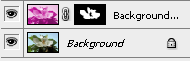
5. You can correct what you are doing at any time by changing the foreground color to white and revealing the masked part.
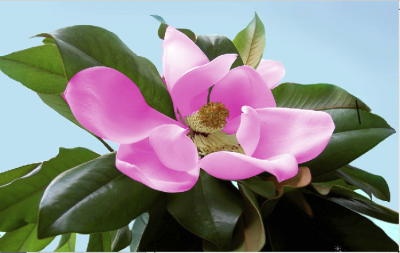
6. After masking is done you can regulate the intensity of the color by changing the layer opacity. I set it to 66%.
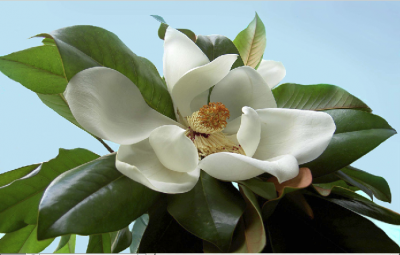
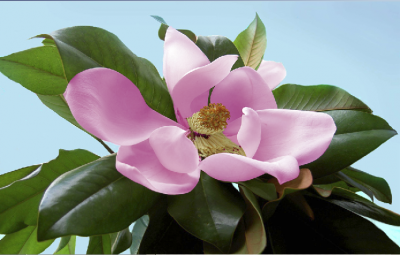
If the layer is retained for further use in a .psd file you can change the color of your object to any other at any moment.

