


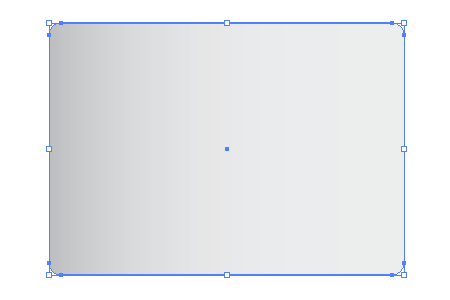
Open up Adobe Illustrator and create a new document, use the Rounded Rectangle Tool to draw the basics of the iMac screen. Use the up and down cursor keys to adjust the roundness of the corners while dragging.
Fill the rectangle with a soft gray gradient from left to right.
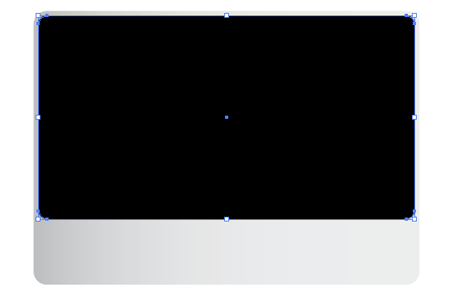
Draw another rounded rectangle within the previous shape as the frame around the iMac screen, adjust the corners slightly smaller in order for them to continue parallel to the outer shape. Fill this rectangle with black.
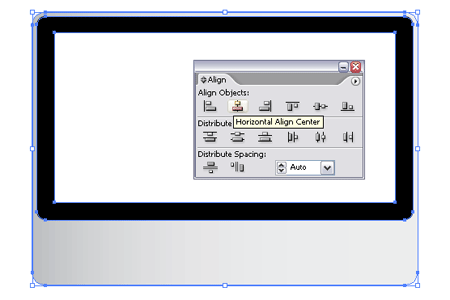
Create a third rectangle filled with white as the main screen area. Center the objects together with the Align Palette.
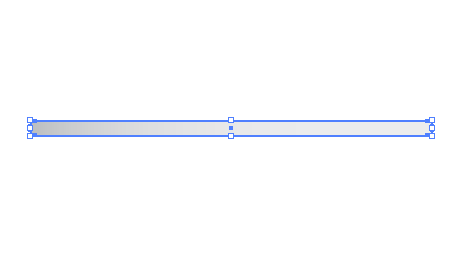
Create another new rounded rectangle as the front edge of the base, with very slight rounded corners. Use the same soft gray gradient as the outer screen.
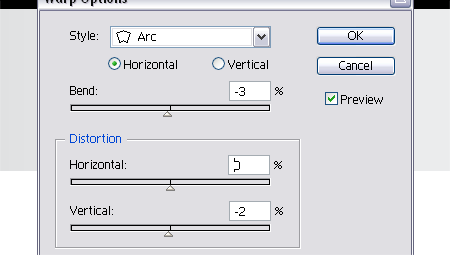
Go to Object > Envelope Distort > Make with Warp to apply a subtle curve to the base, using the settings of -3% Bend and -2% Vertical Distortion.
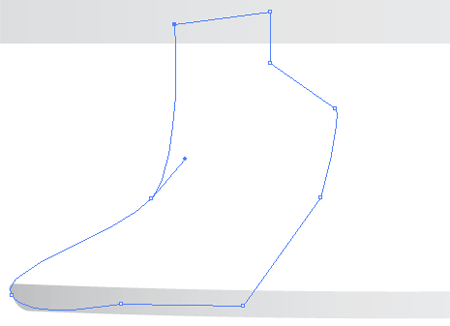
Use the Pen Tool to manually draw out the flowing shape of the base that leads up to the main unit. Concentrate on perfecting the outer curve then roughly complete the shape.
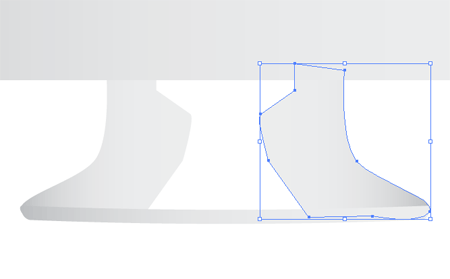
Copy and Paste the new object and carefully position on the opposite side.
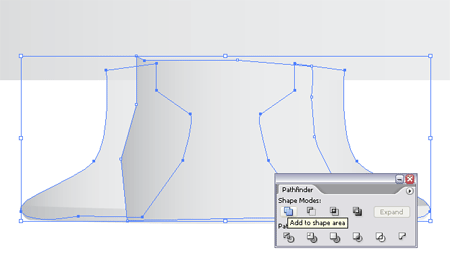
Fill out the remaining gap with a rough shape drawn with the Pen Tool. Send all three objects to the back by pressing Ctrl/CMD, Shift, ]
With all three objects selected Merge them together using the Pathfinder tool.
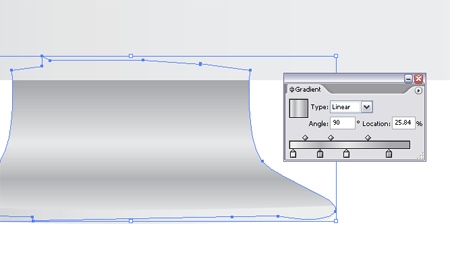
Fill this merged shape with a range of soft gray gradients spanning from light to dark to give the impression of the curved surface and shading.

Drop in a logo on the lower screen casing, I've used the SpoonGraphics circular logo however an accurate Apple logo can be downloaded at Brands of the World.

Fill the previously created white rectangle with a blue gradient spanning diagonally across the shape.
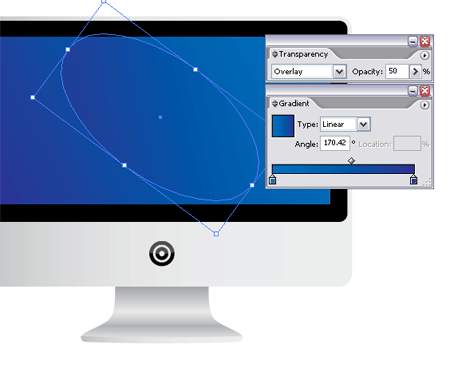
Using the same fill colors draw an oval over the shape set at Overlay, 50% Opacity.

Duplicate and rotate multiple variations of the oval, overlapping each one to replicate the traditional Mac wallpaper.
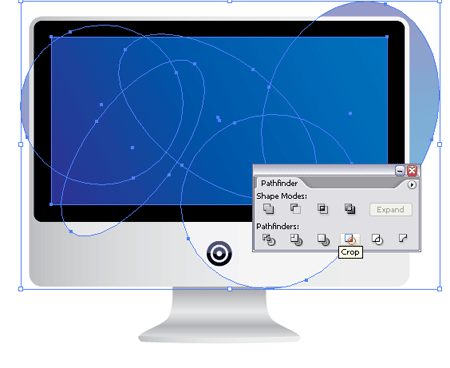
Group the ovals together and paste a copy of the screen rectangle at the top of the stack. With both rectangle and oval group selected use the Crop function of the Pathfinder tool to delete out the excess shapes.

The overall iMac graphic is coming together, but an Apple inspired image isn't complete without a glossy light cast.
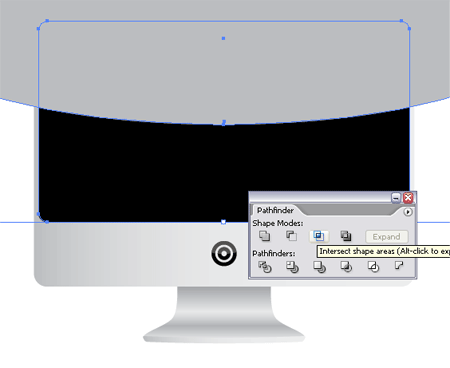
Copy the black frame rectangle and send to the top of the stack (Ctrl/CMD, Shift, ]), then draw a temporary shape giving a slight curved edge halfway down the rectangle. Use the Intersect option from the Pathfinder to complete the shape.

Fill this new object with white and reduce the Opacity to suit.
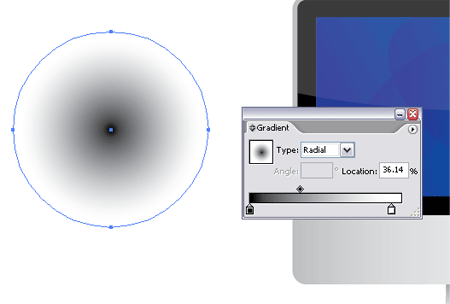
Finally give a sense of dimension by adding a subtle shadow underneath the iMac.
Draw a circle with a black to white radial gradient.

Squash the circle into a near flat oval and position under the base of the iMac, spreading outwards to the edges of the screen.
Reduce the opacity slightly to reduce the impact of the shading.
