


Step one: Start with a 1000 x 130 pixels, #007EA2 canvas.
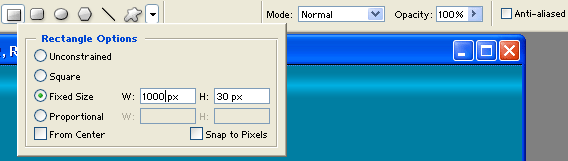
Create a new layer then draw a 1000 x 30 pixels, black rectangle across your canvas. Use your rectangle tool to make the rectangle so you can use the fixed size setting under rectangle options to make the exact rectangle.
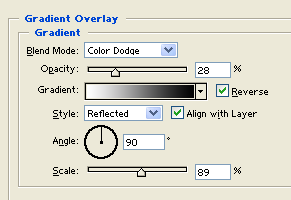
In your layers window set your layers blending mode to lighten and add the following layer styles:

Step two: In a new layer draw a 1000 x 5 pixels, #C6ACE2 thick line across your canvas. Use your rectangle tool to make the rectangle so you can use the fixed size setting under rectangle options to make the exact line.
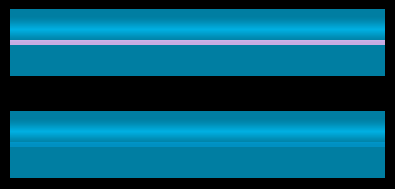
Step three: Now below all your current designs applied to your header add a 1000 x 30 pixels, #006C92 rectangle across your canvas.
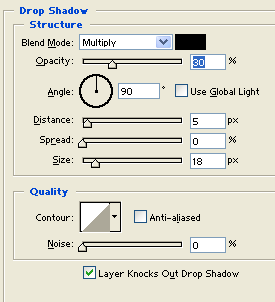
Add the following layer styles:
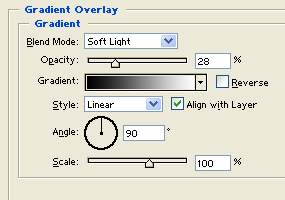
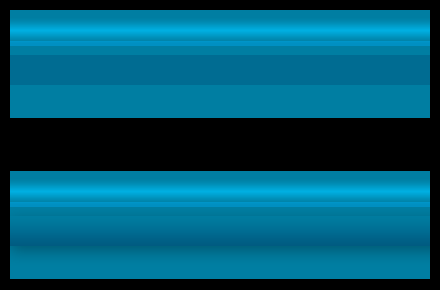
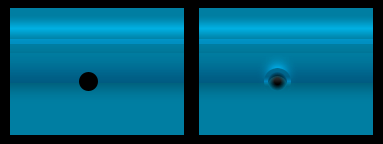
Step four: In your layers window make a new layer set, name it Navigation. In a new layer 19 x 19 pixels, black circle. Use your ellipse tool to make the circle so you can use the fixed size setting under ellipse options to make the exact circle.
Add the following layer styles:
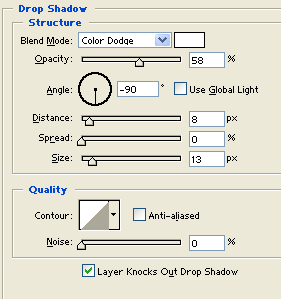
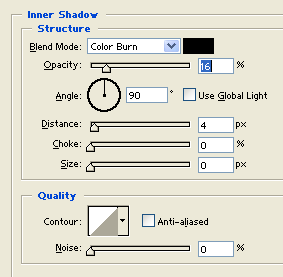
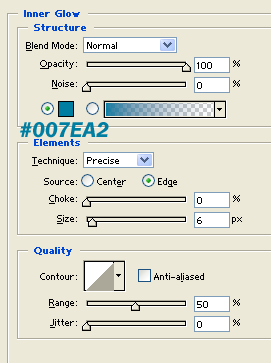
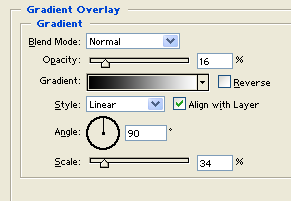
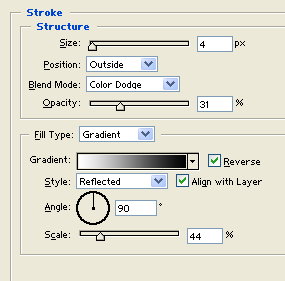
Step five: Create another layer. Inside your last circle draw a 10 x 10 pixels, white circle.
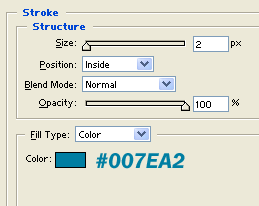
Add a stroke layer style to your circle layer.
Choose your text tool and type in your first navigation link using font Arial, bold, 11 pt, none and #FF0000 for color.
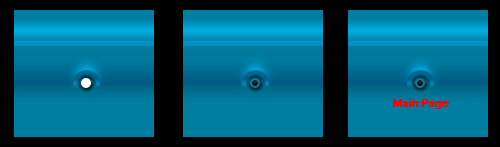
Step six: Now complete your navigation system. Just duplicate your navigation layer sets and modify the texts.

Step seven: In a new layer seperated from your layer sets draw a 1000 x 6, black line across your canvas.
Duplicate your thick line and nudge it below your original line, set the layers blending mode to Soft light at 28%.
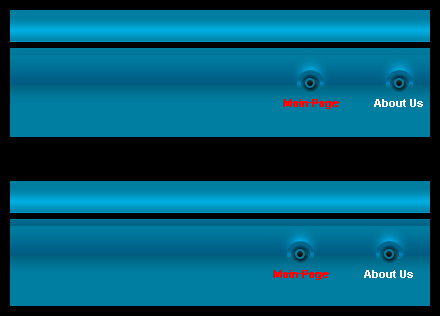
Step eight: Again in a new layer draw a 1 pixel white line located on the bottom edge of your last thick line. In your layers window set the layers blending mode to Soft light.
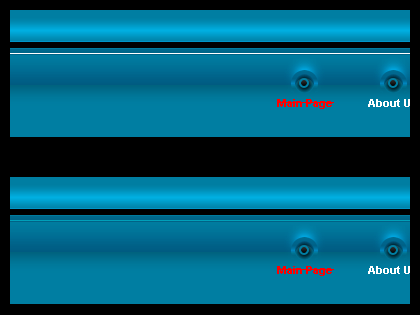
Step nine: In a new layer draw a 1000 x 35 pixels, black rectangle across your canvas. Use your rectangle tool to make the rectangle so you can use the fixed size setting under rectangle options to make the rectangle.
In your layers window set your layers blending mode to lighten and add the following layer styles:
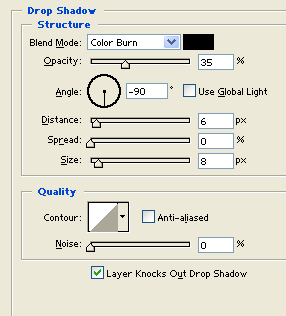
Step ten: Just at the bottom of all your designs so far draw a 1000 x 11 pixels, black rectangle across your canvas. Use your rectangle tool to make the rectangle so you can use the fixed size setting under rectangle options to make the rectangle.
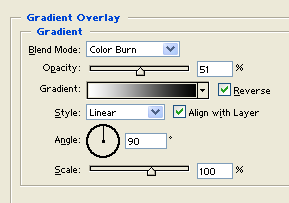
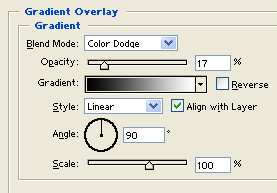
In your layers window set your layers blending mode to lighten and add a gradient overlayer layer style:
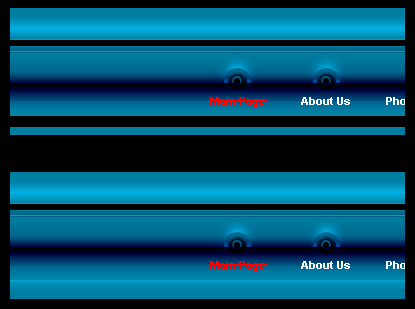
Step eleven: Make a new layer set, name it Line detail. In a new layer draw a 1 pixel black line.
In another layer, draw a 1 pixel white line. Set your white line layers blending mode to Overlay at 37%.

Step twelve: Add a line separator for all your navigation links.
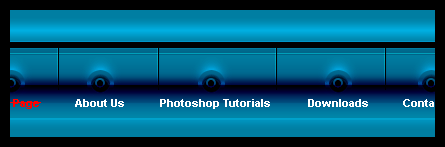
Step thirteen: Create a new layer then draw a 100 x 46 pixels, black rectangle above your second link. Note your second navigation might be different from this tutorial so your black rectangle should be different as well. Use your rectangle tool to make the rectangle so you can use the fixed size setting under rectangle options to make the exact rectangle.
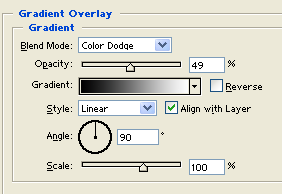
In your layers window set your layers blending mode to lighten and add a gradient overlayer layer style:
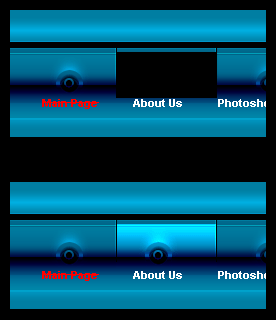
Step fourteen: Add the same black rectangle structure on your other links.

Step fifteen: Choose your text tool and set the font type to Arial, bold, 22 pt, crisp and white for color. In a new text layer type your name.
Add the following layer styles:
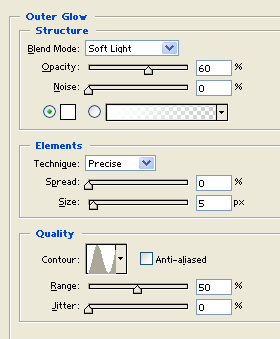
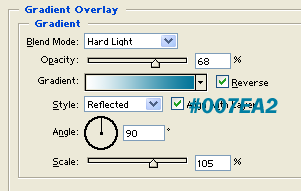
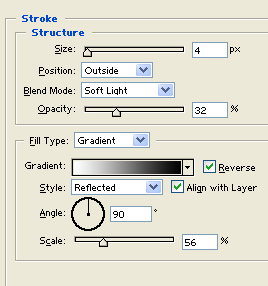

Step sixteen: Now type your slogan using font arial, bold, 10 pt, crisp and #FF0000 for color.

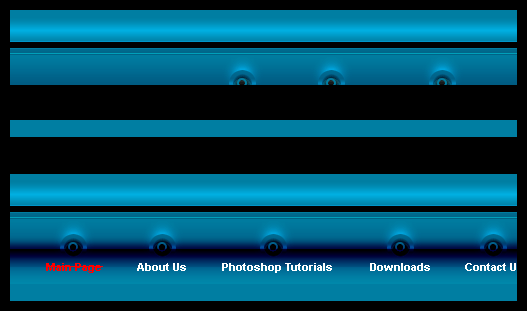
Final Image: Cool Blue Header Design.

