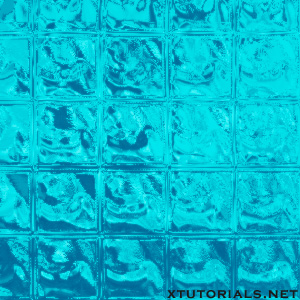
OK! First of all start by making a new document. The size is not important. Just make it suitable for where you will use it. In this tutorial I made a small one: 300x300.
Go to Filter->Render->Clouds.
After that go to Filter->Render->Difference clouds.
Press Ctrl+U and make it lighter. The result so far:
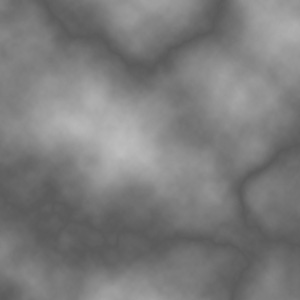
No go to Filter->Sketch->Chrome and use the default settings.
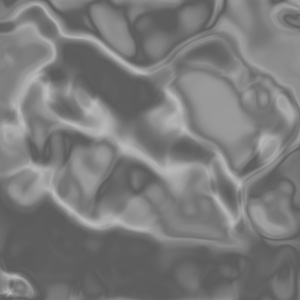
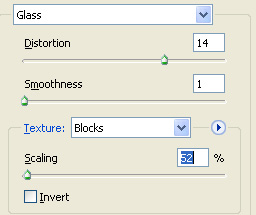
Go to Filter->Distort->Glass and use these settings:
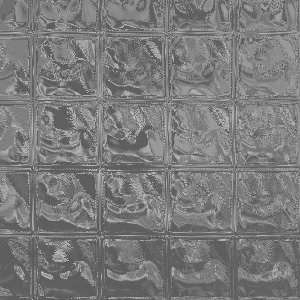
The result is this one (or something similar):
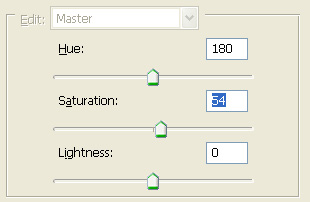
Press Ctrl+U, click on Colorize and use these settings:
After that create a rectangle with the color #b8b1ff over the blocks. Set the Blending Mode to Color Burn.
Now duplicate the Blocks layer and set the Blending Mode to Screen. go to Filter->Blur->Blur and Filter->Blur->Blur More.
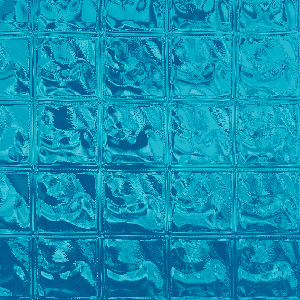
Final result: