


Create a new file (File>New) of 1280x1024 px and 72 dpi. Select then the Paint Bucket Tool (G) to fill the new file with black color.
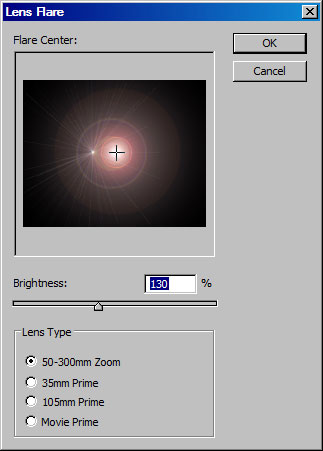
Make a copy of this earlier made layer (Ctrl+J) and apply on it the Filter>Render>Lens Flare. Set the next parameters demonstrated below:
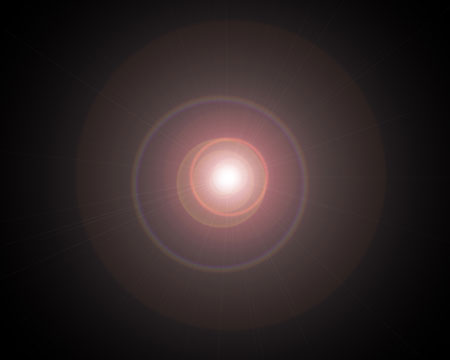
We'll get the same thing from next image:
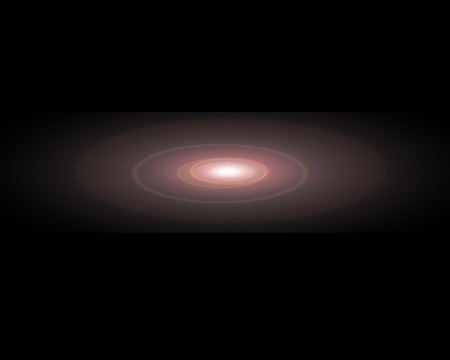
Choosing the Free Transform selection (Ctrl+T), it's possible to get narrow this layer as in the next picture it is demonstrated.
Make a copy of this layer and turn it over. Set the next Blending Mode options for the layer:
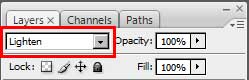
We'll get a kind of element like the next one.
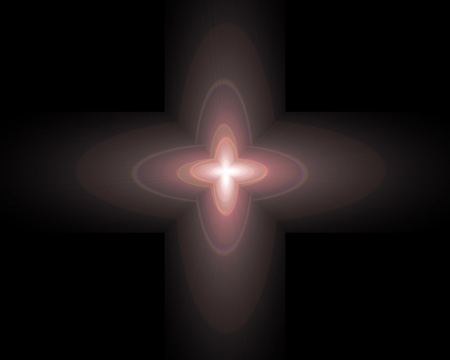
Put together both layers and set for them the Filter>Distort>Polar Coordinates. Set also the next parameters introduced in the table:
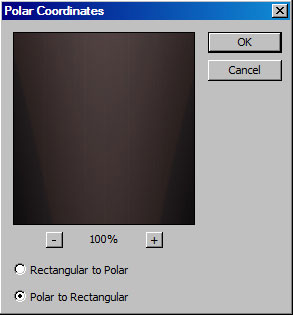
We'll get an ornament like this one:
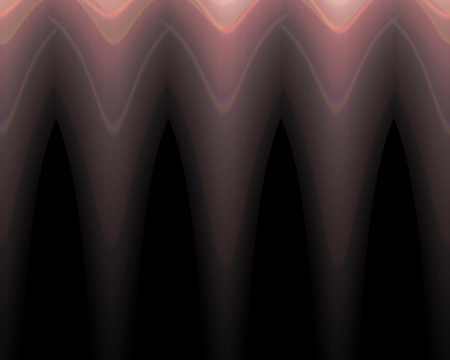
Next we'll use one more filter's option: Filter>Distort>Twirl, having the next parameters for it:
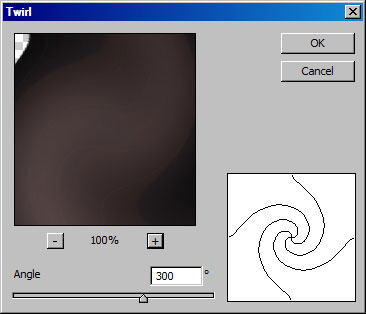
This is the picture we should get. Then we need to press Ctrl+F.
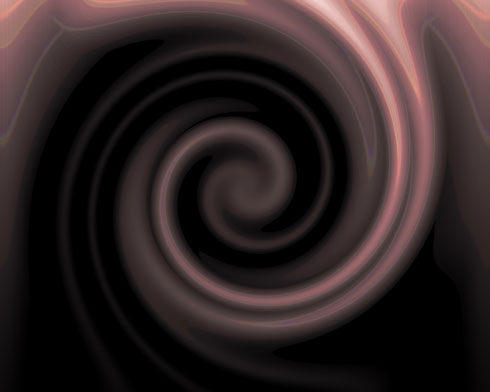
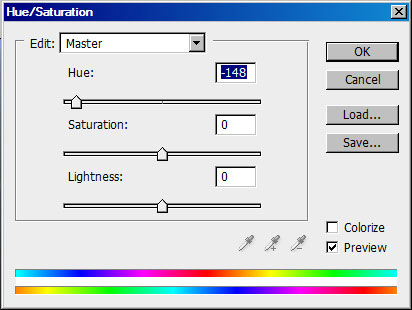
Change the color for the new layer we've got, applying Ctrl+U. Set the next values for the Hue/Saturation option.
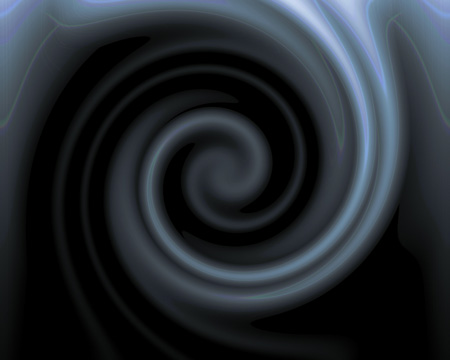
We'll get the next color:
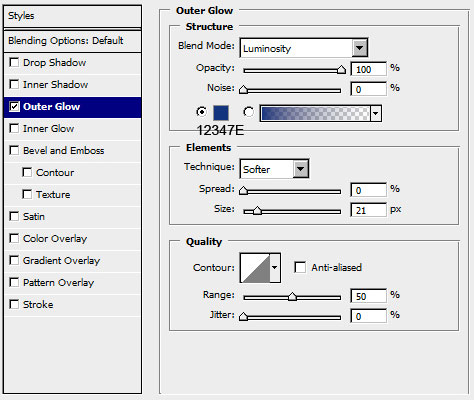
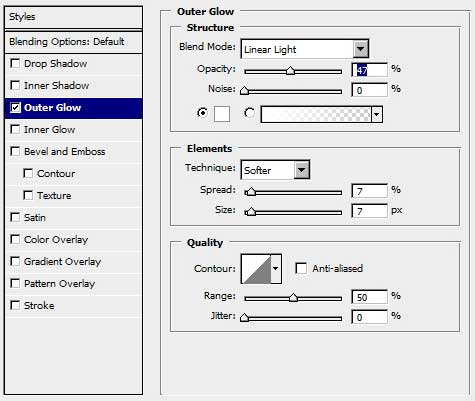
Select for this layer Blending Options>Outer Glow. The menu may be selected by making a mouse click on the layer we need on the layers' palette.
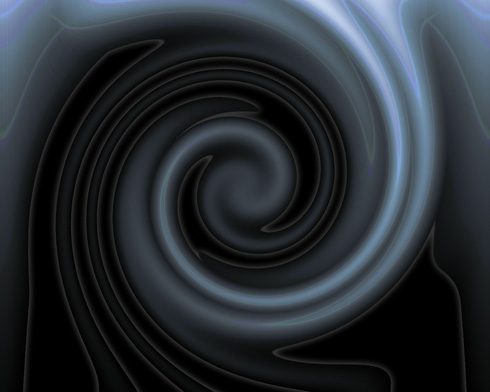
Try to get this picture:
Next we should create a new layer again and fill it with blue color which code is indicated below:

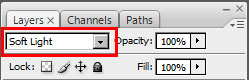
Apply on this layer the option shown next table out of the Blending Mode selection.
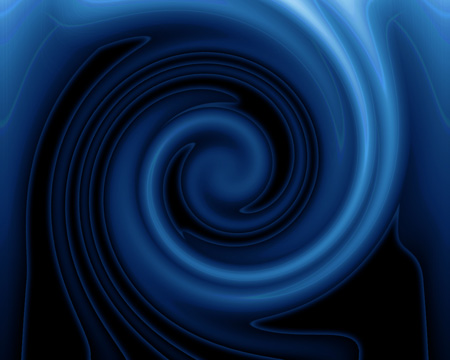
Now we've got the entire picture colored with blue.
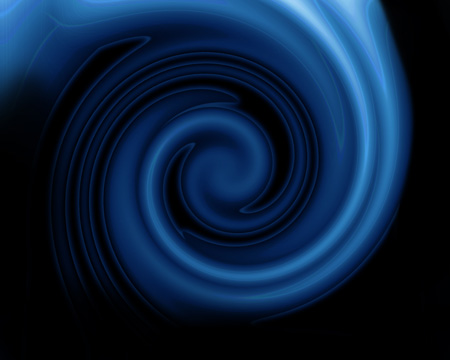
Create a new layer and select on it the Brush Tool (B) to paint the unnecessary parts with black color, as in the picture from below:
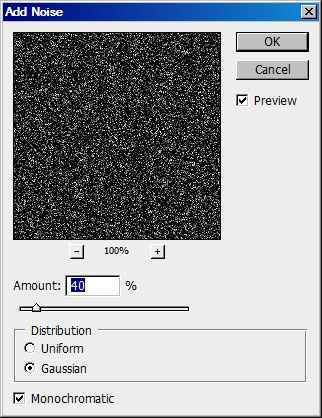
Next create another layer and paint it with white color. Press D,X buttons and apply the Filter>Noise>Add Noise, following the parameters indicated next table:
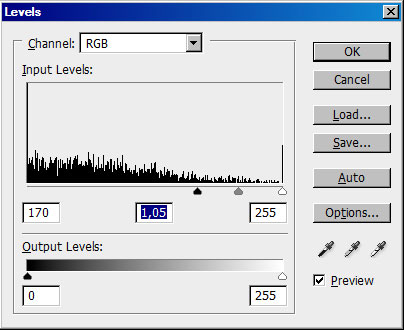
Now it's time to set the contrast level and the brightness of this layer (Ctrl+L)
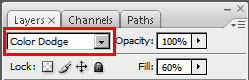
Change the Blending mode.
Next choose the Custom Shape Tool (U) and select the star shape from below:
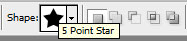
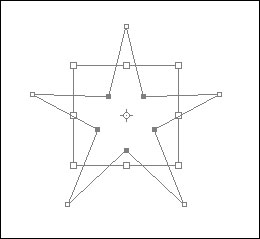
Create the small star and select after that the Direct Selection Tool (A) and the Free Transform option to mark out the inside star's tops, transforming them by making them smaller. This way we'll change a little the star's shape.
Choose the Blending Options>Outer Glow selection for the star.
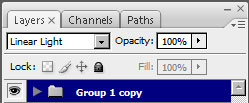
Copying and turning over arbitrary our stars, it's possible to get a composition. After that mark out all the stars on the layers' palette and place them in a group Ctrl+G. Set the next parameters for the group that we've got.

Make a copy of the whole group, transform it up, turn it around and change its' parameters with those demonstrated below:
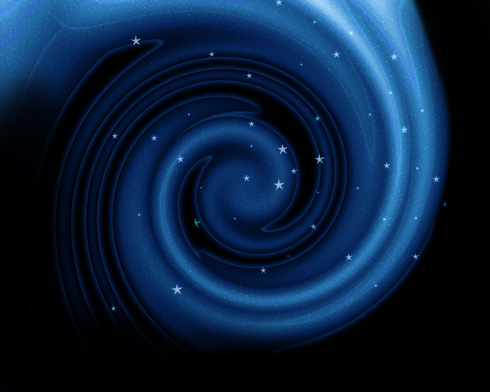
It's the picture we should get on the final stage:
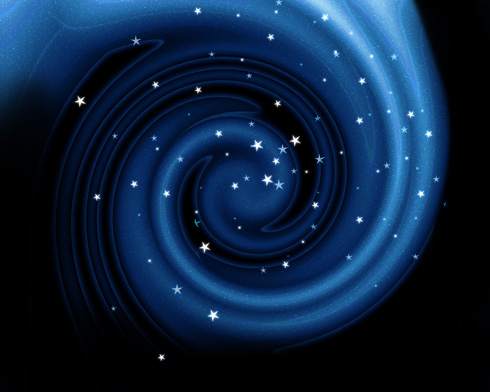
Finished!
