


Hey there, we're going to be doing a very simple tutorial in a few easy steps. You'll end up with some smooth text that you'll be able to use for your headers or pages. So let's get started!
We're just going to create a canvas for the purpose of the tutorial, you can recreate your text/move it to a project as you wish later on.
Create a new canvas 500x500. Fill in the background with white.
Now select your Text tool, set your foreground colour to the colour you wish the text to appear, i used #c2bcbc
Type in some text. I used the font Trebuchet MS.
I changed the colour of "Soushi" to a light blue #009cff and made "Tutorials" italic to make each word stand out more.

Go to the blending options for your text layer, and use these settings.
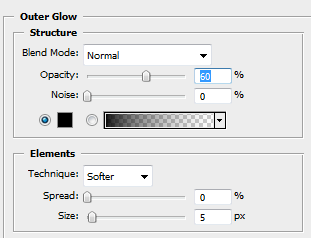
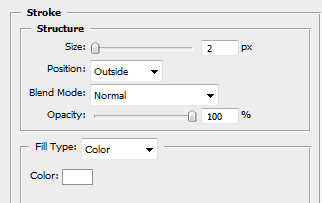
You should now have something which looks like this! You're basically done now! However if you're happy with your text, and feel like using it, then you can try out the next step.

We're gonna add a little shine to it all, it will make it nice and sleek (well in my opinion!)
Create a new layer, and then Ctrl+Click your text layer in the layer palette.
This will select your text.
Now fill in the selection with white on the new layer you just created. You should see this.

Now grab your Pen tool, use these settings (at the top toolbar)

We're going to cut out the layer now. This step is to your own liking, but i usually like to give it a smooth curve which is not too wavy. Look at where i placed my points.
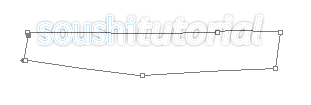
Once you've got your path closed, right click inside it and choose "Make Selection". Hit delete on your keyboard to delete the area inside the points, and deselect.
Set the layer opacity to about 30-40%, you should now have something which looks like this!

That's the end of the tutorial! If you did everything correctly you should have some nice smooth text that go well in simple headers or on web pages. Let your imagination flow!
Thank you and have fun!
