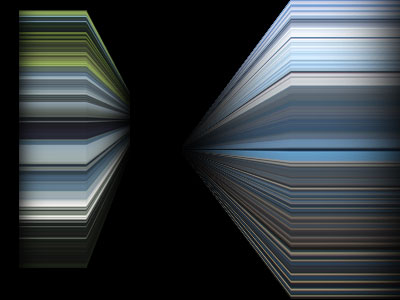
First, get an image with a lot of color. In this example, we will be using this image:
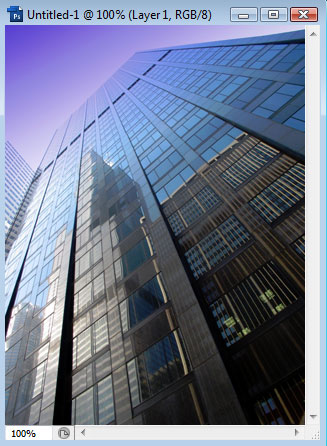
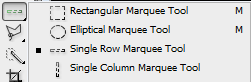
Open the image in PhotoShop and then choose the Single Row (or Column) Marquee tool:
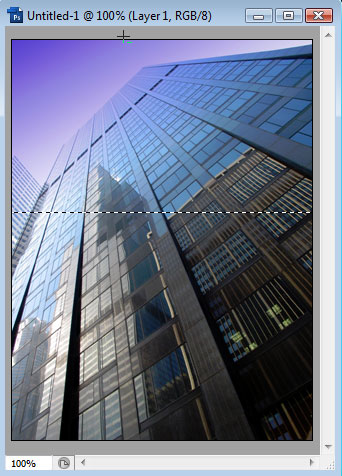
We will use this to make a 1px selection of a row (or column) within the image. When you click using this tool, it will make a selection of 1px, like so:
Press Ctrl+C to copy this selection, then paste into your original document in PhotoShop. We should have a 1px line:
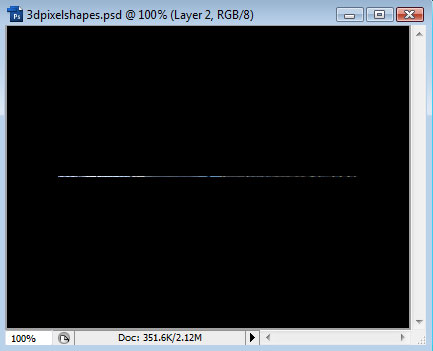
We will goto Edit > Transform > Rotate 90° CW. Then goto Edit > Transform > Scale, and expand one side like so:
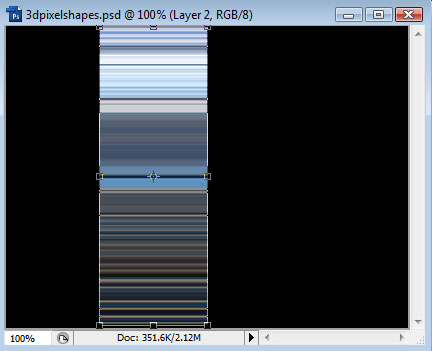
Next, right-click the layer and duplicate it, and line it up so that it is right next to the original:
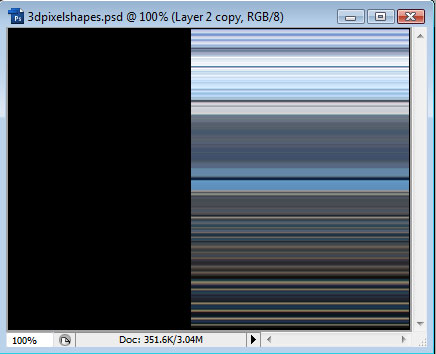
Now goto Edit > Transform > Perspective, then drag one corner in like this:
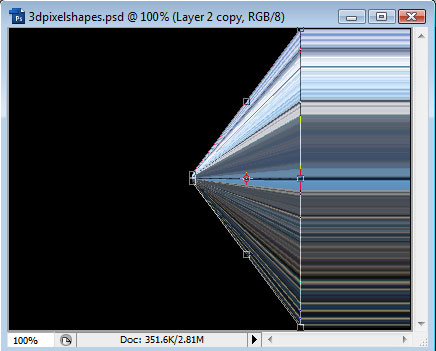
Now Ctrl-click the thumbnail of this layer to make a selection. Choose a black, soft brush of around 100px. Paint the shadow in at the bottom, like so:
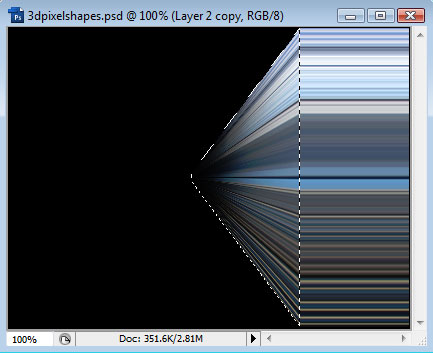
Now we will do the same for the other layer. Ctrl-click it to make a selection, then choose a slightly smaller soft brush and paint in the shadow:
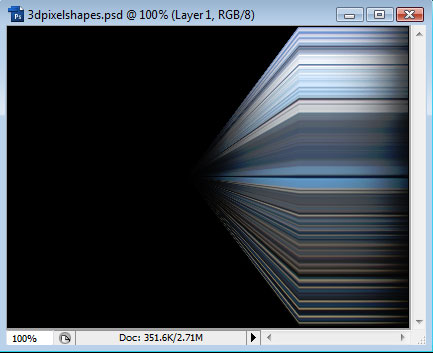
We can create as many as we want, using different source images: