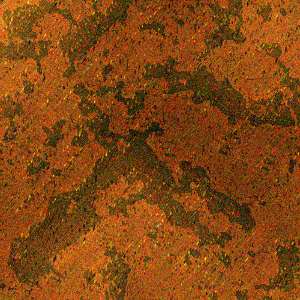
1. Create a new document (300*300). This time we will try to create rust that can be used as a texture. I want to show you a method to create realistic rust! There are already a ton of tutorials but most of them give an unsatisfying result but now we'll try to make a better one with this tutorial.
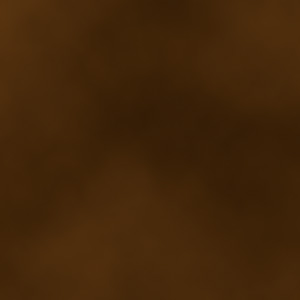
2. First of all, change your foreground color to brown (rust) #603912 and your background color to #321b04. After that go to (filter - render - clouds) and this should be your outcome after the first step.
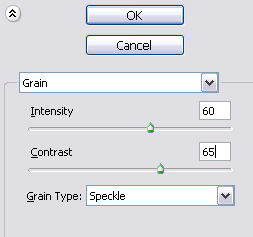
3. Now go to (filter - texture - grain) and use the following settings.
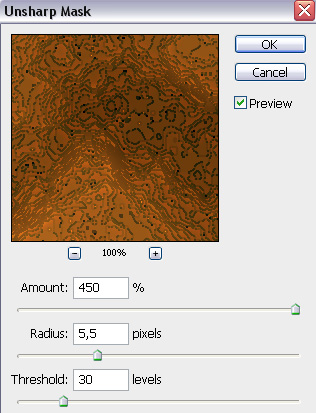
4. Again this is a very easy step to complete. Go to (filter - sharpen - unsharp mask) and use the settings as shown in the screenshot below.
5. Go to (filter - artistic - dry brush) and adjust the settings.
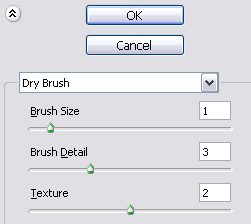
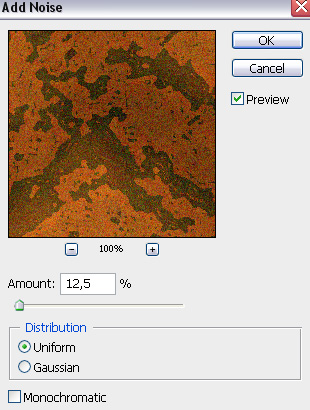
6. The same thing again, we're going to apple another filter but you can choose the settings for this one all by yourself (filter - noise - add noise)!
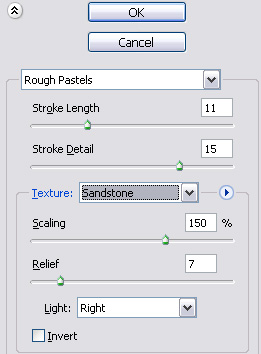
7. This is the last step an also an easy one. Go to (filter - artistic - rough pastels) and use the following settings.
8. And there you go, I hope you like this rust tutorial and hopefully it looks realistic. It's not the best one around but it does the job and it's a very easy tutorial to follow with only a few steps!