

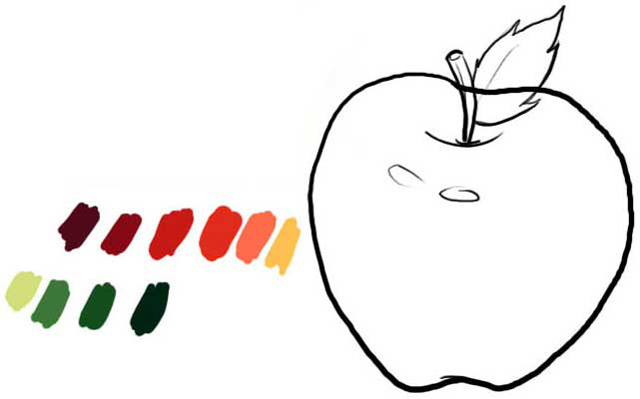
We drew the apple (it does not have to be equal) and the colors that we will use:
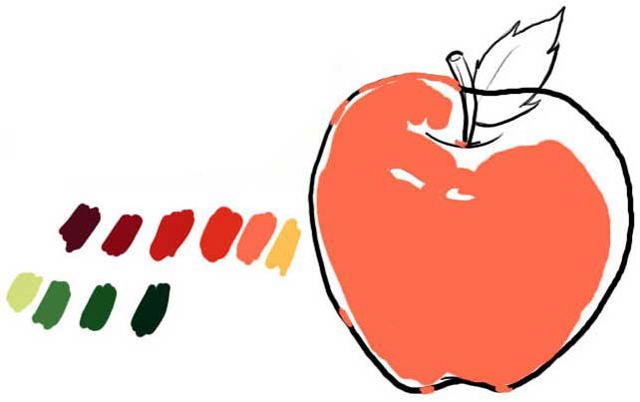
We take to the base orange and we colored more or less occupying that sector of the apple:
Here we give the dark orange and with "finger" we go "drawing":
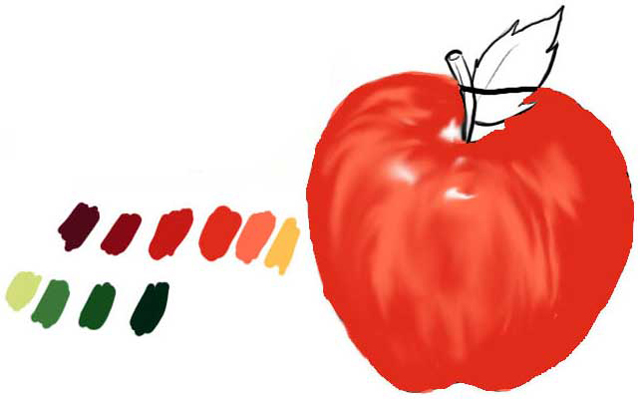
Here the red one and also with "finger" soon varying intensity to 50%:
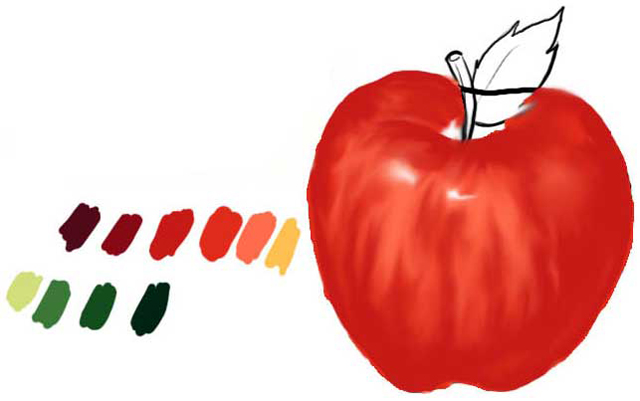
Here we began to see the one of the leaf and the stem:
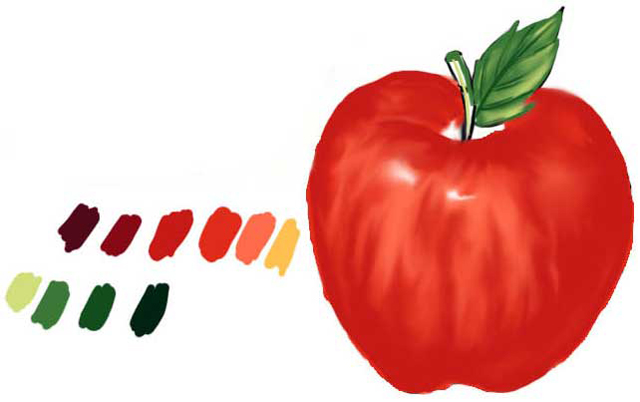
In this we applied the brown color and width the "finger" tool to 50% we worked the central zone, trying to stump; also we see the stem and leaf:
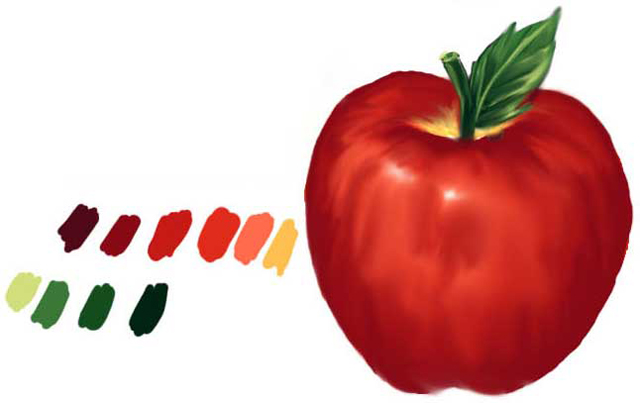
Here the dark brown color 50% we drew in the edge of the apple with a thin brush and soon with grater by the zones of "shade" and next "finger" tool to 50% and varying:
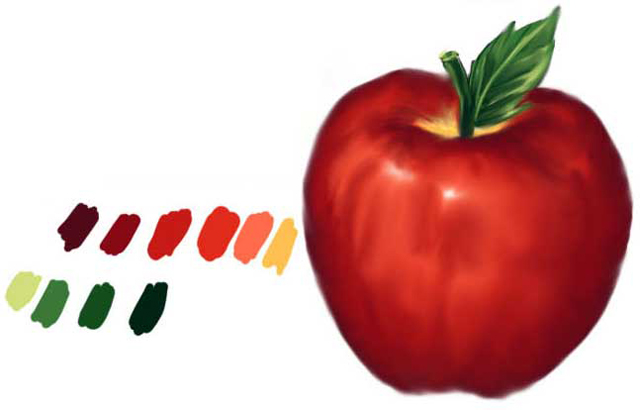
And to finish the "lights" of the apple itself:
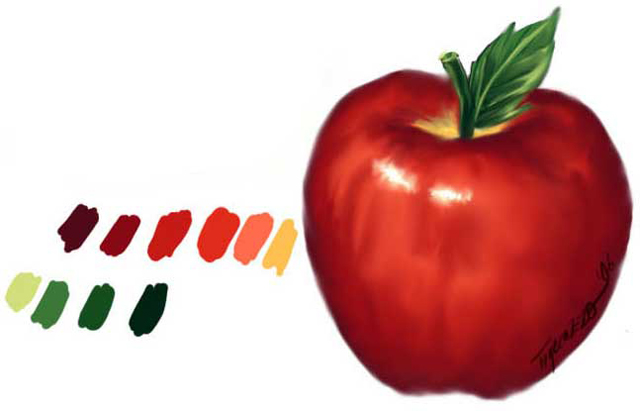
I hope has pleased to everyone. Greetings!!!
