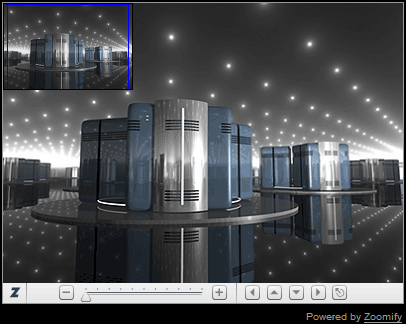
We will start with the following high resolution image:
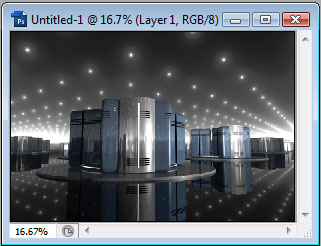
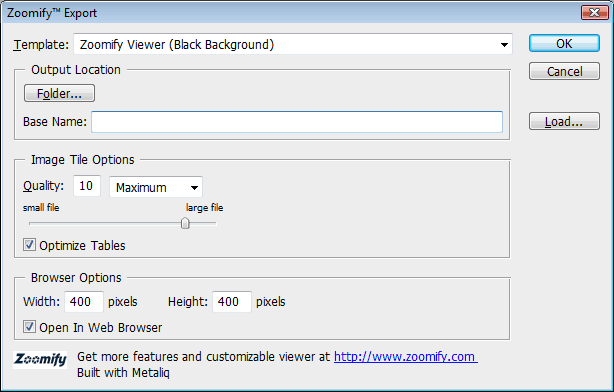
This image is 1698 x 1131 pixels, so would be too large to load onto a web page. We will use Zoomify to export it. Goto File > Export > Zoomify. We are presented with a dialogue which looks complicated, but really isn't. From Template, choose Zoomify Viewer with Navigation (Black Background). Give the image a Base name, which will be used as a naming convention for the images (Zoomify/PhotoShop will split the hi-res image up into smaller, more easily-transferable tile images.
Once we press Ok, if we chose the Open in Web Browser option, we will be greeted with the Zoomify Viewer, which allows us to pan and zoom the hi-res image: