Once we have our black background, we should goto Filter > Noise > Add Noise. Make sure Gaussian and Monochromatic are selected, and choose a percentage that looks good for the rough amount of stars you want, however, it will change somewhat. In this example, we used 15%:
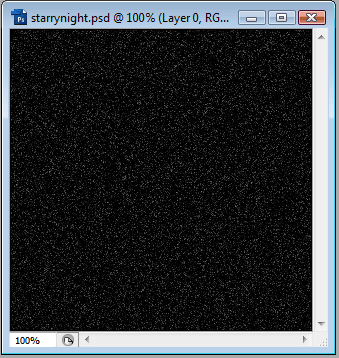
Next, goto Filter > Blur > Gaussian Blur. Choose a relatively low value. This example used 0.2 pixels.
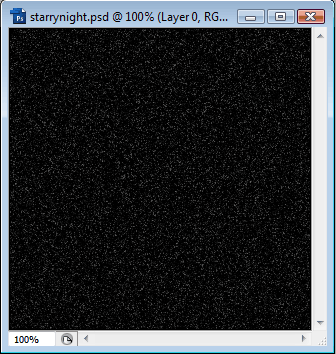
Now we want to goto Image > Adjustments > Threshold, and drag the slider up to display how many stars you want to be visible. We should have something like this:
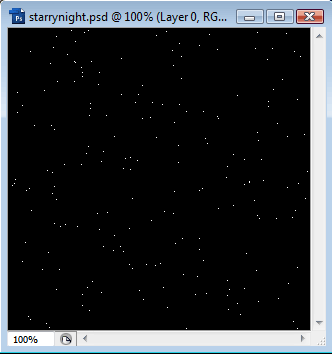
Goto Filter > Blur > Gaussian Blur again, and because the stars are now more bold, choose a slightly higher value. In this example, 0.5 was used.
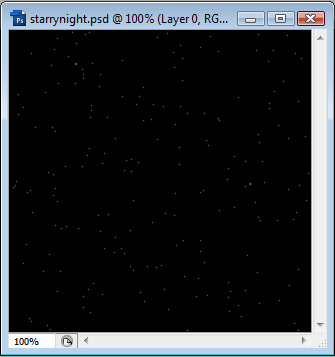
Now we can use the Paintbrush with color White, a small size and the Airbrush option selected to paint a glow around some of the stars. You will also want to turn down the opacity of the brush, maybe to somewhere around 10-15%.
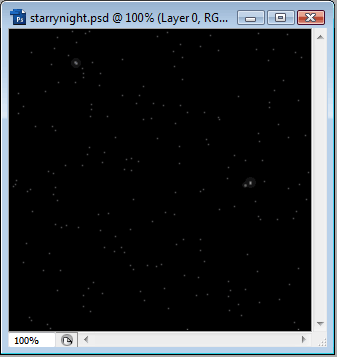
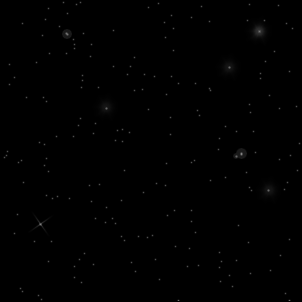
Optionally, you may want to also make use of some really nice Flare brushes available for PhotoShop. Which can be downloaded from multiple sources, or there are some in the Assorted brush pack of PhotoShop CS3. With a flare brush, it could look like this:
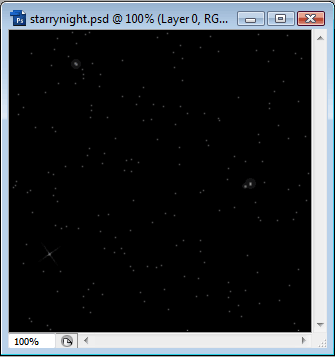
Noise in PhotoShop is generated at random, so you may want to try a couple times to get the output you want.
Our final image looks like this: