

We start with a blank canvas and then add some text:
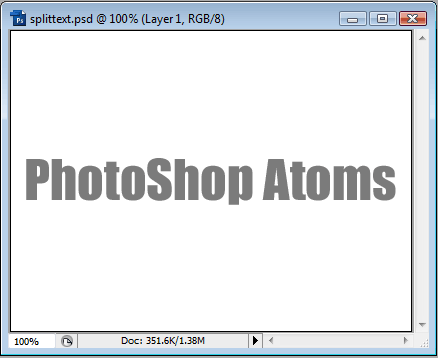
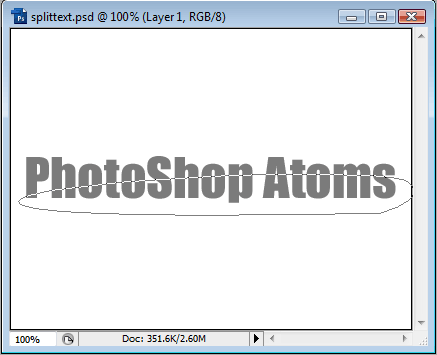
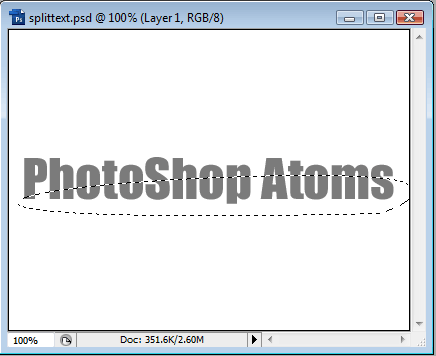
Next, we use the Elliptical Marquee tool to make a selection like so (you may need to resize the window):
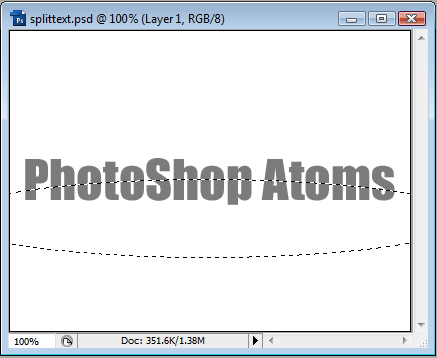
Now create a new layer and then press and hold Ctrl+Shift+Alt and click on the Text layer thumbnail in the Layers panel. This should Intersect with the Selection, leaving us with the following:
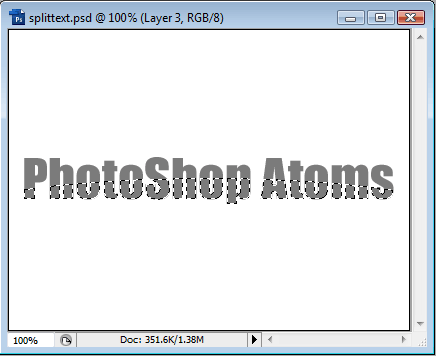
Now on our New Layer, get the paintbrush and choose a color slightly lighter than the text, then paint in the selection:
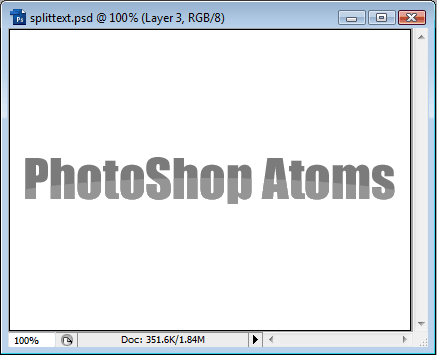
We can either leave it like this, or manipulate it with Layer Styles. Open up the Layer Styles for the layer we just created, and choose Bevel and Emboss. Set the Size to zero and get something like this:

Alternatively, add an Inner Shadow with Distance and Size as 1px:

In addition to the selection tools, we can also use the Pen tool to create more interesting splits. Choose the Pen tool and draw something like this:
Then goto the Paths panel and right-click the path we just created and choose Make Selection. We don't need to Feather. You can then delete the Path. We should then have a selection like so:
Which we can Intersect with the text layer again (Ctrl+Shift+Alt and click), and then paint over in a new layer:

In the same way, we can apply styles to this layer. You can be creative and see what you can come up with. Gradients give nice effects, and if done properly, can be stunning. Or you may opt for a more subtle effect, like so:

The choice is yours.
