


Background design
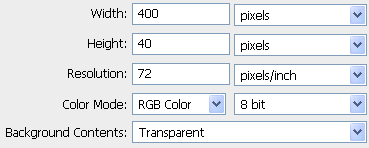
First off, open a new photoshop document sized 400x40 (px) and paint the background with white (#ffffff) using the paint bucket tool.
Then, choose the gradient tool (G), make sure the basic parameters shown in the top bar are like below:

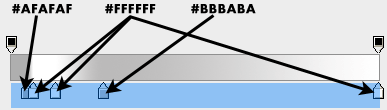
And then click on the gradient icon in the left side of the top bar. it will take you into the 'Gradient Editor'.
There, you should create a gradient like shown in the following image.
This will be done by adding color tags (click on the blue part of the image) and then double click on the color tagged you have just created.
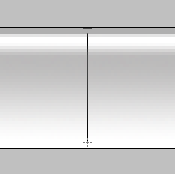
Then, when the gradient values are set, draw a straight line with the gradient tool like the following image.
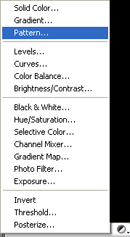
Choose the pattern from the list of the blackwhite circle icon in the bottom of the layers window.
In this window, click on the arrow and choose from the list of your patterns a dotted pattern that will look about like the following pattern:
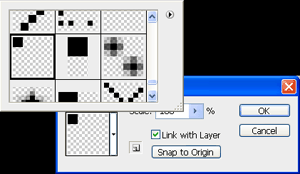
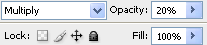
Choose the patten layer if it's not selected yet in the layers window and change the opacity value to 20% and the mode of this layer to 'multiply'.
End result till this step should be around like the below image:

Making the buttons and touch ups
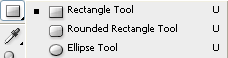
Choose the 'rectangle tool', make sure it will be vector and editable by choosing the 'shape layers' from the top bar of this tool.

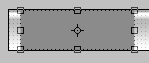
Create a rectangle sized like the following image and then warp it by going to 'edit-transform path-warp'.
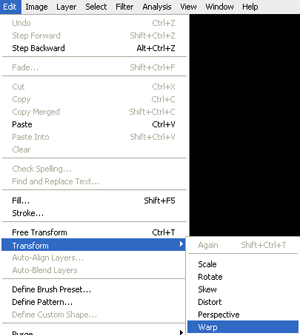
Choose the 'inflate' option and change the bend present to 5.0.

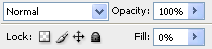
Go and change the value of the fill filed in the layers window to 0%.
Go to the 'fx' icon from the bottom of the layers box and click on blending options.
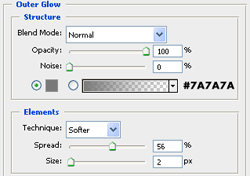
You need to add the following effects with the exact same values as you see in the images.
Outer glow:
Stroke:
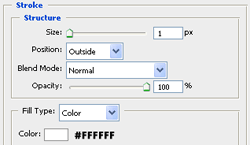
Result till now should be like this:

Next step is to open a new layer (Shift+Ctrl+N), choose the elliptical marquee tool and make a new ellipse selection like below:

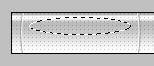
Choose the gradient tool. again, make sure that you have those default values like below:
One click on the small gradient icon and copy the next values as is.
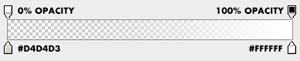
In the new layer you have opened, draw a straight line with the gradient tool like the following image.
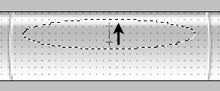
After you're done with this, select those 2 layers by hold on Ctrl and click once on each of the layers on the layers window. then, right click, duplicate the layers and then move it to the right with about 10px separator space. do this step twice (or more if you want more pages).

Back to the pattern layer, select the pattern layer, choose the eraser tool, change the mode to pencil from the top bar and change the brush to soft round 33px.
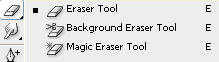
Then, just erase the parts of the buttons.


Last thing you should do is adding the pages title.
And you're done with this photoshop tutorial. Now you know how to make a techy style navigation design in photoshop.
Here's my final result:

