


Open photoshop and create a new document sized 280x280 (px).
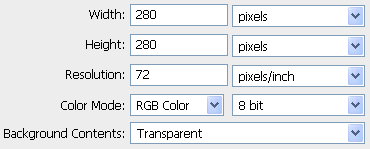
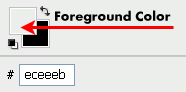
Paint the background layer (named "Layer 1" on default) in #eceeeb:
1. Double click on the foreground color and then change the # value to #eceeeb in the color picker window.
2. Choose the 'Paint bucket tool' (G) and one click on the workspace.
Choose the 'rounded rectangle tool' and copy the following values to the top bar.
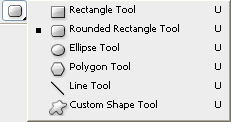

Then, create a new rounded rectangle that will be the main box shape..
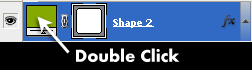
Change this layer's color to green (#7caa02).
Changing the shape layer color is done by double click on the color icon besides the layer name.
Next thing is to add some effects to that flat shape.
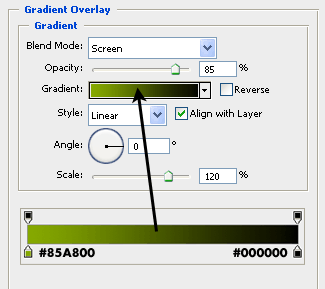
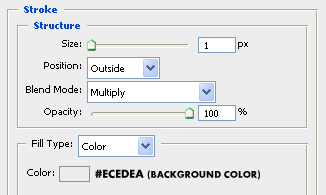
I applied 'gradient overlay' and 'stroke' effects. The following 2 images shows you the values you need to enter on each effect. you can change it a bit if you like to.. it's up to you.
Blending options is reachable by more than one way. Here're two:
1. Click on 'fx' icon on the bottom of the layers box and then click on the 'blending options' option.
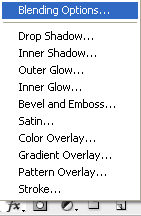
2. Go to 'layer - layer style - blending options' from the top menu of Photoshop program.
Gradient overlay values (from green #85A800 to black #000000):
Stroke values (stroke color is #ECEDEA):
*please note the blend mode
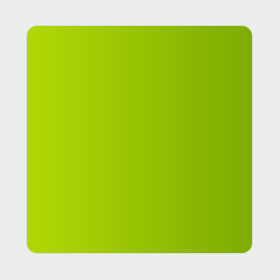
Result till this step should be like below:
Next thing is to duplicate the shape layer, choose the move tool (V) and drag the duplicated layer down.
Then, you need to create clipping mask. this will be done this by holding Ctrl+Alt+G (in the latest photoshop version - Photoshop cs3) or by going to 'layer - create clipping mask.
This above action will work properly only if the following two terms will be done:
1. The duplicated layer will be selected on the layers box.
2. The duplicated layer will be above the original layer.
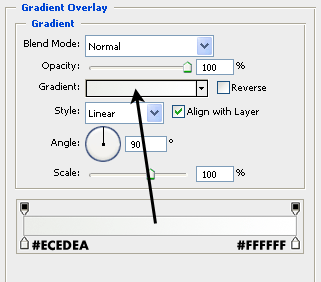
When its done, you need to change the duplicated layer's effects to the following only (!) :
Gradient overlay values (from #ECEDEA to #FFFFFF):
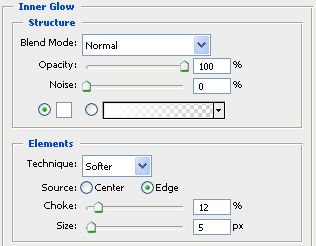
Inner glow values (color is white #FFFFFF):
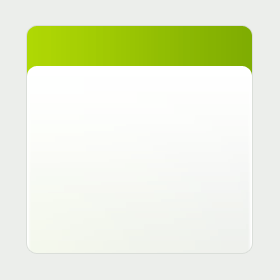
The result till this step should be generally like the following image:
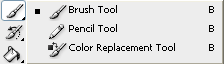
Next step is to choose the brush tool:
Click on the 'toggle the brushes palette' icon on the top bar of the brush tool.
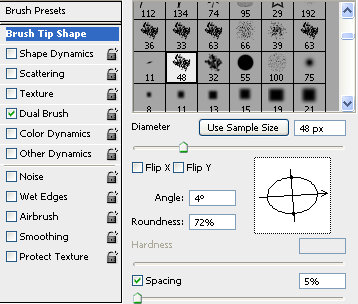
Choose the 'oil heavy flow dry edges' brush from the list o the 'Brush tip shape' in the menu and copy the next values as well:
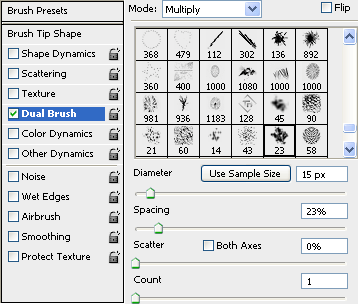
Then, go to 'Dual brush' option from the menu, choose the 'sampled tip' brush and copy the next values:
After it's done, open a new layer (still on the clipping mask): 'layer - new - layer'.
Change the foreground color to #85B302 and start brushing the bottom of the content box.
Then, change the foreground color to darker green - about #6B9002 and brush again the bottom of the content box.
And for the last time, change the foreground color to darker green- about #4B6604 and brush again the bottom side of the box.
The result of the above 3 steps should be like this:
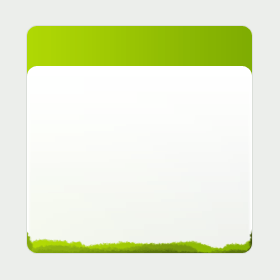
Then, duplicate the layer that contain the brushes, go to 'edit - transform - rotate 180'.
Go to 'edit - transform - flip horizontal'. Drag this layer to the top of the content box, change the layer's mode to 'multiply' and set the opacity value to 80%.
The result should be like this:
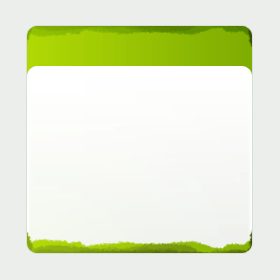
Now, the final step is to add some images and text.
Here's my final result:

