Believe me that is a very powerful package. you have over 4000 different brushes. i have used this package on some vector files i have sold on istockphoto. i really recommend you to buy this package because it will bring you back the investment very fast.
Let's start our layout with a new document. as usual i will use the same layout dimension (760x770 pixels) with a white background.
With Rounded Rectangle Tool i will create a big shape.
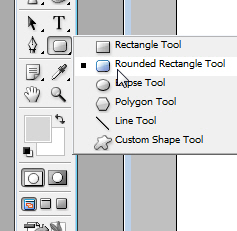
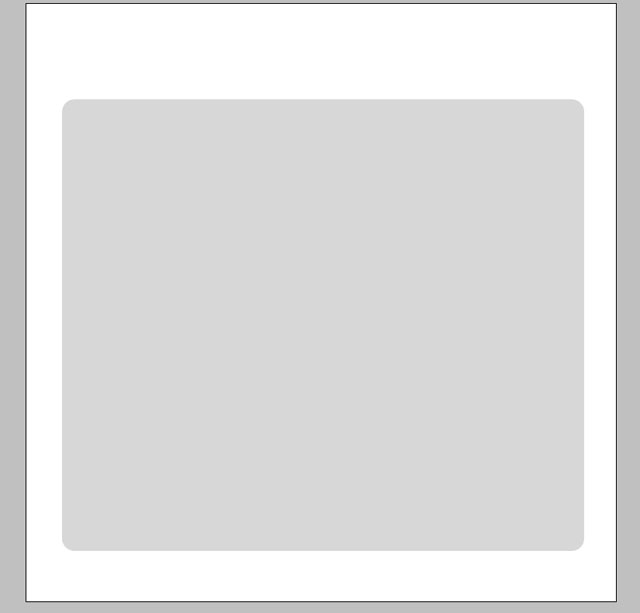
I've placed this rectangle in the middle of the layout.
I will change the layer styles for this shape.
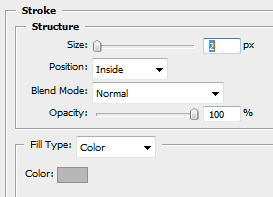
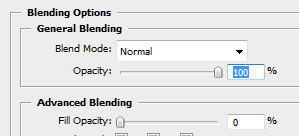
This is my result.
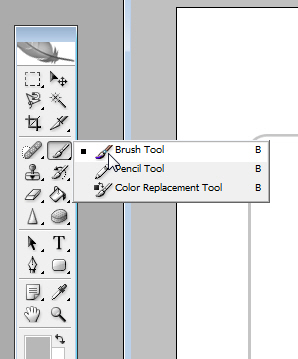
I will grab Brush Tool.
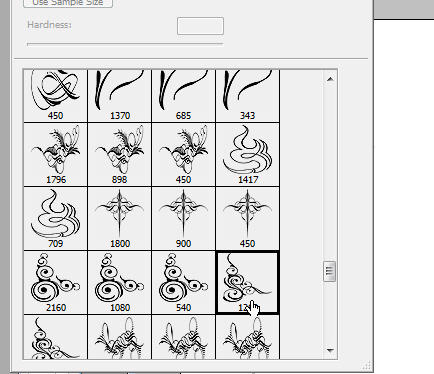
After that i will use a brush from Talk-Mania Big-pack.
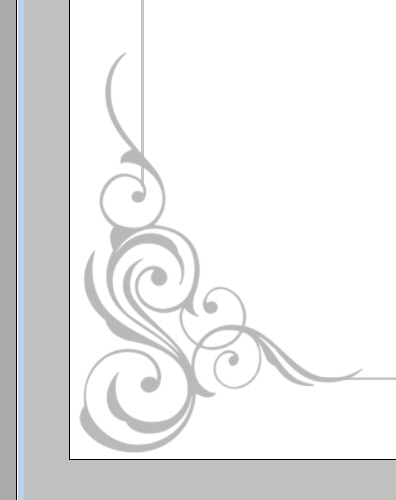
I've placed this great design on the left side of the layout. then with Eraser tool, i have deleted the line from the lat shape.
This is my result so far:
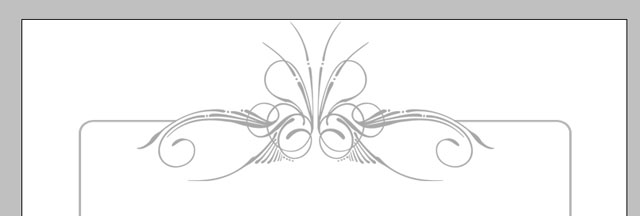
For the header part i have used another brush from the same package.
From my stock collection i have used the following image.

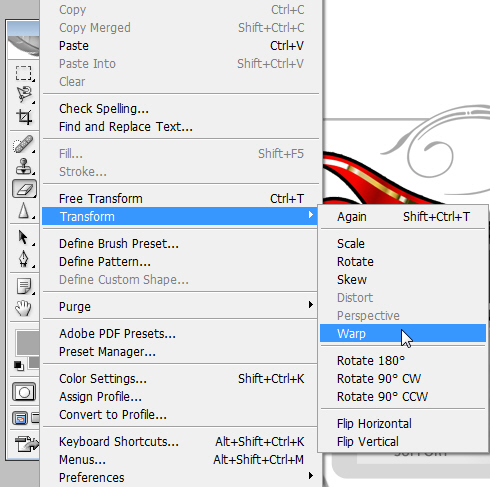
Then i have placed on this image a random text. I will modify this text by going to Edit >> Transform >> Warp ( please note that you will have the warp tool, only from Photoshop CS2 or above ).
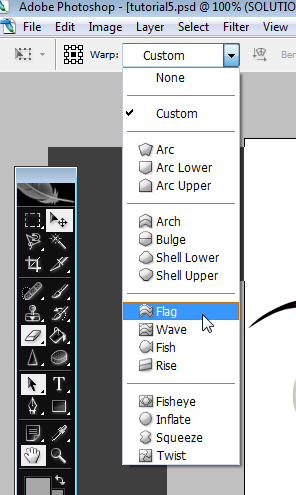
I will chose the flag option from the drop down list.
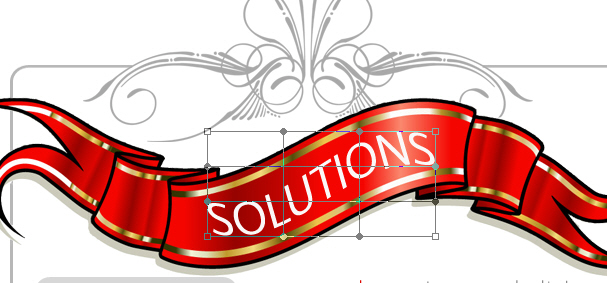
And this is my result:
With Rounded Rectangle Tool i will create a rounded shape.
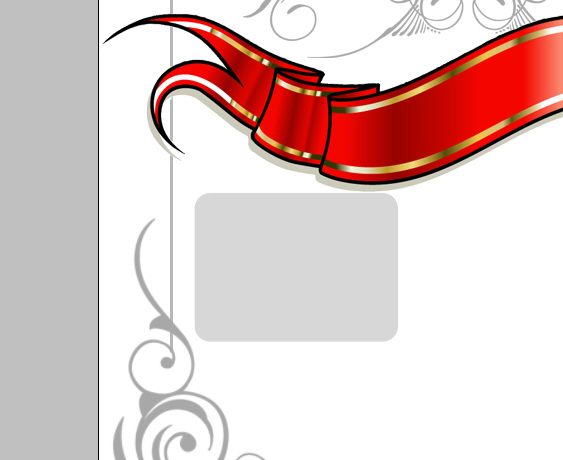
I will use the following color for this shape #d7d7d7.
Now with Rectangle Tool.
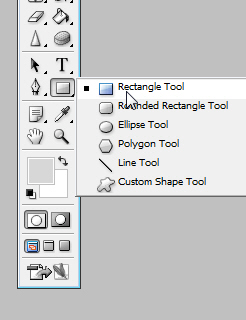
I will create a simple rectangle.

I will rasterize this shape. To rasterize a shape, you need to right click on a layer, then select Rasterize shape.
Grab Eraser Tool, and with a smooth brush delete some parts of the shape.
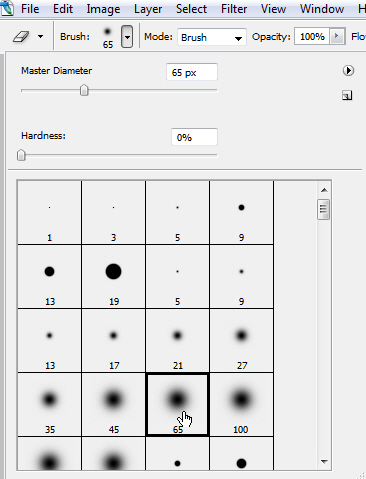
I will delete the right corner from the shape.

I have changed the opacity for this layer to 45 %, then i i have placed similar shape one under the other.
To duplicate a layer, first you need to select it, then press on Ctrl+J several times.
After that with Horizontal Type Tool.
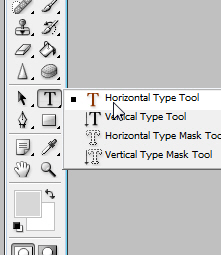
and with the following proprieties.

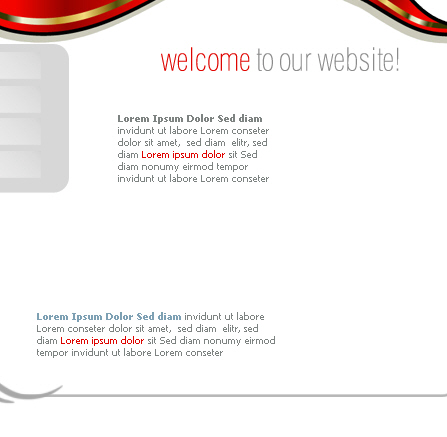
This is my result so far:

With the same Horizontal Type Tool i will place another text.

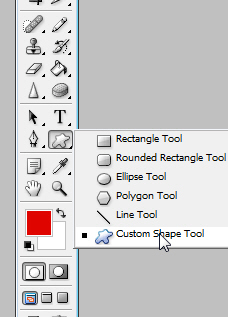
I will select Custom Shape Tool.
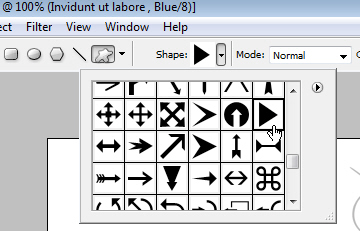
I will create some small arrows, and i will place them on my layout as follows.
I will create on the left side of the layout, another shape. it will be our search box. this search box, you can create it with a simple shape.

With Line Tool, i will create a line with the following color #a8a8a8.

My last step is to place some images from my personal stock collection.
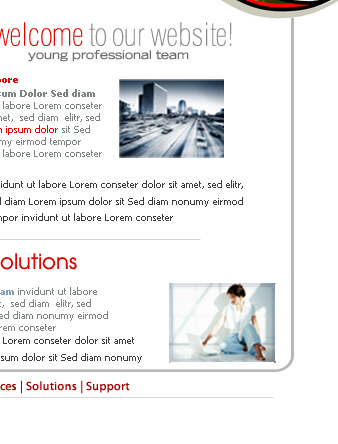
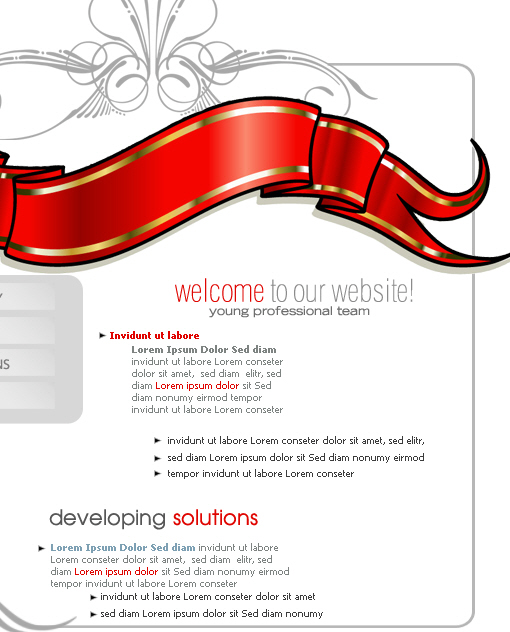
This is my final result.