


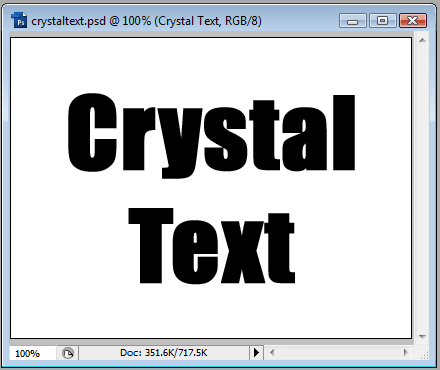
We will start off with a pretty big document (640x480), and a font size of 150pt, with a relatively thick font. We chose bold Impact for this demonstration.
Once we have our text, we will right-click the layer and choose Blending Options (or double-click the layer). We are going to add the following: Drop Shadow, Inner Shadow, Outer Glow and Bevel and Emboss. Before that, though, we will change setting Fill Opacity on the first screen to 15% and check Blend Interior Effects as Group.
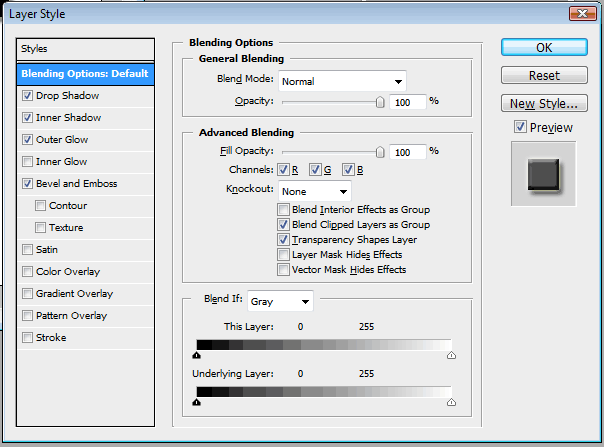
The Drop Shadow we will set as Opacity 60%, Distance 10, and Size 10.
Inner Shadow we will set as Opacity 80%, Distance 5, Choke 25 and Size 15.
Outer Glow we will set as Opacity 45%, Color as Light Gray or Off-White and Size 10.
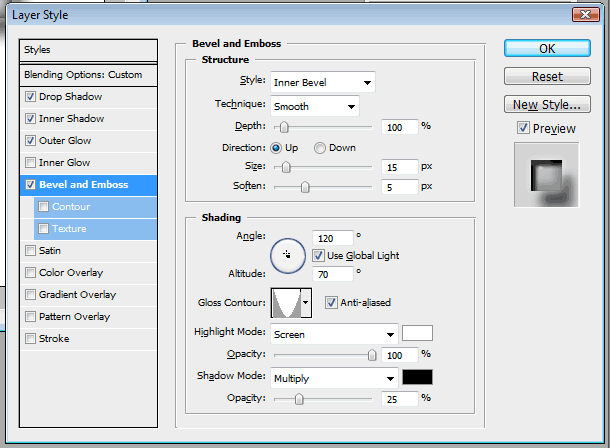
Bevel and Emboss settings will look something like this:
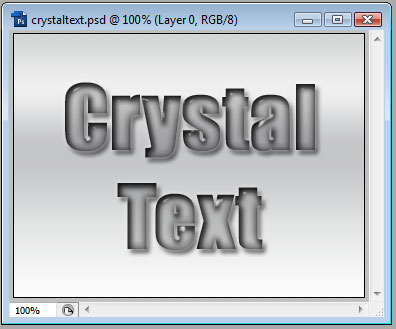
After these settings are applied, we will have something that looks like this:
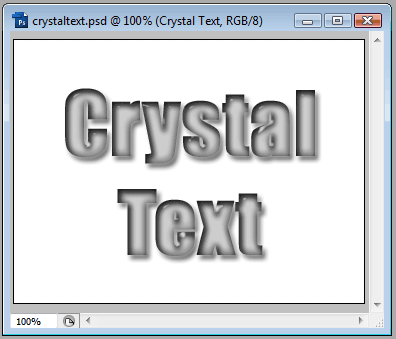
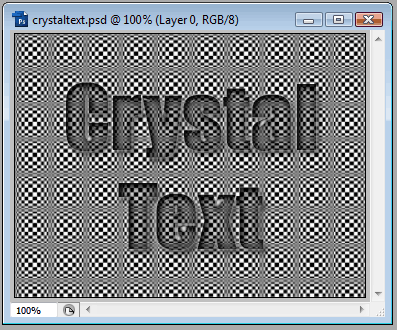
The really cool thing about this, too, is that it will take on the color and the pattern of the layer below it. Like so:
Using this as a guide, you can tweak the settings to provide lots of different results. Experimenting with PhotoShop is very much advised, as many many results are possible.
