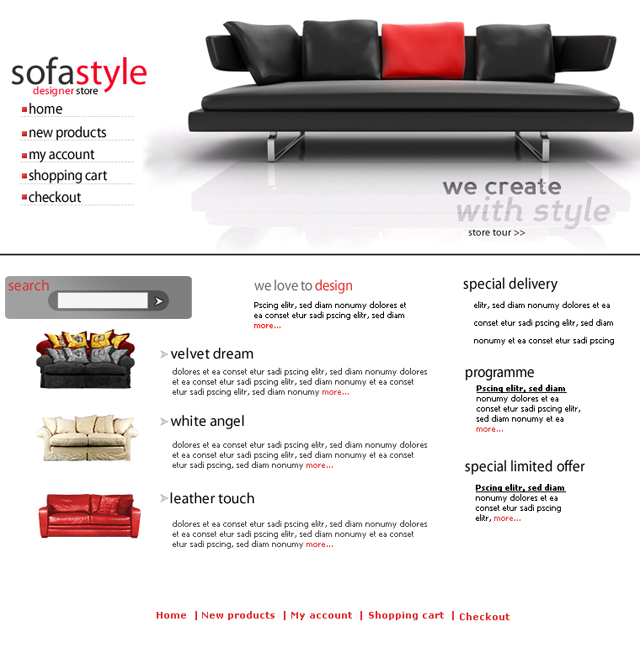
I will start as usual with a white document. 760 x 770 pixels.
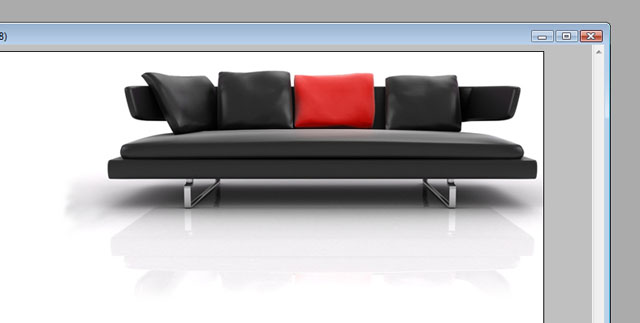
For this I will use a very nice image with a couch
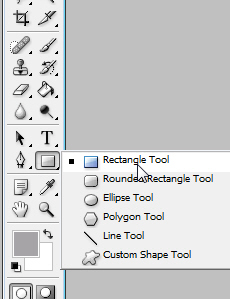
I will create a bullet with Rectangle Tool.
I will create a very small bullet, then you can duplicate the layer, and place this small bullet as many times as you want.
In this layout I will need also a small arrow. This arrow I will use as a search button.
To create an arrow you can use Custom Shape Tool.
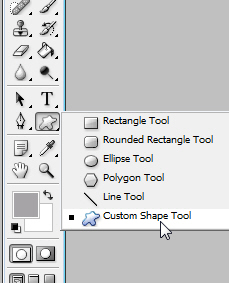
Then you can use any shape you want. if you wan to download more shapes you can download from Shape-Mania.
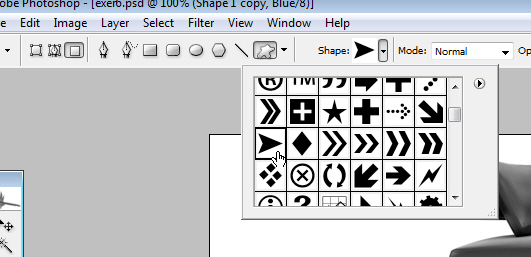
I will create a simple shape.
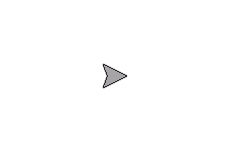
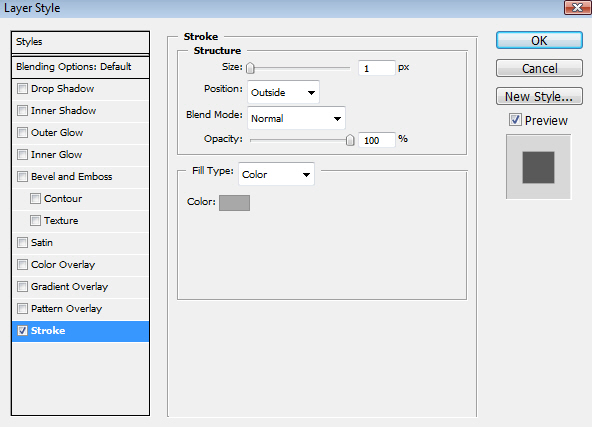
then I will add the following layer styles ( I have used the following color for the stroke settings ) #a6a4a7.
This is my result for this small arrow.

I will grab the Line Tool
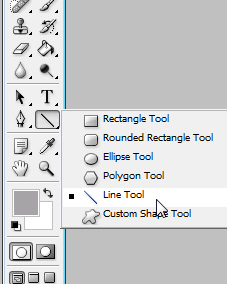
and I will draw a line in the middle.

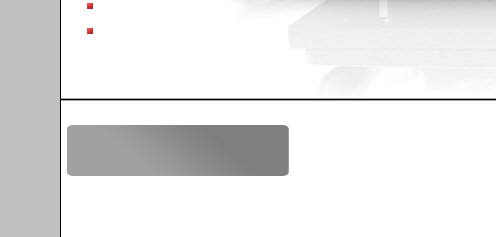
Now I want to create a search box. For this box I will use Rounded Rectangle Tool. I will chose the following color #7f7f7f.
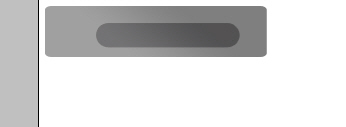
I will select one more time Rounded Rectangle Tool, and I will create another shape inside the last one.
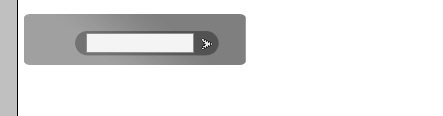
After that I will create the search box with Rectangle Tool.

Then I will ad another arrow.
One of the most important thing is how to place the text. I will hide all the other images, to see exactly how I have placed the text.
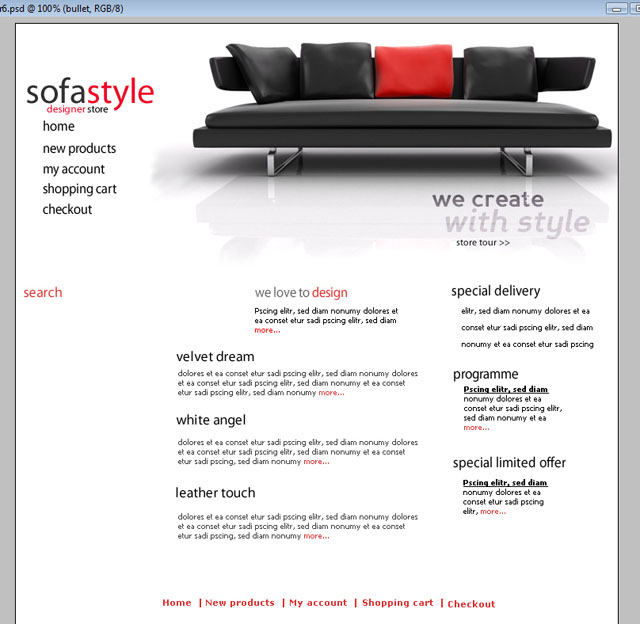
Now if I will unhide all the layers you can see my final result. You can see another details between the menu buttons. I have used the type tool.
Write some minus signs " ----- " This is my final result. I hope you like it.