Step 1
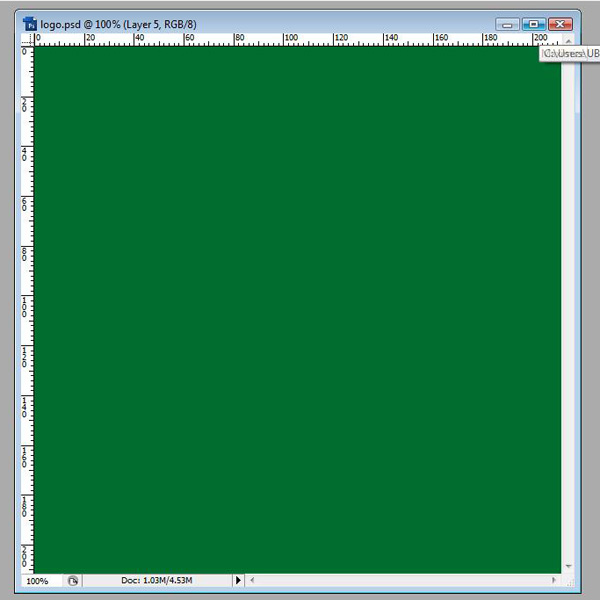
Creat new layer and grab the paint bucket tool (G) and set the forground colour at #006e2e and fill layer.
Step 2
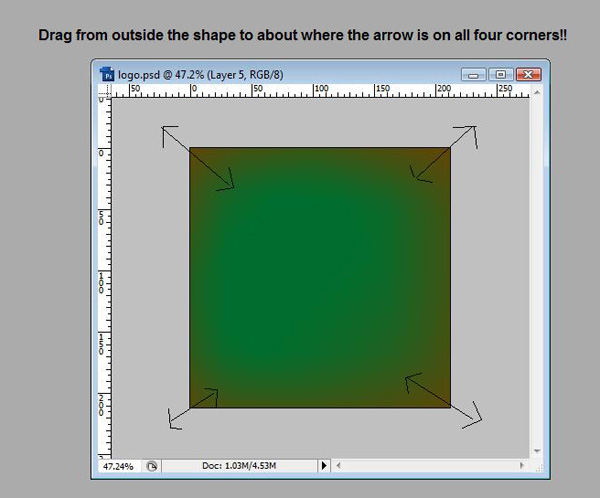
Create new layer and grab the gradient tool (G) and select you forground colour to #5e4707 and make sure your gradient is set to #5e4707 to clear and you should have an image like below.
Step 3
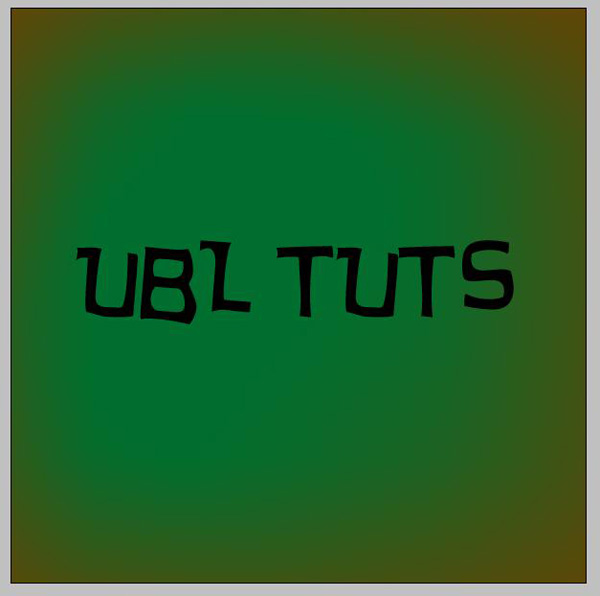
Now to add some text, I typed "UBL Tuts" using a font called "Hurry Up" but you can use any font you want to use. Keep the font black.
Step 4
Click here and download brushes. Now create a new layer and using the brushes you have just downloaded and make some splatter, I have done it like this but you can do it how you want it doesnt matter
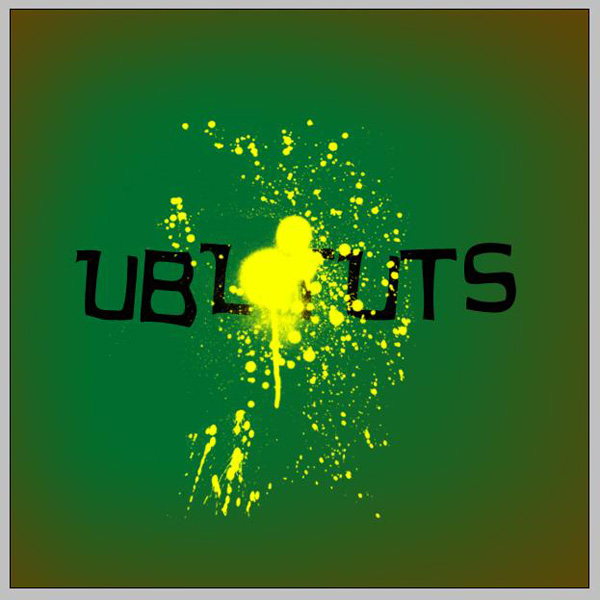
Step 5
Now press Ctrl and click on the image of the splatter layer in the layer box on the right then goto Edit/Copy Merged. Now go onto your text layer and press Ctrl and V and then drag the splatter layer under th layer you just created by pressing Ctrl and V..
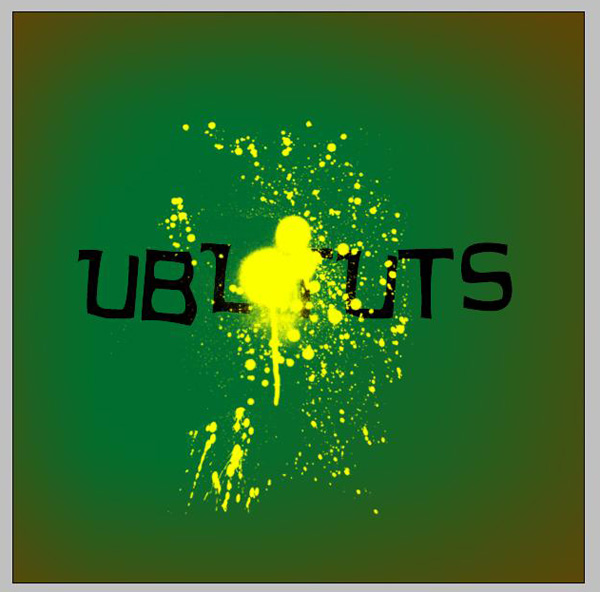
Step 6
On the layer you just created now making sure you are on the text layer goto Layer/Layer Style/Drop Shadow and use the following settings: Blende Mode= Multiply, angle=120, distance=6, spread=6 and size=13
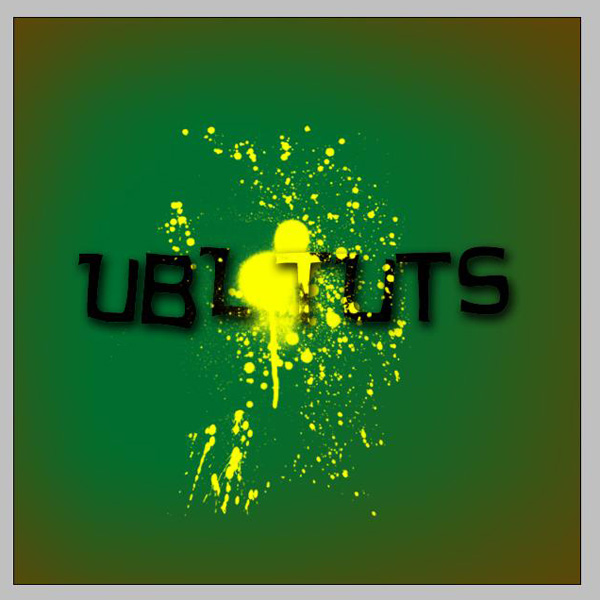
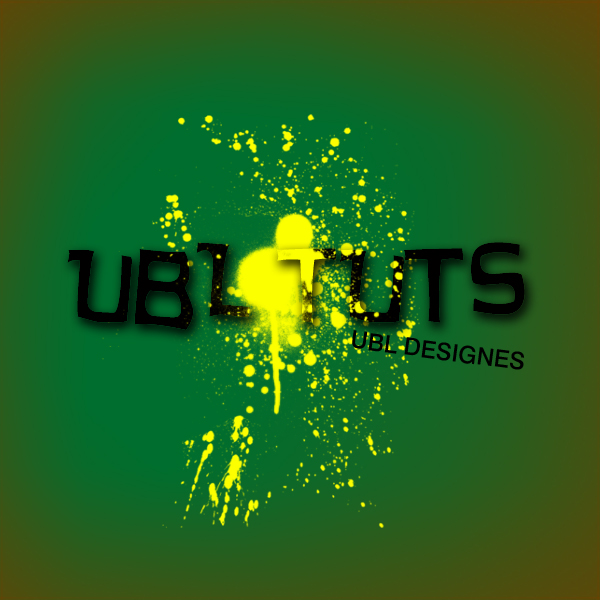
Final Step
I used Swiss 721 BT font to write UBL Designes and I pressed Ctrl and T and angled it slightly