Step 1
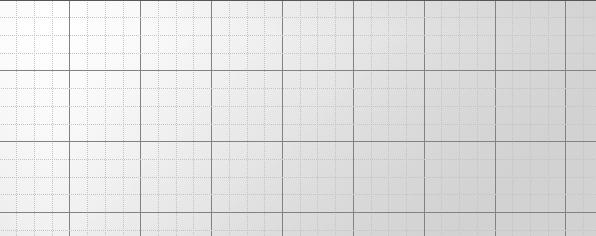
Create a new document 800x400 with your desired background color. Goto "view > snap" this will will make your cursor snap to a grid, to view the grid we goto "view > show > grid" your canvas will look like this.
Step 2
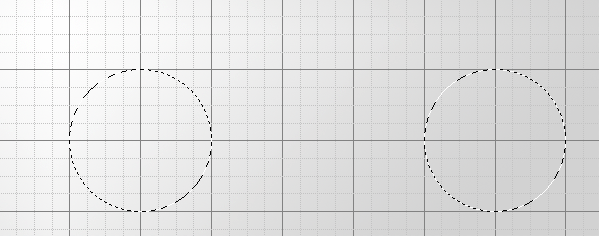
Now create 2 cirlces using the elliptical tool, make sure you hold down shift when drawing the 2nd one.
Step 3
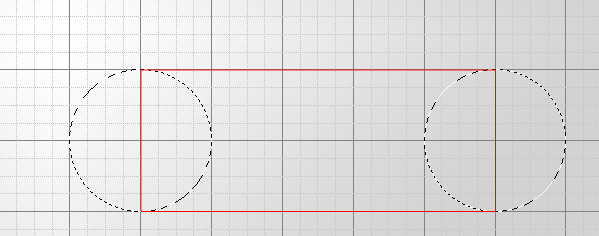
Now select the polygonal lasso tool whilst holding down shift join up your cirlces, follw my red path in the picture below.
Step 4
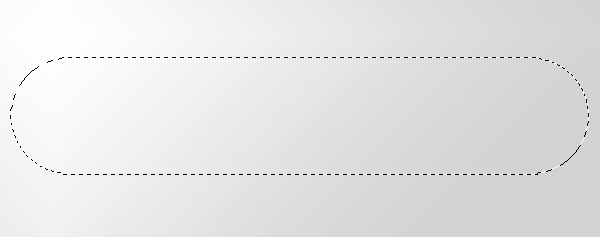
You now be left with a selection like this. Turn off your grid and the snap tool.
Step 5
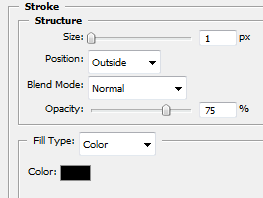
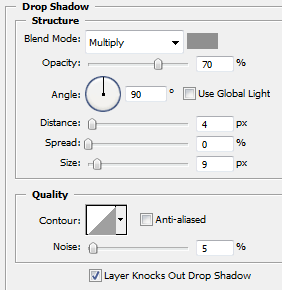
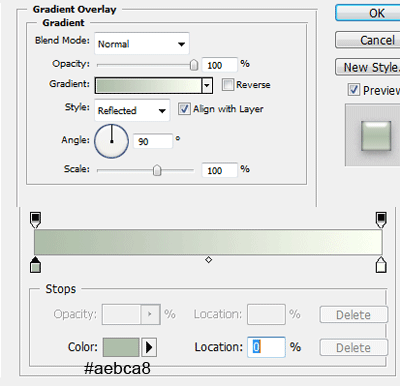
Fill the selection with any color you desire. Now Add these layer styles.
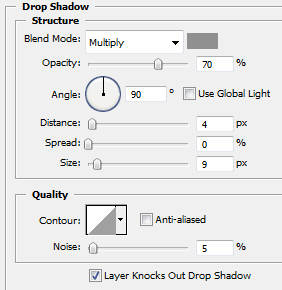
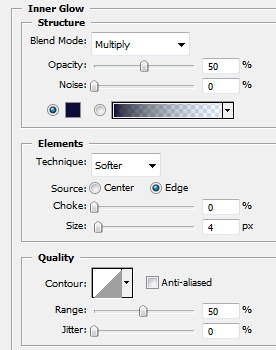
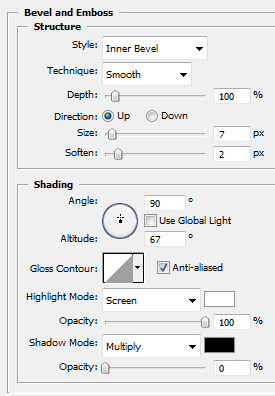
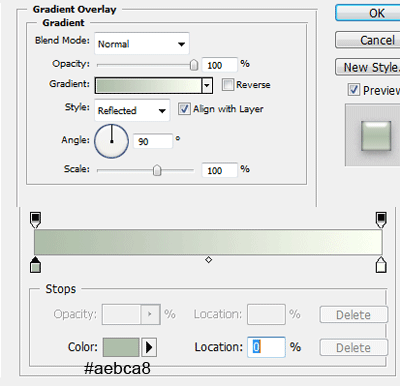
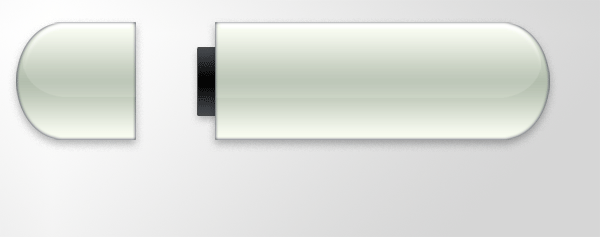
Your shape should now look like this.
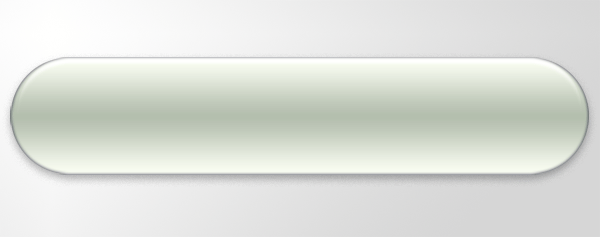
Step 6
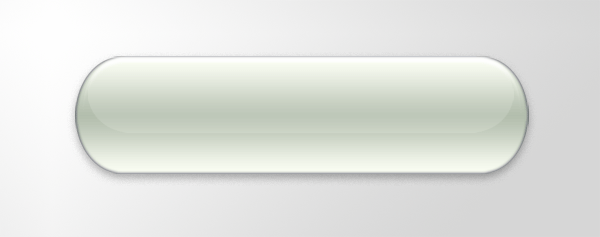
Press "ctrl + T" and drag one of the middle anchor points on the side inwards decreasing the length of the shape. Duplicate your shape, right click your duplicated shape and goto clear layer styles. Refill your duplicated layer using the paint bucket tool in the color white. Set layer opacity to 30% and blending mode to soft light. Press "ctrl+ T" and drag the anchor pointers to make the whole shape smaller length ways and width ways, we dont want to make it to small thou. Place similar to the image below.
Step 7
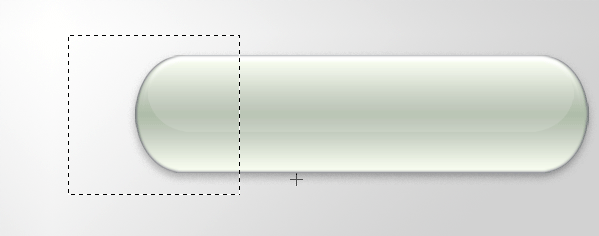
Now we need to create our lid, so for this step we need to cut away a portion of the shape aswell as the highlight we just made. To do this create a selection like this.
Step 8
Goto "edit > cut" then "edit > paste" re-align your lid next to the shape, copy your layer styles over from the orginal shape. You should have something like this.
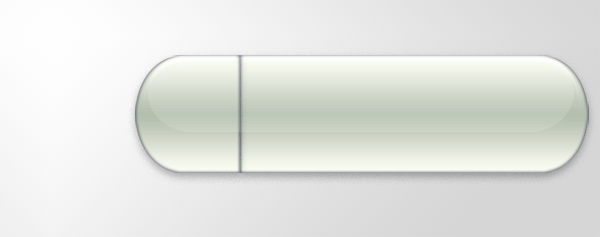
Step 9
Repeat the step above only this time cut and paste your highlight. When your done place them side by side like this.
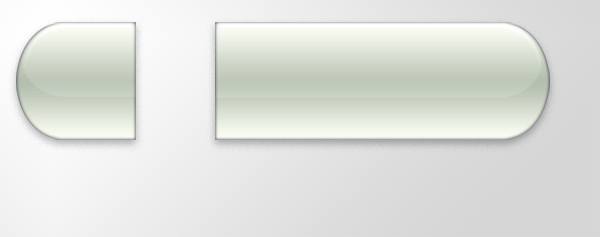
Step 10
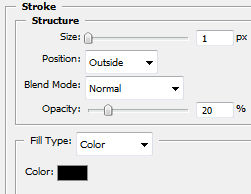
Under your main shape layer create a small rectangle and add these layer styles.
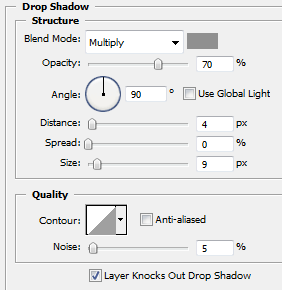
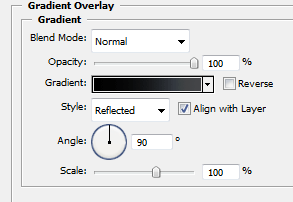
You should have something like this.
Step 11
Do the same again only this time make it longer and thinner and add these layer styles.
You should have something like this.
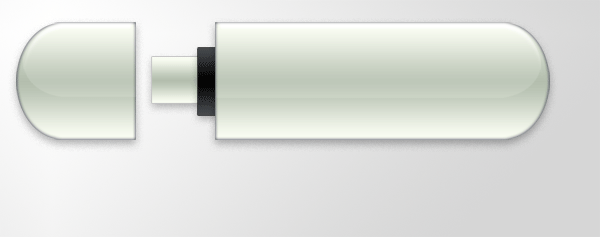
Step 12
Now using two 1pixel lines add an indent, and using 2 boxes make your usb connection come alive.
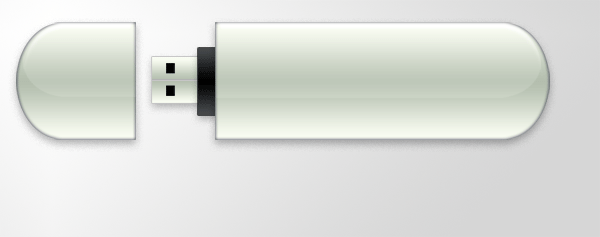
Final Step
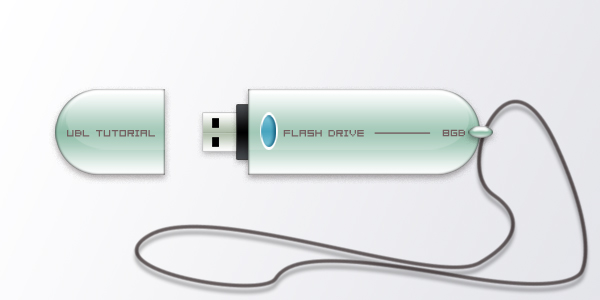
To finish i added some text and a lace... play around and do what you like.