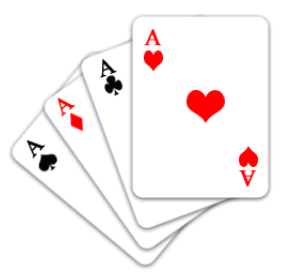
1. Create a new file.
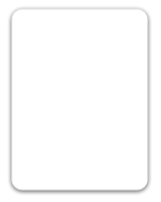
2. Select the Custom Shape tool and then select Rounded Rectangle tool. Draw the shape as shown in the figure. Select White color for the Rectangle.
3. Right click on the Shape 1 Layer and select Rasterize Layer.
4. Again, right click the Shape 1 Layer, goto "Blending Options". Select Drop Shadow and adjust the sliders and properties to add a little shadow to the layer.
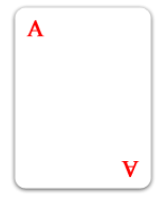
5. Select the Type tool and type 'A' (for Ace). Use Ctrl+T to adjust the size of the 'A' according to the size of the card shape.
6. Select Red color for the 'A'. Duplicate the character 'A' by pressing Ctrl+J and place it at the right side of the shape.
7. Now go to Edit > Transform > Rotate 180 (degrees).
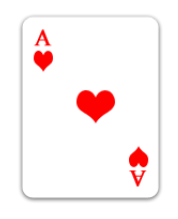
8. Select the Custom Shape Tool and select the shape as shown in the figure and draw like the figure. Rasterize all the custom shapes as done in Step 3 prior to duplicate and transform them.
9. Now click on the card shape (shape 1) to select it and press Ctrl+J to duplicate it and send it back by pressing Shift+Ctrl+{.
10. Rotate this layer as shown in the figure.
11. Type 'A' again and color it Black. Select Custom shape tool and draw, rasterize and rotate the shape as shown in the figure.
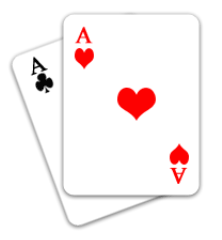
12. Repeat steps 2 for 11 more times to have playing cards like shown in the figure. Play with your friends; you will never lose this game. :-))