1. Create a new file of your choice.
2. Create a new layer by pressing shift+ctrl+n together.
3. Select Elliptical Marquee tool and draw a circle in the center of the canvas and fill it with black color by pressing ctrl+backspace.
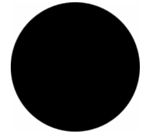
4. Keep the selection active and move the selection by pressing right arrow key for 7 times.
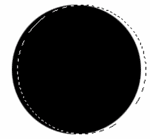
5. Now press delete. You should have figure like shown in the picture.

6. Press Ctrl+j to duplicate the layer and press shift+ctrl+right arrow key to move the new layer to 10 pixels. Repeat this step for one more time.

7. Now group and merge the layers.
8. Press Ctrl+T to transform the layer and rotate the layer like shown in the figure and press enter.
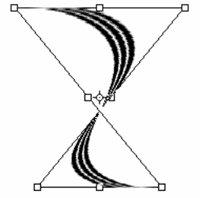
9. Your image should look like this.

10. Now remove the lower portion of the image.

11. Duplicate this layer by pressing ctrl+j, transform it horizontally (edit>transform>horizontal) and move this duplicate layer like shown in the figure.

12. Hands are ready. If you want than you can experiment with different custom shapes and add some text below these hands.