Create a new document, 800x200 pixels in size.
Take a picture with business building.

Apply filter Gaussian Blur with Radis 5 pixel. (Filter > Blur > Gaussian Blur...)
Adjust colors if necessary. (Ctrl+U)

Select a suitable picture of a business meeting or any other object fitting your theme.

Paste the picture of the business meeting in the document, adjust its size.

Apply a mask on this layer.
Use a brush tool to conceal the borders between the picture and the background.

Apply Photo Filter for this business meeting picture. (Image > Adjustments > Photo Filter...)
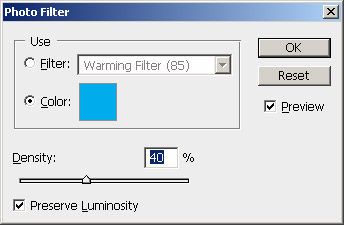
The picture will harmonize with the basic background.

Create an inclined grid on a new layer.

Set the blending mode for the layer “Vivid light” and set Fill = 30%.
Apply a mask to the layer with the grid.
Conceal the parts of the grid with the help of a large soft brush.

Duplicate the layer with grid and flip it. (Edit > Transform > Flip Horisontal)
Apply a mask to this layer.
Conceal the parts of the grid with the help of a large soft brush.

Add the title of the site in large letters, select the font, add smaller writings and a dividing line.
Your business collage is ready!