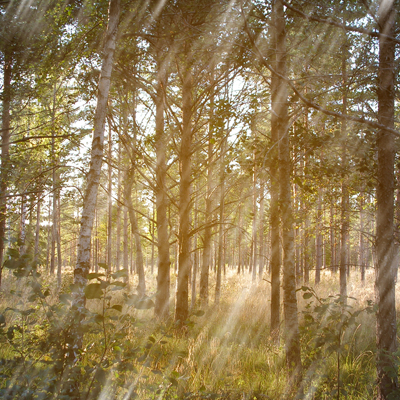
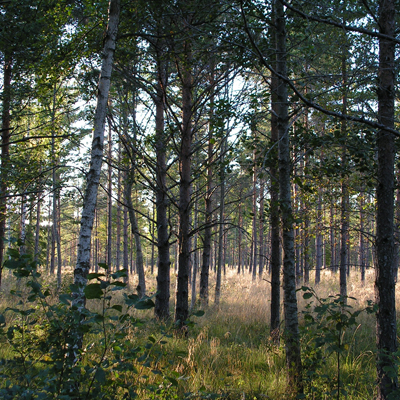
First open a photo and create a new blank layer on top of that.
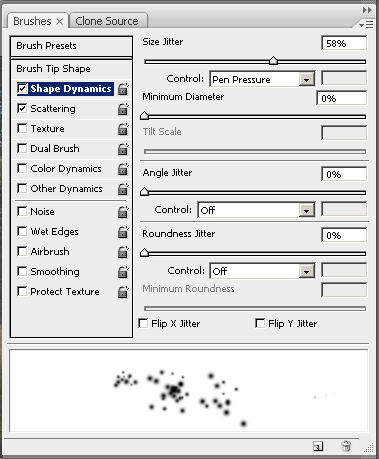
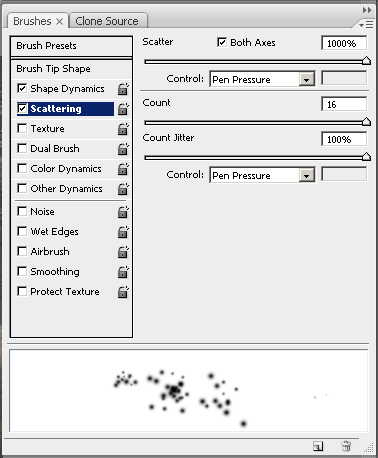
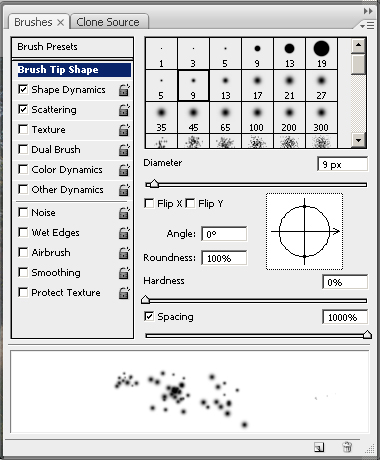
Now we need to set up a brush. Pick a small brush with soft edges, 5 to 10 px wide will do the trick. Open the brush engine and set it up like this:
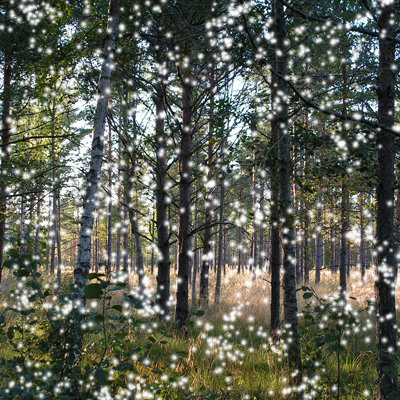
On this new layer, paint with your brush to cover as much as you want. I know it looks like snow more than rain at this moment, but that will change in a bit.
Now set the Blending Mode to Difference and apply a layer style to it: Outer Glow with the following settings:
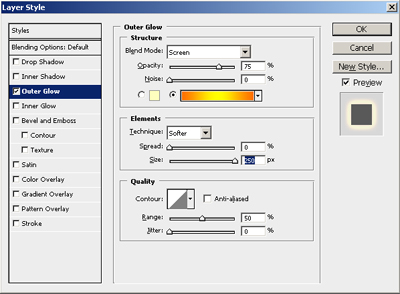
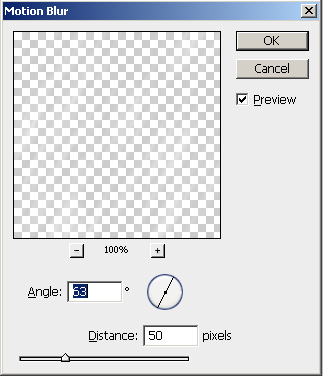
I am going for a vintage look of this photo so I picked for outer glow that gradient. You can chose any other gradient you want to play around and see what the outcome will be. Don't forget to punch the size at max. No go to Filters - Blur - Motion Blur and apply the following settings:
There you go… it's raining on an old vintage photo: