

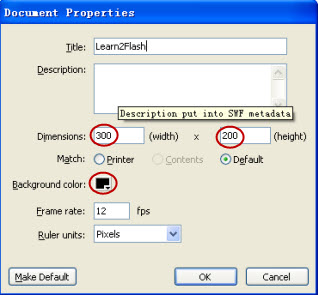
Step 1. Create a new File and adjust the properties by going to the Properties panel or by Ctrl+J. Change the size to Width: 300px Height: 200px and Background colour to Black.
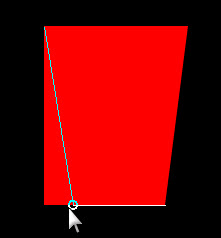
Step 2. Using the Rectangle Tool (Q) draw a rectangle with Fill Colour: Red and Stroke Colour: None. When that's done, using the Selection Tool (V), hover over the bottom left corner of the rectangle until the cursor turns into this:

and then drag the line inwards. Do the same with the bottom right corner until you get a trapezium shape.
Step 3. Using the Selection Tool, Select the fill of your trapezium and open up the Colour Panel (If it's not there, go to Windows>Colours). Now select linear and input the following:
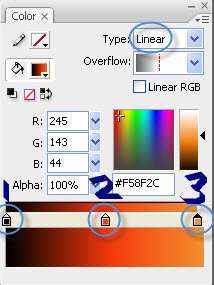
-1-Alpha 100% Colour: #000000
-2-Alpha 100% Colour: #F4390B
-3-Alpha 100% Colour: #F58F2C
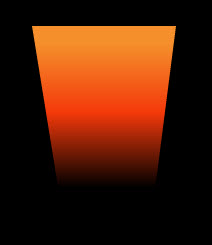
Step 4. Go to Gradient Transform (F) rotate it until it looks something like this:
Step 5. OK! Now select the oval tool and draw an eclipse shape anywhere on the canvas but not on the trapezium shape yet because that will EAT IT! Now using the selection tool, click on the eclipse and go to the colours panel and select radical:
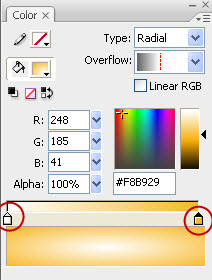
Step 6. Select your oval again and this time you'll need to group it by pressing Ctrl+G so this way your trapezium won't be eaten.
Step 7. Your oval should now have a greenish box around it. Ok drag that so it goes ontop of the trapezium and adjust the size if you need to make it fit like so:

Step 8. Before you do anything, right click on the oval and select> Break Apart. Use your pencil tool, change the colour to dark grey with a smoothing level of 84, roughly just draw the stem of the candle in the middle. After that change the colour to red and go over the tip of that string like so:
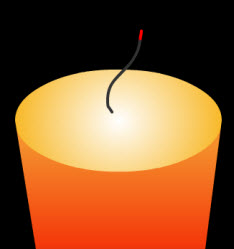
Step 9. Isn't this so cool?! Anyways, now we have to make a new Layer above the current candle layer for the flame (Tip: Lock the Candle Layer). Use the oval tool and draw a small oval (Stroke: None Colour: Anything because we're gonna change it later). Now click on the Selection Tool (v) and adjust the shape of the oval so it's more "Flame-Like".
Step 10. Once you're done, you'll need to adjust the colour of the flame so click on it and open the colours panel. Input the following: Radical-Left: White, Alpha 0%-Right: White, Alpha 100%. Place the Flame near the stem of the candle.
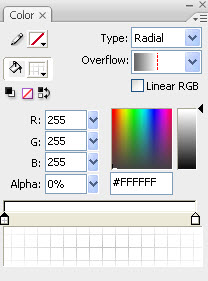
Step 11. Select Gradient Transform and click on the Flame. A huge circle kind of thing will come up (If you're using Flash CS3) so just drag the circle until it is placed over the red part of the stem. Now your candle should look like this:

That's it!
