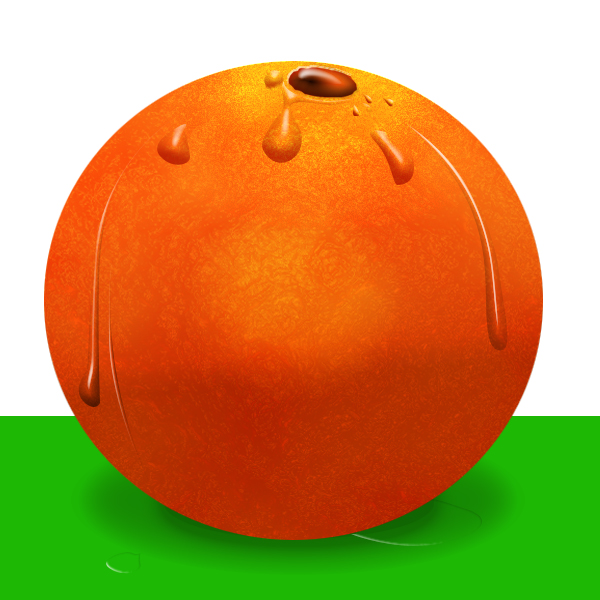
Step 1
Make new Layer. Color layer in orange.
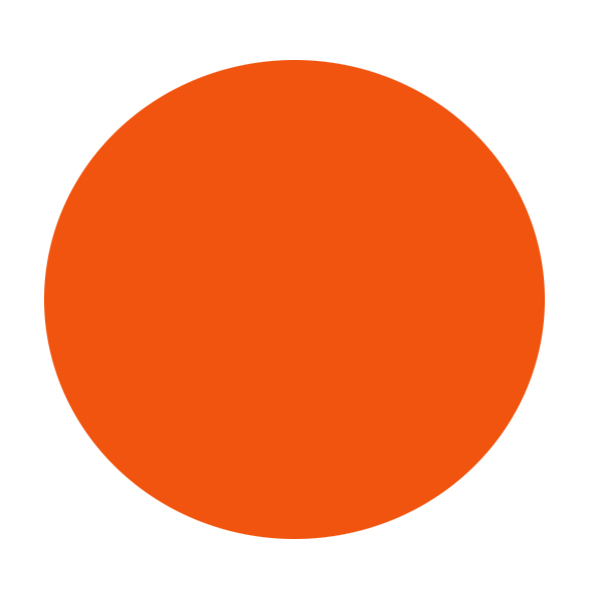
Step 2
Duplicate Layer. Send Duplicate Layer behind and go to Layer Stile. Use Gradient Overlay like in picture.
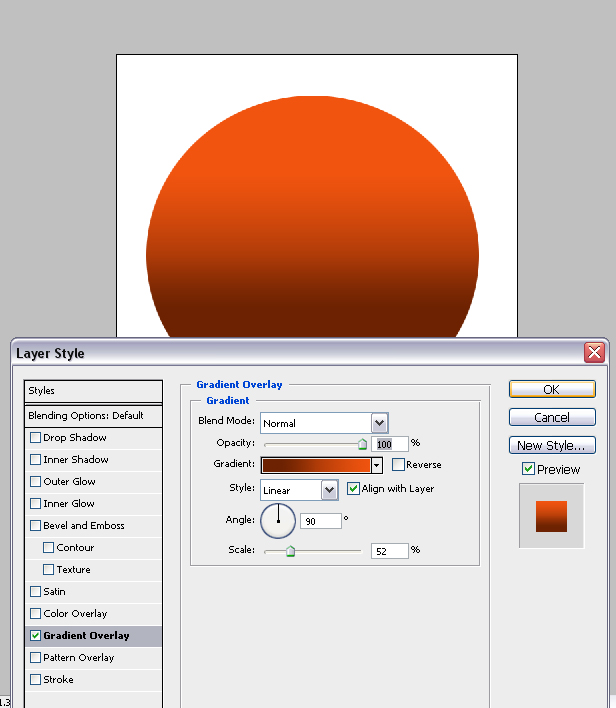
Step 3
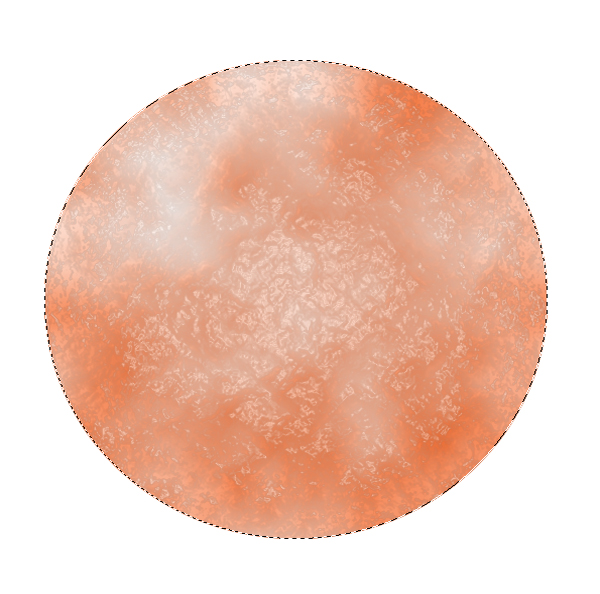
To make orange skin select first layer. go to Filter>Renden>Clouds.
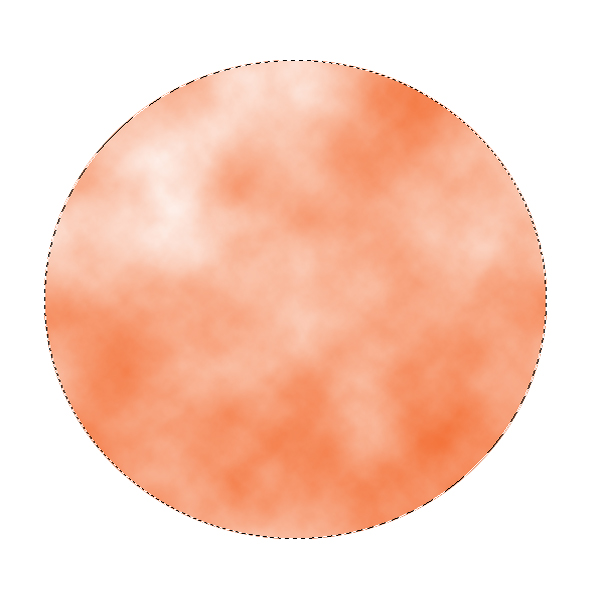
Step 4
Then go to Filter>Artistic>Plastic Wrap
Step 5
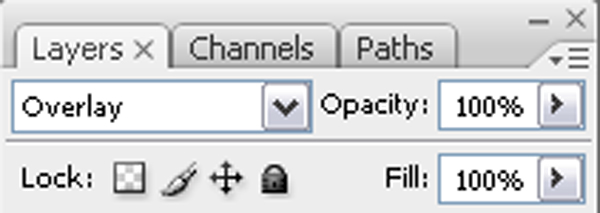
Make Layer Blend Mode to Overlay.
Step 6
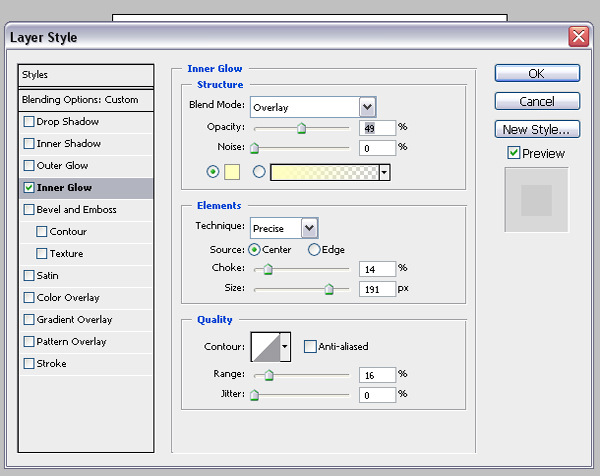
Go to Layer>Layer Stile>Inner Glow and made stile like in picture.
Step 7
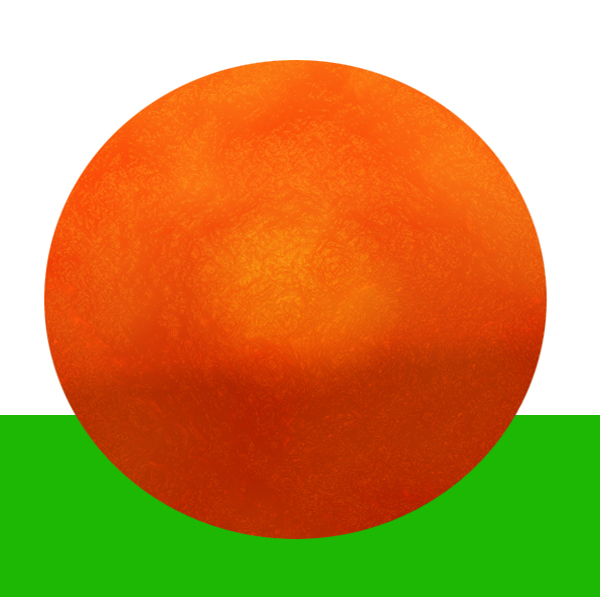
After making orange skin effect, make background. Just make new layer and with Rectangular Marquee Tool select edge of background.
Step 8
Make shadow with Elliptical Marquee Tool. Make new Layer. Color him in black color. Put Opacity on 25%.
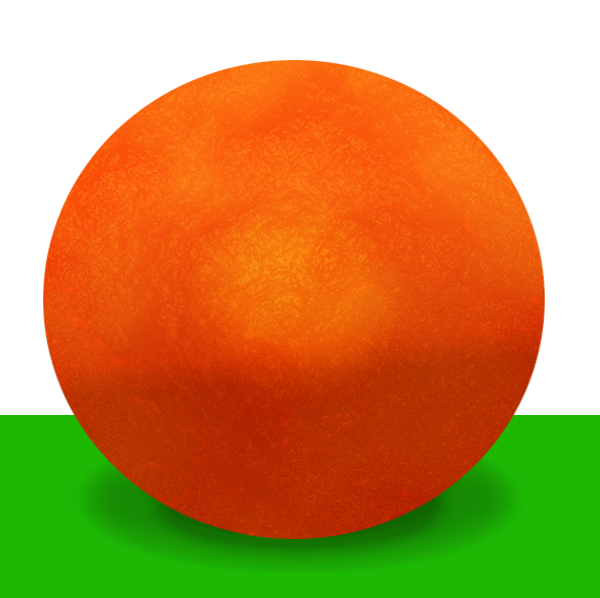
Step 9
In Layer Stile make Inner glow stile like in picture.
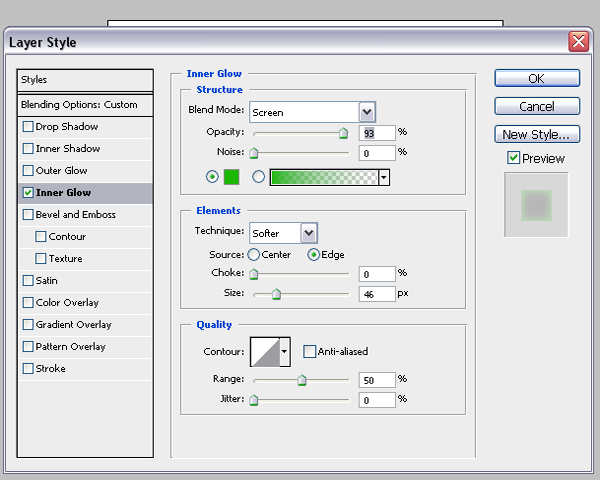
Step 10
To made round shape on top of orange, with Elliptical Marquee Tool make new layer. color him in black color.
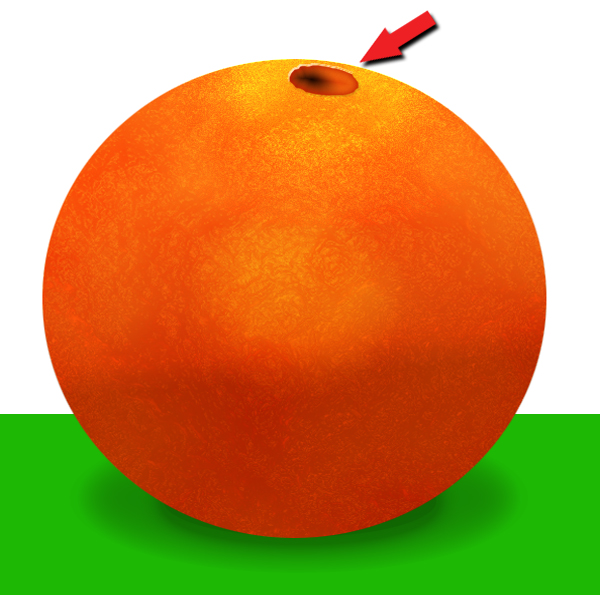
Step 11
Then folow next steps in Layer Style Blending Option. First Inner Shadow.
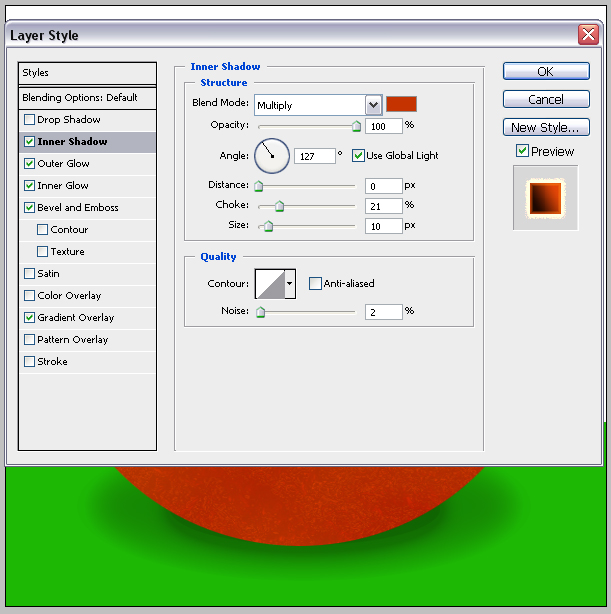
Step 12
Outer Glow
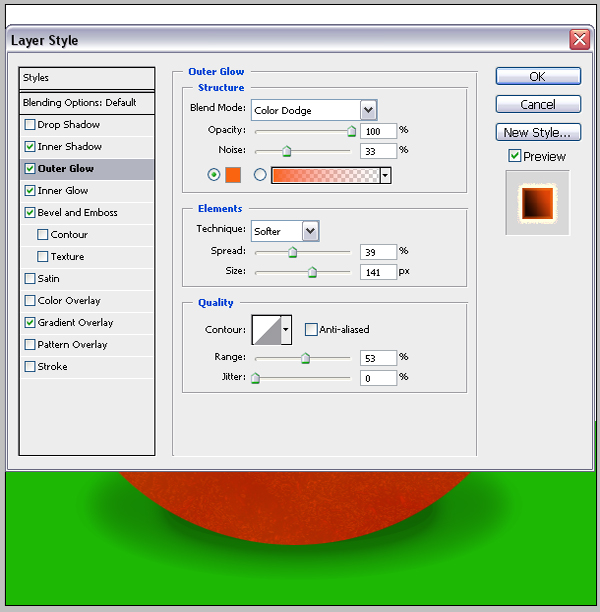
Step 13
Inner Glow
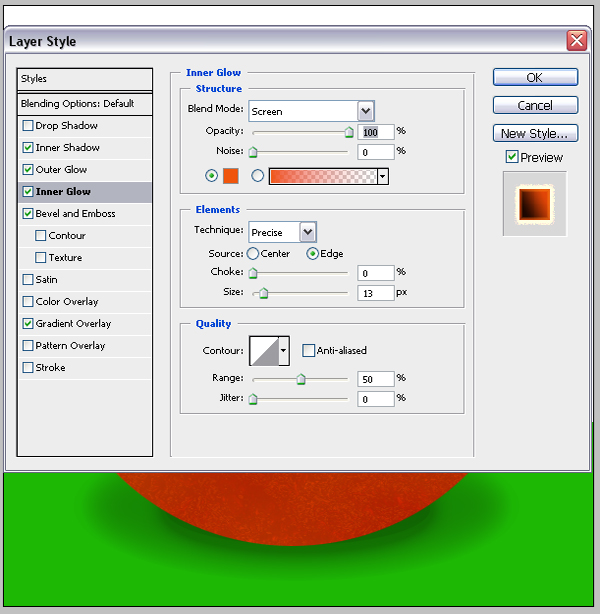
Step 14
Bevel and Emboss
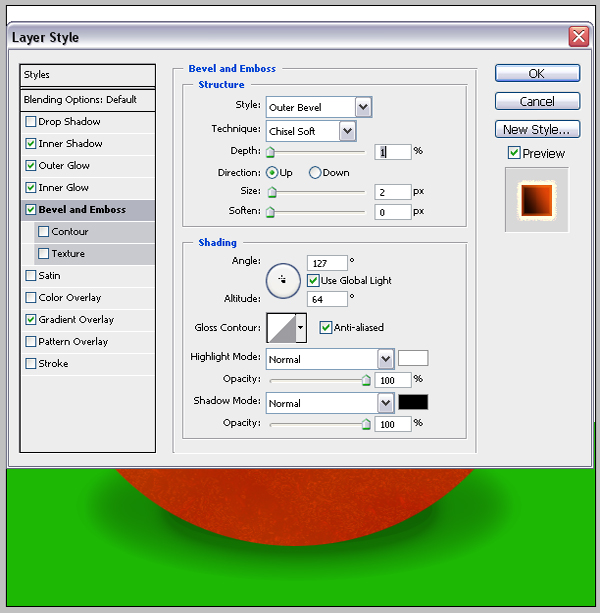
Step 15
Gradient Overlay
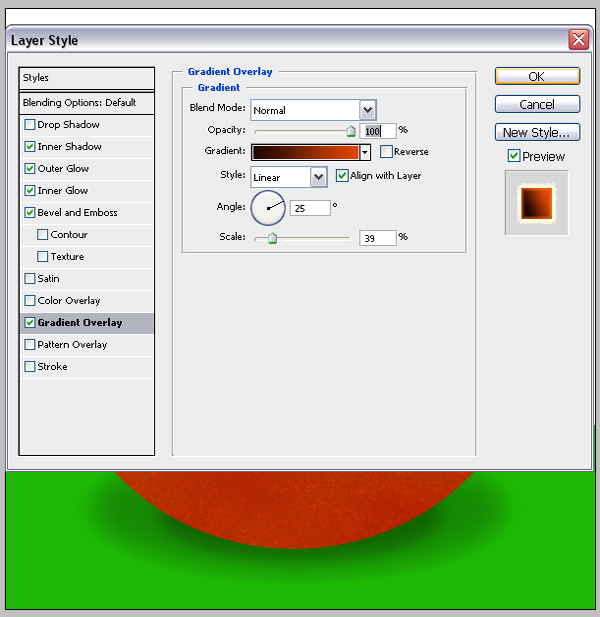
Step 16
To made Water Drops follow next step's.
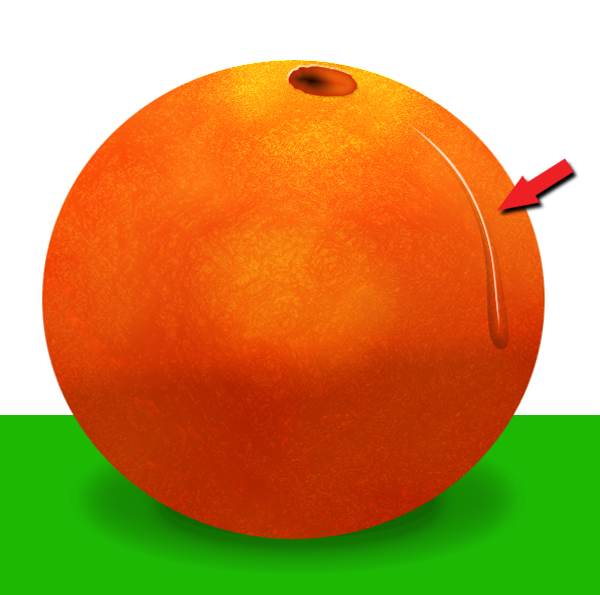
Step 17
Make new layer. With Pen tool draw some drops.
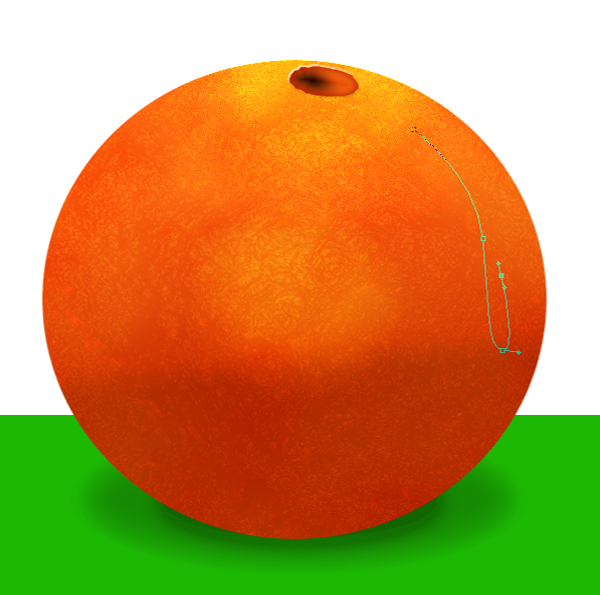
Step 18
Color Layer in black, than put Layer opacity to 0%.
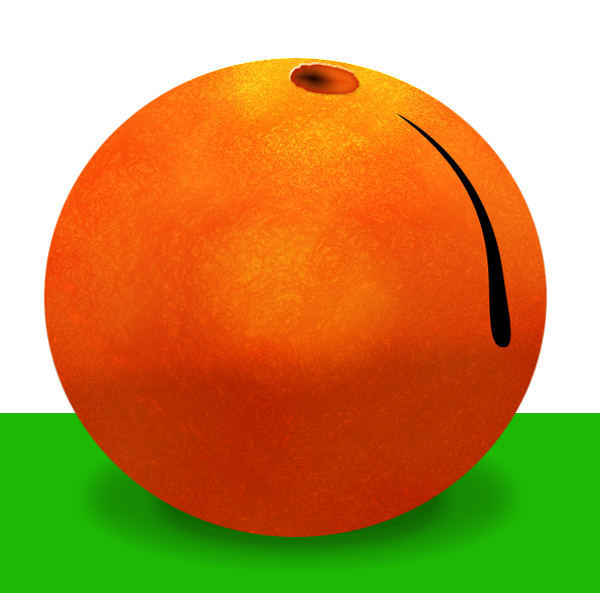
Step 19
Then go to Layer Style>Bevel and Emboss and make effect like in picture.
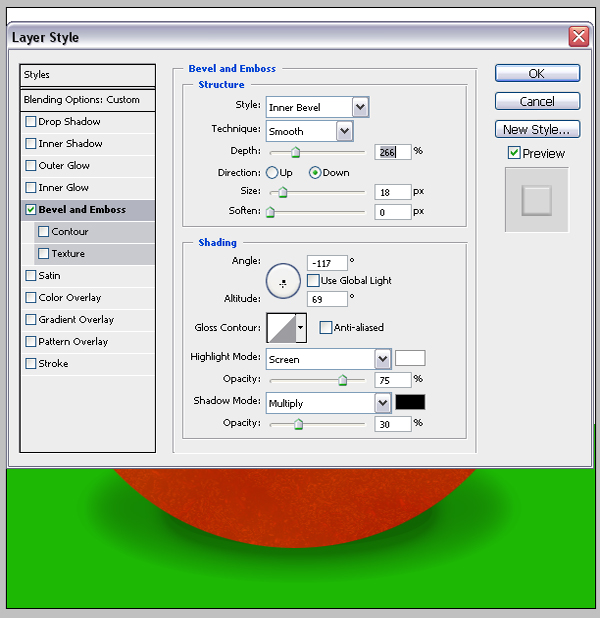
Step 20
Repeat all this water drops effect wor a few times.
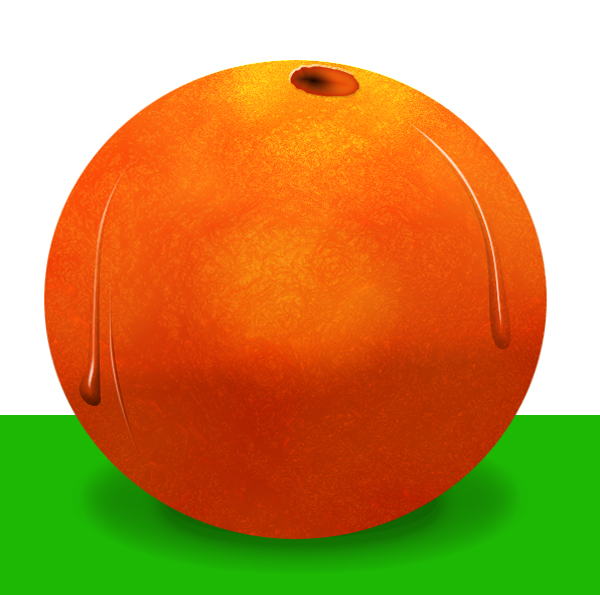
Step 21
And allmoast...
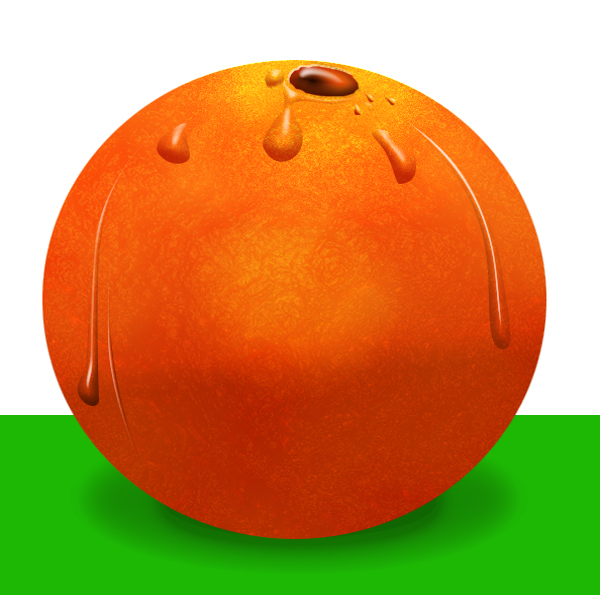
Step 22
Finish.