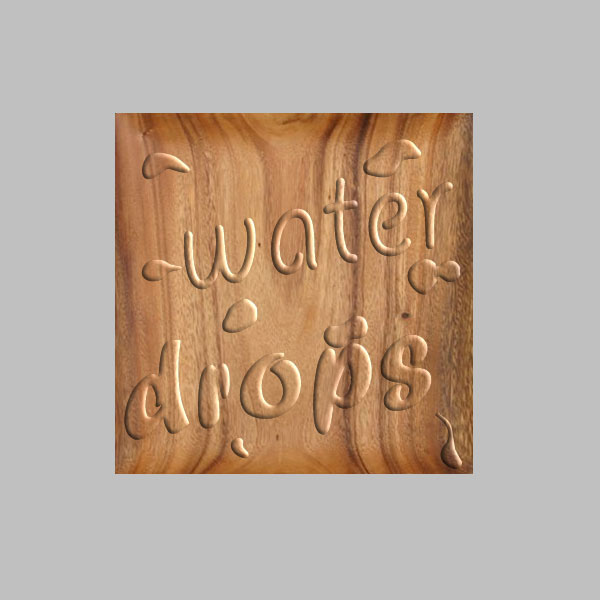
Step 1
Take the picture of wooden plate.
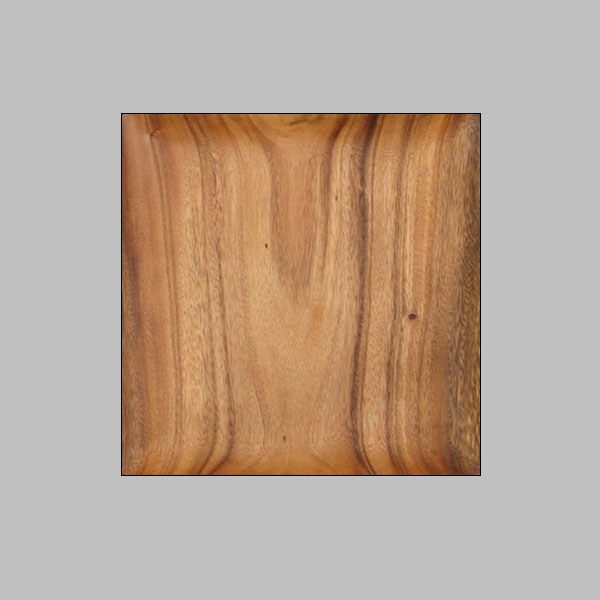
Step 2
Type text with TYPE TOOL. In this case we type WATER and DROP words with different's fonts.
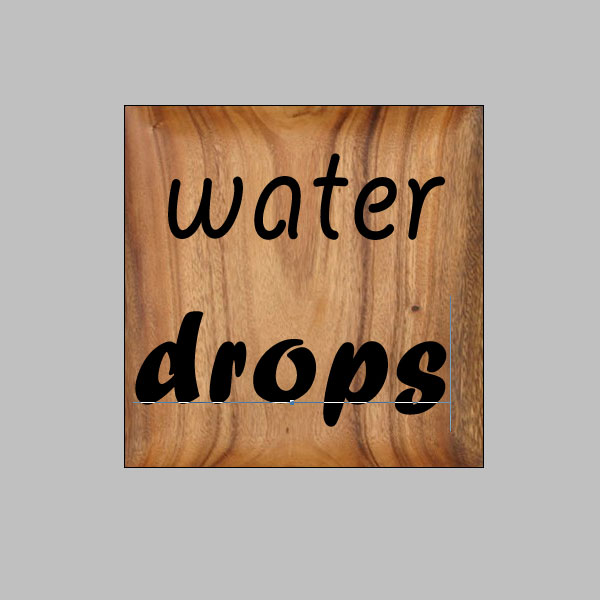
Step 3
Make a new LAYER.
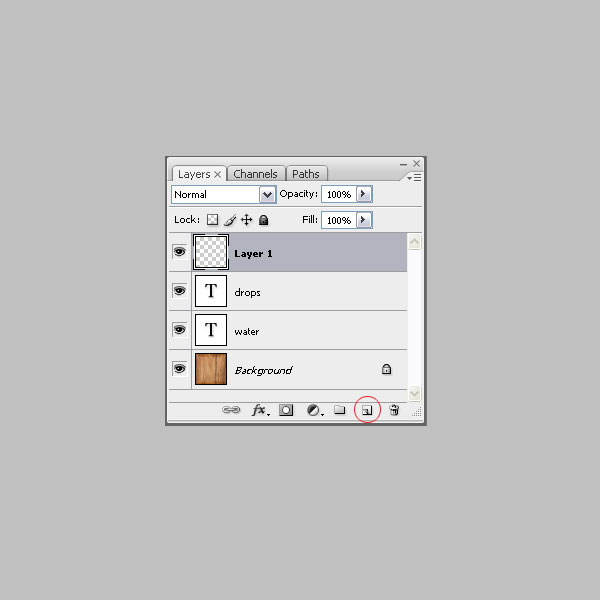
Step 4
Draw some shapes with PEN TOOL. You can draw all over the picture, exept over text layer.
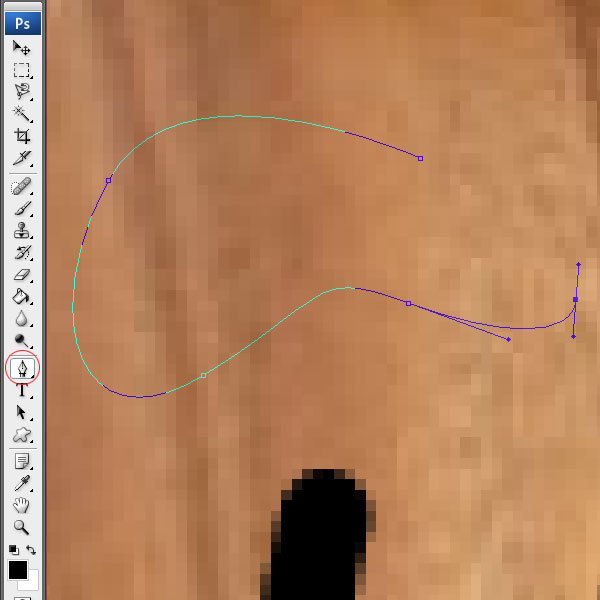
Step 5
When finish with drawing shapes, put cursor into one shape. Click right mouse button and select Make Selection.
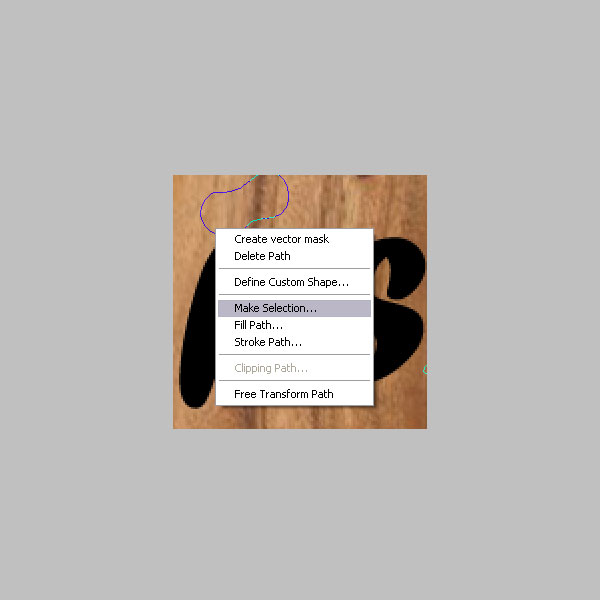
Step 6
Color new Shape Layer with Paint Bucket Tool.
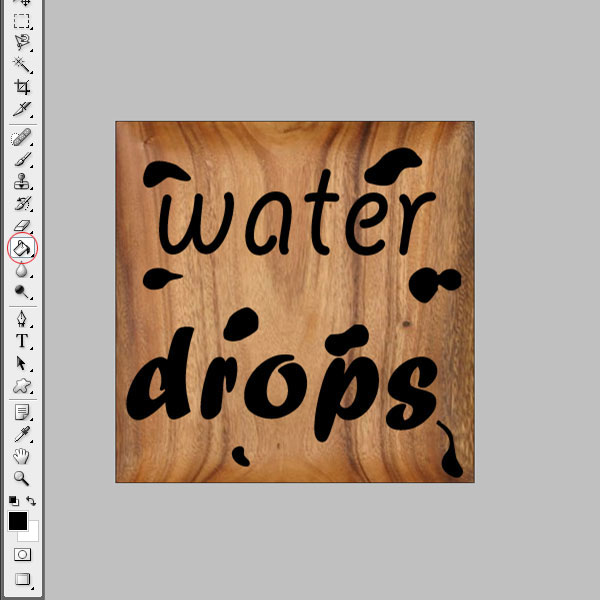
Step 7
After this steps, select text, press ctrl+T. You'll get option Free Transform. Use this to rotate text.
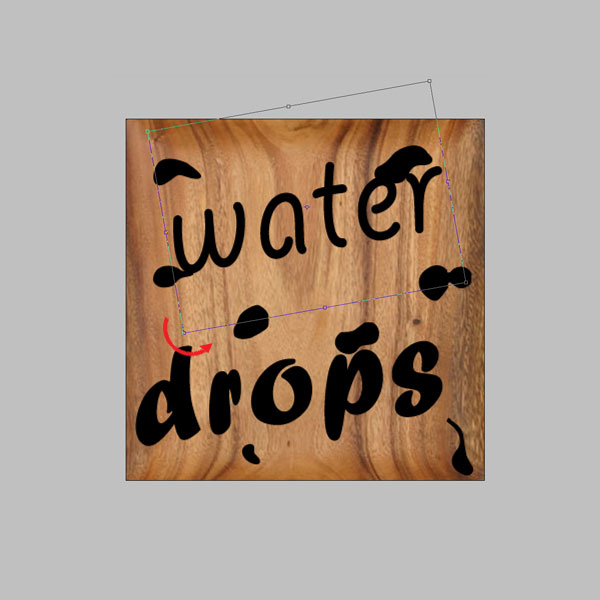
Step 8
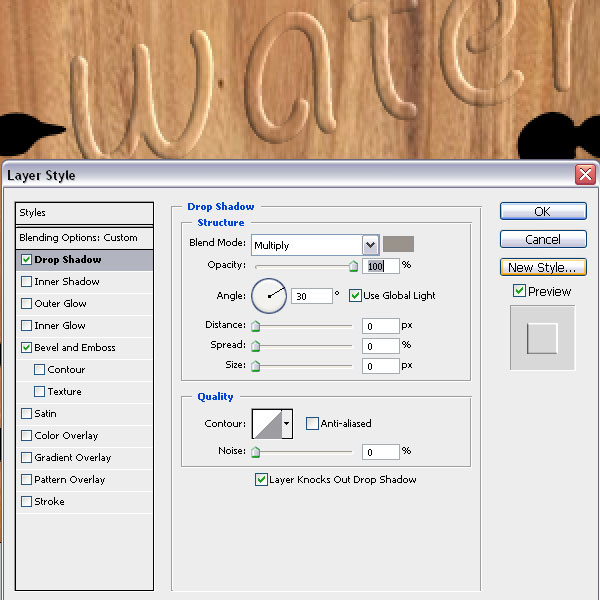
Now we going to finish effect. Go to Layer>Layer Style>Blending Options>Drop Shadow. Set effect as in picture below.
Step 9
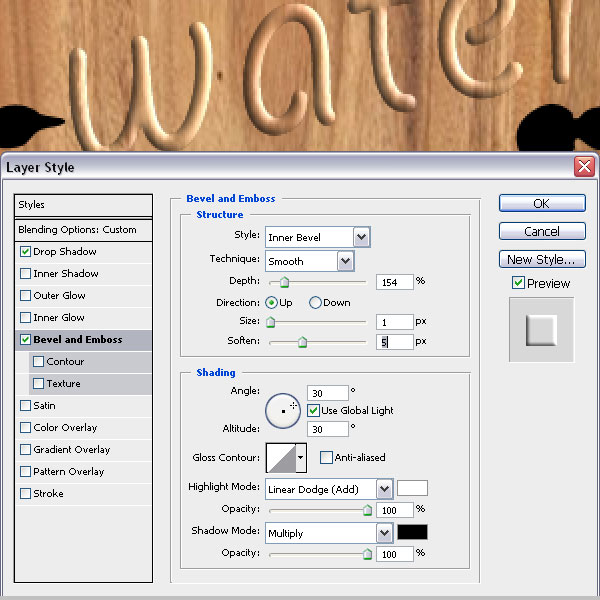
Next step is: Layer>Layer Style>Blending Options>Bevel and Emboss. Set effect as in picture below.
Step 10
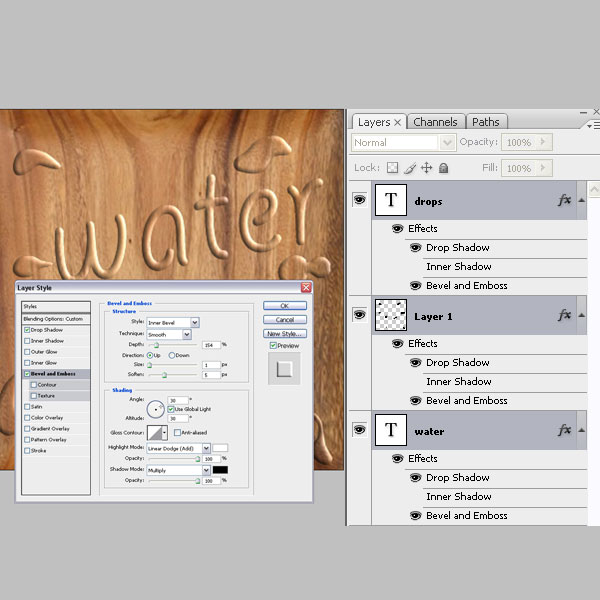
Go to Layer>Layer Style>Copy Layer Style. Then select other layers and go to Layer>Layer Style>Paste Layer Style. Make the same effect to all Layers.
Step 11
Very easy tutorial to make water. Congratulation.