


Step 1
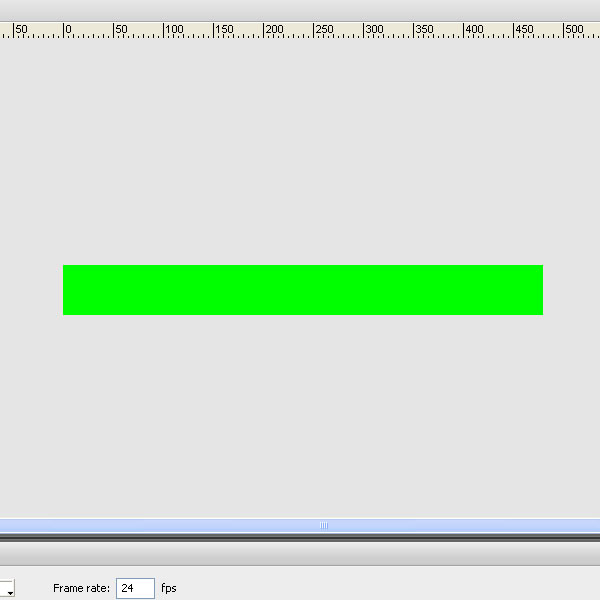
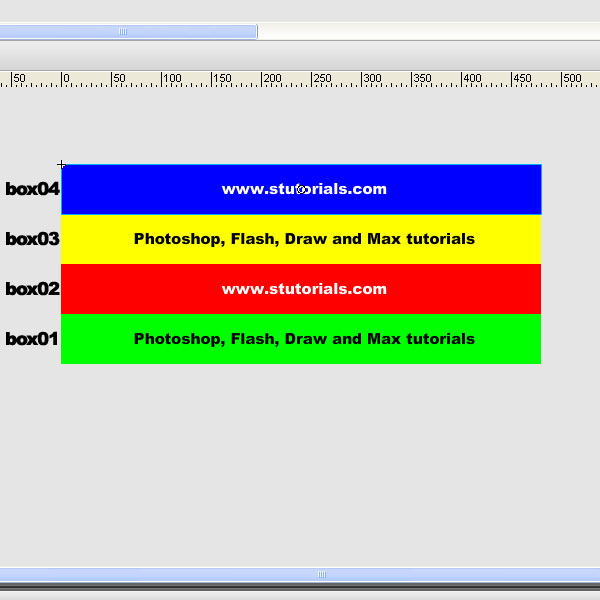
Open new document (480*50 for example). Draw square for your banner.
Step 2
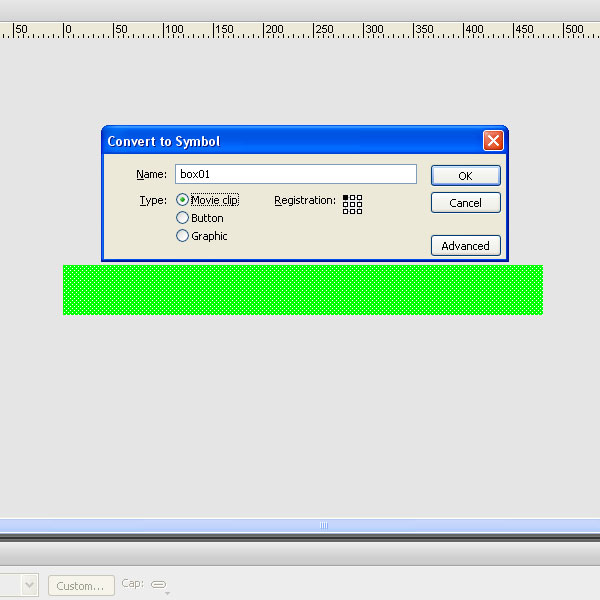
Convert square to MovieClip (F8)
Step 3
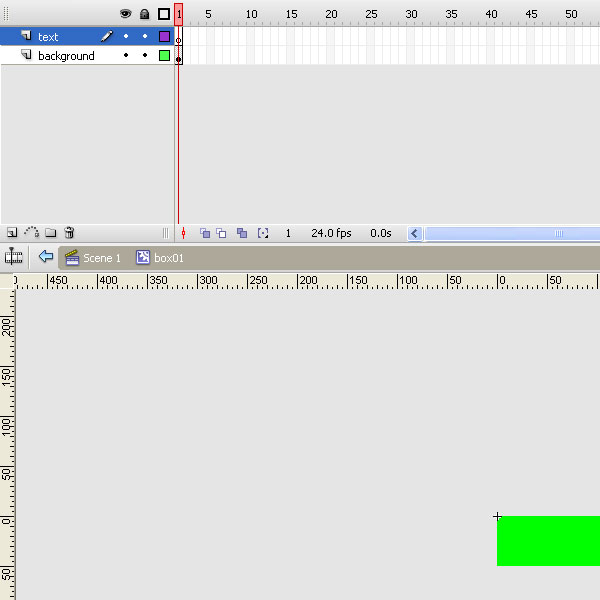
Go in to the Movie Clip and add new Layer, named "text".
Step 4
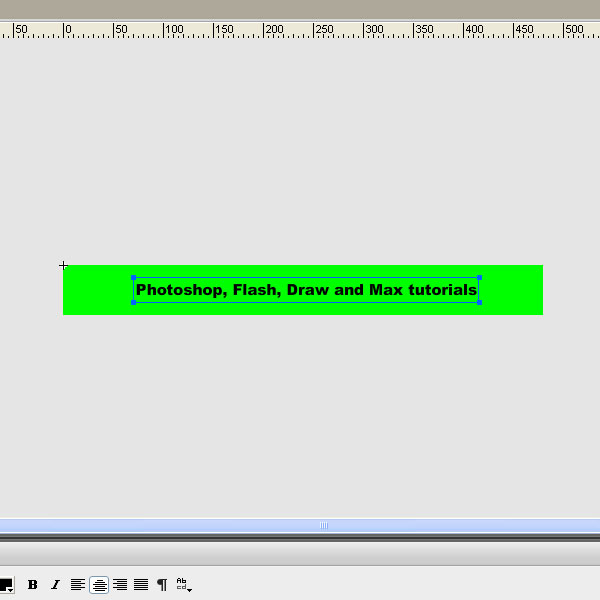
Add text for your banner.
Step 5
Go back to root and add 3 more Layers. On each, repeat steps 1-4 and make 3 different banner. In my case, the blue one is on the top, and Layer name is box04, yellow one is next, name box03....ect
Step 6
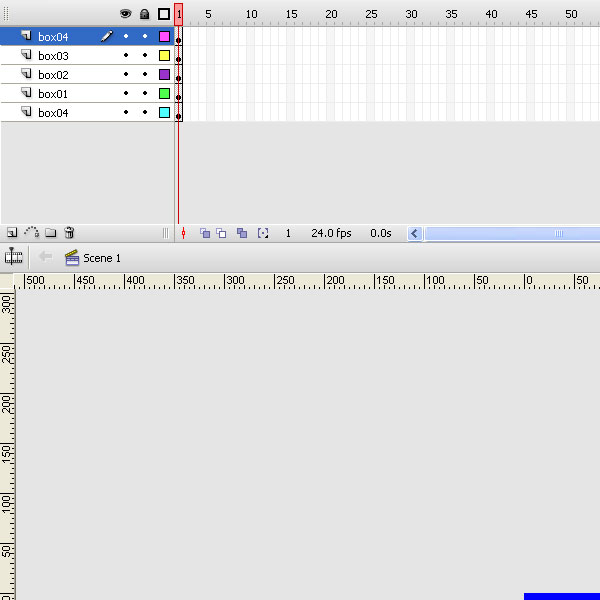
Here is how your Layers should look like. At the bottom, duplicate Layer box04 (blue one in my case).
Step 7
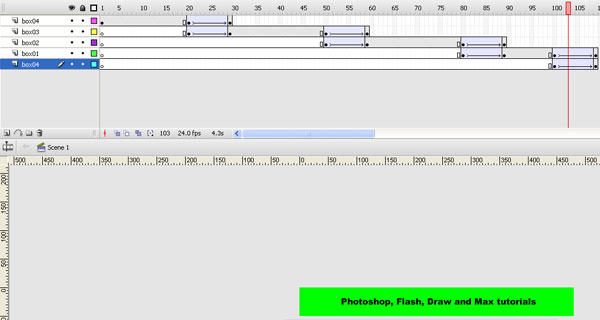
OK, now you should set all KeyFrames on right places. It should be like on picture bellow (click to enlarge in new window)
Step 8
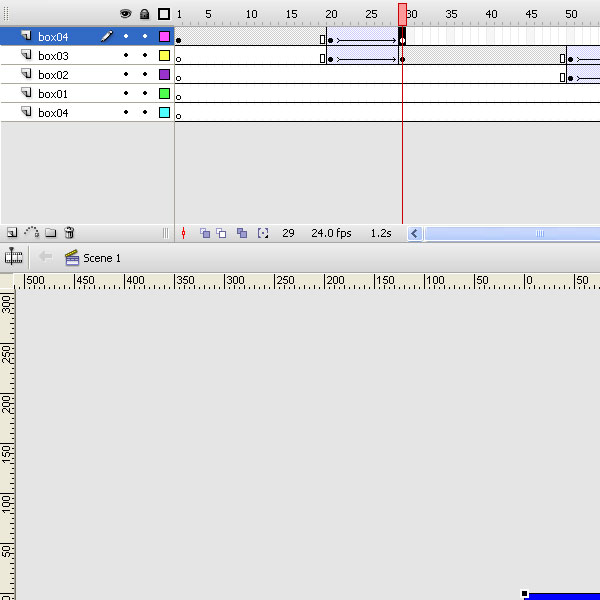
Now select last frame of the box04 Layer
Step 9
Using Free Transform Tool (Q), resize the blue square.
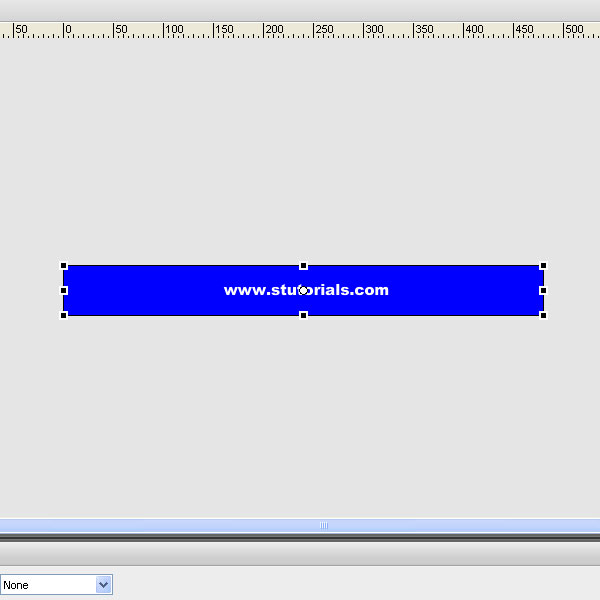
Step 10
Like I did with this one
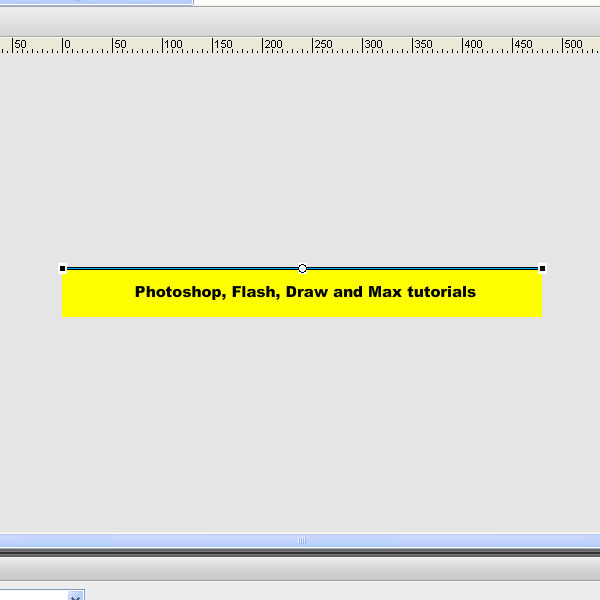
Step 11
Hide box04 Layer and select first frame of the box03 Layer.
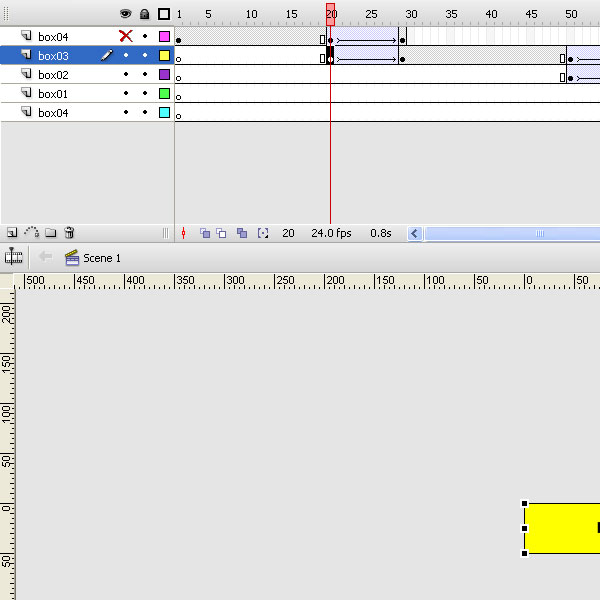
Step 12
Resize square, but on different direction than blue one.
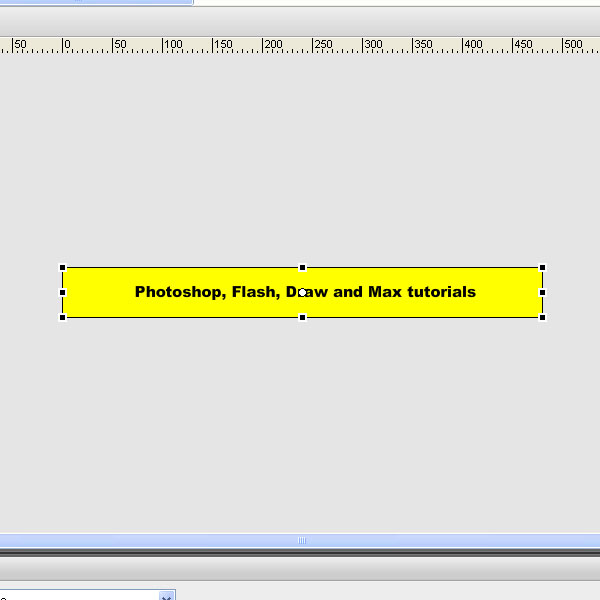
Step 13
Like this.
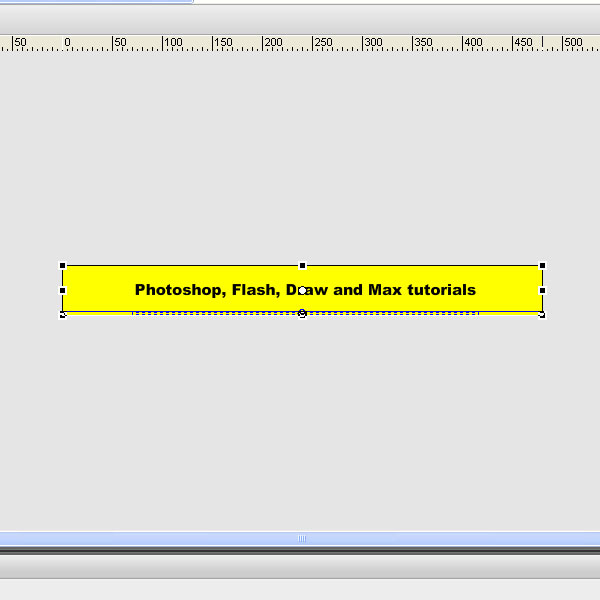
Step 14
When you finish, you should get this, because we have blue squate hidden.

Step 15
Repeat steps 8-14 with all other Layers, and thats it. Test your movie, and Holaaa, you have your rotating banner:
